
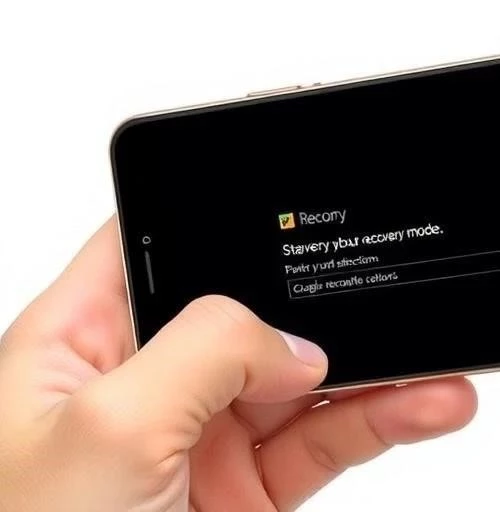
Recovery mode is a built-in maintenance environment on many Xiaomi Redmi phones. It can be used for tasks such as installing an official update package or performing a factory reset. The available options vary by model and software version‚ so follow instructions intended for your exact device. Entering recovery mode alone normally does not erase data; selecting a reset or wipe option can.
Before you begin
- Charge the phone‚ preferably to at least 30%‚ and save any important files if the phone is still usable.
- Check the model name and‚ if possible‚ the MIUI or HyperOS version in Settings. Button combinations and recovery menus may differ.
- Disconnect the USB cable and accessories. If a case presses the buttons‚ remove it.
- Do not choose an option whose effect you do not understand. In particular‚ a data wipe removes locally stored information and may require the previously used Google or Xiaomi account after reboot.
Method 1: Use the hardware buttons
- Turn the Redmi phone completely off. If the screen is frozen‚ press and hold the Power button until it shuts down or restarts. On some models‚ holding Power for several seconds forces a restart.
- With the phone off‚ press and hold Power and Volume Up together.
- When the Redmi or Mi logo appears‚ release Power but keep holding Volume Up briefly‚ until the recovery screen opens. On some versions‚ both buttons can be released when the menu appears.
- Wait for the recovery menu to load. If the phone starts normally‚ switch it off and try again‚ making sure to press both buttons at the same time.
Some devices may display a language-selection screen first. Choose the language using the on-screen controls if available. In a button-operated menu‚ use Volume Up and Volume Down to move and Power to select. Newer menus may support touch input.
Method 2: Restart from Android
If Android is working‚ the hardware-button method is usually the simplest. On devices with USB debugging already enabled and an authorized computer available‚ Android Debug Bridge can also request a restart into recovery. Install the official platform-tools on the computer‚ connect the unlocked phone‚ approve its authorization prompt‚ and run:
adb reboot recovery
This command will not work if debugging is disabled‚ the computer is not authorized‚ or the device cannot communicate over USB. It does not bypass a lock screen or account protection.
What to do in the recovery menu
Menu labels differ by model. A common choice is Reboot‚ which starts Android without changing personal data; Connect with MiAssistant or a similar service option may be available for supported repair procedures. Use update or installation functions only with a package specifically intended for the exact model and region‚ and follow Xiaomi’s instructions.
Wipe Data‚ Wipe All Data‚ or Factory Reset erases user data stored on the phone. It is not a routine way to enter or leave recovery. Before selecting it‚ confirm that a backup exists and that account credentials are known. A reset may not remove Google or Xiaomi account verification.
Exit recovery and troubleshoot
To leave without making changes‚ choose Reboot and then Reboot to System‚ if shown. If the phone returns to recovery repeatedly‚ check whether a volume button is stuck‚ remove the case‚ and restart once more. If it remains there or Android will not start‚ avoid repeated wiping; consult Xiaomi support or a qualified repair service.
Recovery mode is different from Fastboot mode; Power plus Volume Down commonly opens Fastboot‚ which is intended for other service tasks. If that screen appears‚ hold Power to restart‚ then retry with Volume Up. Exact behavior varies across Redmi models‚ so the device-specific manual or official support guidance takes priority.



7 Comments. Оставить новый
The warning about account verification after a data wipe helps clarify a potential consequence of resetting the phone.
The preparation checklist highlights useful precautions, especially checking the device model and backing up important files.
The guidance is appropriately cautious about choosing recovery options whose effects are unclear.
The article notes relevant differences across models and software versions, which helps set realistic expectations for readers.
The article clearly distinguishes between entering recovery mode and selecting an option that erases data.
The article uses straightforward language and explains how to navigate menus that may rely on physical buttons.
The hardware-button steps are presented in a logical order and note that procedures can vary between devices.