
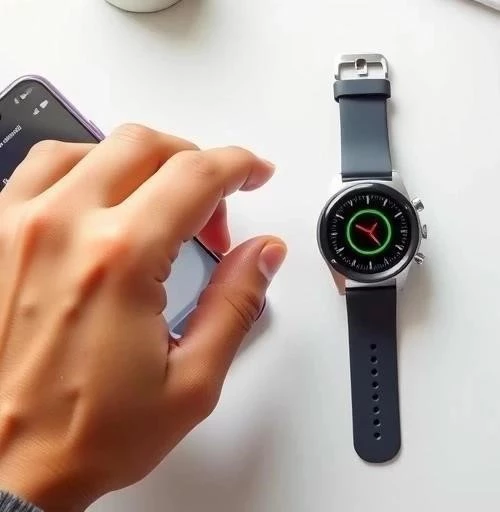
Before you sell, give away, or trade in your Apple Watch, erase your personal information and remove Activation Lock. The safest method is to unpair the watch from the iPhone it is paired with. Unpairing erases the watch, saves a current watch backup to your iPhone, and removes the lock that could otherwise prevent its next owner from setting it up.
Before you begin
- Keep your Apple Watch and paired iPhone close together, and make sure both have power. Turn on Bluetooth and Wi-Fi on the iPhone.
- If you want to keep recent health, activity, or settings data, back up your iPhone first. The Watch backup is included in the iPhone backup.
- Have your Apple Account password ready. You may be asked to enter it to turn off Activation Lock.
- If the watch has a cellular plan, decide whether you are keeping it or transferring it to the buyer. Your carrier can confirm how to handle the plan.
Recommended: unpair using your iPhone
- Open the Watch app on the iPhone that is paired with the watch.
- Tap My Watch, then All Watches near the top of the screen.
- Tap the information button next to the watch you are selling, then choose Unpair Apple Watch.
- For a cellular model, choose whether to keep or remove the cellular plan. If you are selling the watch, remove the plan unless you have arranged for it to transfer. Removing it from the watch does not necessarily cancel your carrier subscription; contact the carrier if you no longer need the service.
- Enter your Apple Account password if prompted, then confirm. Keep the devices near each other until the process finishes.
The watch will erase its content and settings and restart at the setup screen. Unpairing also removes Activation Lock, provided the process completes successfully. Do not pair the watch again after erasing it; leave it at the welcome screen for the new owner.
If you no longer have the paired iPhone
You can erase the watch directly, but this alone does not remove Activation Lock. On the watch, open Settings > General > Reset > Erase All Content and Settings. Enter the passcode if requested and confirm. On a cellular model, choose whether to keep or remove the plan; ask your carrier about cancellation or transfer.
Then remove the erased watch from your Apple Account using Find My or the account’s device list. In Find My, select the watch, erase it if necessary, and choose the option to remove it from your account. The exact labels can vary by software version. If you cannot access the account, use Apple’s account recovery or contact Apple Support with proof of purchase; do not give the buyer your password.
Final checks before handing it over
- Confirm the display shows the setup or “Hello” screen, not a watch face or a request for your account credentials.
- Check that the watch no longer appears among your devices in Find My. If it does, remove it before completing the sale.
- Remove the watch from any carrier account or arrange the plan transfer. Include the charger and any accessories you promised.
- Never share your Apple Account password or verification codes with a buyer. The buyer should pair the watch to their own iPhone and account.
Unpairing is preferable because it handles erasure and Activation Lock together and preserves a backup for you. A factory reset from the watch is useful when the iPhone is unavailable, but remember to remove the device from your account separately. Menu names may differ slightly between watchOS versions.
2 Comments. Оставить новый
This is a clear, practical guide that highlights the important distinction between erasing an Apple Watch and removing Activation Lock. The advice to unpair through the paired iPhone is especially useful.
Helpful checklist for preparing an Apple Watch for its next owner. The cellular-plan reminder is a valuable detail, since removing a plan from the watch may not cancel the carrier subscription.