
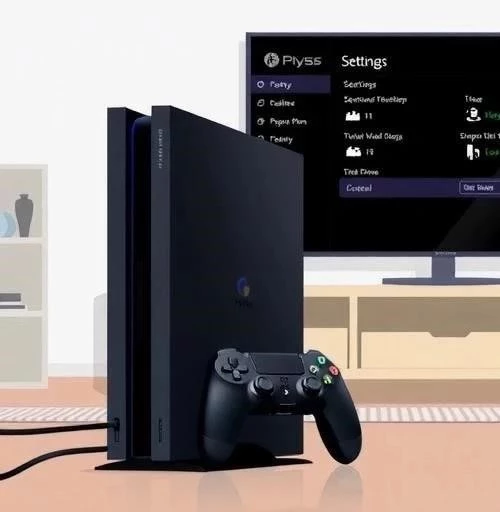
A PS4 factory reset is a little like turning the last page of a well-loved game: the console can begin again, but the save files, profiles, screenshots, downloaded games, and settings may not come along for the ride. If you are selling or giving away your PlayStation 4, troubleshooting a stubborn software problem, or simply want a clean start, the reset tools are built into the system; The important part is choosing the right kind of reset and preparing before you press the final button.
This guide walks through the process from backup to reboot, including the difference between the quick and full options, what to do if the console will not start normally, and how to reinstall system software when necessary.
Before you begin: decide what “reset” means
The PS4 offers several ways to return to a fresh state, and they are not interchangeable. Restarting the console simply turns it off and on. Restoring default settings changes system settings without erasing your games and saved data. Initializing the PS4 is the factory-reset operation: it removes user data from the console and returns it to its initial setup state.
- Restore Default Settings: Resets settings such as display, sound, and network preferences. It is not a full wipe.
- Initialize PS4 (Quick): Removes user data and settings quickly. This can be suitable when you are troubleshooting or keeping the console, but it is not the best choice when handing the device to someone else.
- Initialize PS4 (Full): Removes data and takes longer. Choose this before selling, donating, or giving away the console.
- Initialize PS4 (Reinstall System Software): A Safe Mode recovery option that wipes the console and reinstalls its system software using a USB drive. Use it when a normal initialization is unavailable or the software needs to be reinstalled.
Menu wording can vary slightly depending on the PS4 model and system software version. Read the confirmation screens on your own console carefully; they describe the selected operation before it begins.
What a factory reset erases
Initialization removes information stored on the PS4’s internal storage. That can include local user profiles, saved games, screenshots, video clips, installed games and apps, and personalized settings. A game you bought digitally is generally associated with your PlayStation account, not permanently trapped on the console; after resetting, you can sign in and download eligible purchases again. However, that does not bring back local saves or captures that were never backed up.
A reset does not cancel PlayStation Plus or other subscriptions, delete your online account, or undo purchases. It wipes the console, not your account’s existence. Keep your sign-in details private, and never give your password to a buyer as part of a sale.
Step 1: Back up anything you want to keep
Think of this as packing a small digital suitcase before moving out. If you want to keep saved games, screenshots, or video clips, copy them before initializing the console. Once the wipe has started, recovery may not be possible.
Back up to USB storage
- Use a compatible USB storage device with enough free space. If you are copying individual saves or captures, a USB drive formatted in a format the PS4 supports can be used. The console may ask to format a drive for certain backup functions; formatting erases what is already on it.
- On the PS4, open Settings and look for Application Saved Data Management to copy saved data to USB storage. For a broader backup, look for System > Back Up and Restore and follow the prompts.
- Wait for the copy or backup to finish. Do not unplug the drive while the console is writing to it.
- If you have screenshots or video clips to preserve, check the capture gallery and copy the items you want separately if needed.
Menu names and available backup options may differ slightly by software version. A complete backup can require a large drive and take quite a while. Check that the files you care about have actually been copied before you continue.
Back up saved data online
If your account has access to PlayStation Plus cloud storage, you may be able to upload saved data through Settings > Application Saved Data Management > Saved Data in System Storage. Select the upload option and confirm the saves you want to keep. Cloud storage is not a substitute for checking: make sure the upload has completed and that the saves belong to the correct user profile.
Not every item is handled in the same way. Saved games, captures, game installations, and account purchases follow different paths. Reinstalling a game later may be easy; recreating an unsaved screenshot or local save may not be.
Step 2: Prepare the console and your account
If you are keeping the PS4, make sure you know the sign-in details for the account you will use afterward. If you are transferring the console to someone else, sign out and deactivate it as your primary PS4 first, where possible. On the console, the account-management area includes the option to deactivate the system as your primary PS4; the exact menu labels can vary. You can also review device management through your PlayStation account if the console is unavailable.
Deactivation is particularly useful before a sale because it helps manage which console is associated with your account for shared benefits and offline access. It does not replace the factory reset: do both when preparing a console for a new owner; Never leave your account signed in on a device you are giving away.
- Finish or pause downloads and updates.
- Remove any disc from the drive.
- Disconnect accessories you do not need, but keep the power cable connected.
- Make sure the PS4 is on a stable surface with adequate ventilation.
- If the console is behaving unpredictably, avoid starting a reset during a storm or when power may be interrupted.
Step 3: Initialize the PS4 from the Settings menu
If the console starts normally and you can navigate its menus, this is the simplest route. Keep the controller connected and follow the prompts in order:
- From the PS4 home screen, open Settings.
- Choose Initialization.
- Select Initialize PS4.
- Choose either Quick or Full when asked.
- Read the warning, confirm that you have backed up anything important, and confirm the initialization.
- Leave the console powered on and connected to electricity until the process completes and the PS4 restarts.
The console may show a progress screen and restart more than once. Do not unplug it, switch off the power strip, or force a shutdown while it is working. Interrupting an initialization can create additional problems rather than saving time.
Quick or Full: which should you choose?
Choose Full if you are selling, giving away, or donating the PS4. It takes longer, but it is the more appropriate option when you want to remove your personal data before another person uses the console. Allow plenty of time; the process may take a long time depending on the system and storage.
Choose Quick only when a rapid wipe is appropriate and you understand the trade-off. It removes the console’s user data, but it is not the preferred choice for preparing a device for transfer to another person. If privacy is the goal, select Full and let it finish. Neither option is a magic repair for a failing hard drive or damaged hardware.
Step 4: Use Safe Mode if the PS4 will not start normally
If the home screen is inaccessible, Safe Mode offers recovery tools outside the usual menus. It is a plain, text-based doorway rather than a separate repair shop: it gives you a few system options, but some of them erase data. Try a less destructive option only if it suits the problem, and choose initialization only when you are ready to wipe the console;
- Turn the PS4 completely off. Do not leave it in Rest Mode.
- Press and hold the power button. Keep holding it until you hear a second beep, usually several seconds after the first.
- Connect the controller to the console with a USB cable. Press the PS button on the controller.
- When the Safe Mode menu appears, read the numbered options carefully.
- Choose Initialize PS4 if you want to erase the console. If the menu offers both a standard initialization and one that reinstalls system software, understand that the reinstall option requires a USB system-software file.
Some controller cables charge but do not reliably transmit data. If the controller does not respond in Safe Mode, try another USB cable and another port, then repeat the process. Do not select an initialization option casually: Safe Mode can make a working console feel very final with one button press.
When the system software must be reinstalled
If the PS4 cannot complete a normal startup or the system software is damaged, you may need the official PS4 reinstallation file on a USB drive. This is different from an ordinary system update file. Download the correct reinstallation file from PlayStation’s official support website using a computer; avoid third-party download sites, which may offer an incorrect or unsafe file.
- Prepare a USB drive formatted as FAT32 or exFAT, with sufficient free space.
- On the drive, create a folder named PS4. Inside it, create another folder named UPDATE.
- Save the official reinstallation file in the UPDATE folder and name it PS4UPDATE.PUP. Folder names and the filename must be spelled correctly; use the required capitalization.
- Safely eject the USB drive from the computer and connect it to the PS4.
- Start the console in Safe Mode using the two-beep method, connect the controller by USB, and select Initialize PS4 (Reinstall System Software) or the equivalent option shown on screen.
- Follow the prompts and do not disconnect the drive or power during installation.
Warning: Reinstalling system software erases data on the console. Confirm that you have the reinstallation file, that the USB folders are in the correct locations, and that you are prepared for a full wipe before proceeding. If the PS4 does not recognize the file, check the folder structure and filename first, then download a fresh copy from the official source. Do not rename an ordinary update file and assume it is the reinstallation file.
After the reset: first steps on a clean console
When initialization finishes, the PS4 returns to its initial setup screens. Choose your language, connect to a network if you wish, and follow the setup instructions. If you are keeping the console, sign in with your own account and restore saved data from your USB backup or cloud storage. Re-download games and apps from your library as needed; large downloads can take time, so a reset is a good moment to make tea rather than repeatedly checking the progress bar.
If you are selling or giving away the console, stop at the initial setup screen instead of signing back into your account. That leaves the next owner with a clean start. You can also wipe the exterior, pack the power cable and any agreed accessories, and keep your account password entirely to yourself.
Common problems and sensible fixes
The console freezes during initialization
Give it time first. A full initialization can take much longer than a restart. If it remains frozen for an unusually long period, note any error code and consult official PlayStation support before repeatedly cutting the power. A failing internal drive can interrupt the process; a reset cannot repair a physically damaged drive.
The controller will not connect in Safe Mode
Use a USB cable that supports data, not just charging, and connect it directly to the PS4. Try the other USB port if available. Charge the controller, then press the PS button again. A wireless connection may not be available at the Safe Mode screen.
The USB reinstall file is not detected
Check that the USB drive uses FAT32 or exFAT, that the folder structure is PS4/UPDATE/PS4UPDATE.PUP, and that you downloaded the reinstallation file rather than a regular update. Make sure the file is not accidentally named with an extra extension, such as .PUP.PUP, and try another USB drive if needed.
The PS4 still has problems after a reset
If the same issue returns after initialization and a clean system-software installation, it may be caused by the hard drive, overheating, power, or another hardware fault. Record the error message and seek repair guidance from PlayStation support or a qualified technician. Repeating a wipe will not mend a broken component, any more than restarting a scratched disc can smooth it out.
Quick checklist
- Back up saved games and captures you want to keep.
- Confirm that cloud uploads or USB copies finished successfully.
- Sign out and deactivate the PS4 as your primary console if transferring it.
- Use Settings > Initialization > Initialize PS4 when the system starts normally.
- Choose Full before selling or giving away the console.
- Use Safe Mode and the official USB reinstallation file only when needed.
- Keep the PS4 connected to power until the process is complete.
- After a sale reset, leave the console at its initial setup screen.
A factory reset is straightforward once you know which data will disappear and which reset option fits your purpose. Back up first, choose Full for a hand-me-down or sale, and let the console finish without interruption. Then your PS4 can either welcome its next owner with a blank slate—or greet you again, freshly cleared and ready for a new chapter.

4 Comments. Оставить новый
This guide treats the reset button like a trapdoor with a warning light—which is exactly the right attitude. The quick-versus-full distinction is especially useful for anyone preparing a PS4 for its next owner.
Practical without feeling like a manual written by a robot. The backup-first advice is the quiet hero here—better to save your digital keepsakes before giving the console a clean slate.
A clear map through the console’s “start over” maze. I like that it separates restoring settings from wiping the system; those options sound like cousins, but one keeps your data and the other sends it packing.
The Safe Mode and USB recovery mention gives this guide a useful second doorway for consoles that refuse to cooperate. A reassuring read before making a decision that cannot easily be undone.