
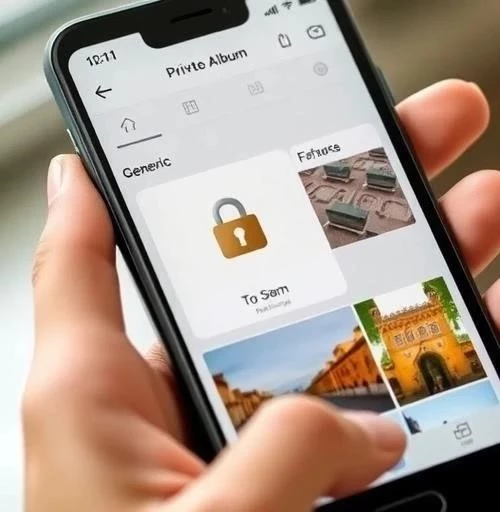
If you are looking for the private album on a Xiaomi phone, it is usually inside the Gallery app rather than in the phone’s general file storage. On many Xiaomi, Redmi, and POCO devices, you open Gallery, go to the Albums tab, and swipe down on the album list until a lock icon or private-album screen appears. You may then need to enter your privacy protection password.
The exact gesture and labels can vary between MIUI and HyperOS versions, Gallery app updates, and regional software. So there is no single menu path that works on every Xiaomi phone. The most reliable starting point is Gallery’s Albums screen; if the swipe gesture does not work, check the alternatives and troubleshooting steps below.
Quick instructions
- Open the Gallery app on your phone.
- Tap Albums at the bottom or top of the screen, depending on your version.
- Place your finger near the top of the album list and swipe downward. Keep pulling until a lock icon, private-album indicator, or prompt appears.
- Release the screen and enter the privacy protection password, pattern, or other verification method requested by your phone.
On some versions, you may need to pull down farther than you would to refresh a page. The gesture is often performed on the album list itself, not on an individual picture or inside an open album. If you see only a refresh animation, try starting from the top of the list and pulling down slowly. Do not assume that a refresh animation means your private items have been deleted; it may simply mean the gesture was not recognized.
How to move photos into the private album
Finding the private album is only part of the process. To place an image or video there, open it in Gallery or select it from an album, then look for More, the three-dot menu, or the share/action menu. Choose an option such as Add to album and then Private album. Wording differs by software version. Confirm the action if the phone asks, and authenticate if required.
You can also select several items at once in Gallery and use the same menu. Check the result before deleting anything from the ordinary album: moving an item to the private album should remove it from its normal Gallery location, but menu behavior and confirmation messages can differ. If you are unsure, test the process with a non-sensitive image first and verify that it appears in the private album.
Private album, hidden album, and hidden photos are not always the same
Xiaomi’s Gallery may offer several privacy-related features, and their names can sound interchangeable. A private album generally means content is moved to a protected area that requires authentication to open. A hidden album or an album hidden from the main view may simply be concealed from the Albums list. It might not have the same lock, encryption, or access controls as the private album.
Because the distinction matters, read the confirmation screen when you choose an option. If the aim is to restrict access on a shared phone, select the feature that explicitly asks for a privacy password or authentication. Merely hiding an album from the Gallery overview should not be treated as strong protection: another app or a person with access to the device may still be able to find its files, depending on the phone’s configuration.
Where to set or change the privacy password
If you have never used the private album before, Xiaomi may ask you to create a privacy protection password the first time you open it or move content into it; On many versions, related controls are available under Settings > Passwords & security > Privacy protection password. The exact wording and location can differ, so use the Settings search box and search for Privacy protection password or Privacy password if you cannot find the menu.
The privacy password may be separate from your screen-lock PIN. Do not assume that unlocking the phone automatically unlocks the private album. Depending on your setup, the phone may also offer a pattern, fingerprint, or another verification option. Biometrics are usually a convenient way to confirm access, but the underlying password or recovery method remains important if the fingerprint sensor is unavailable or the phone restarts.
If the swipe-down gesture does not open it
- Confirm that you are in Gallery’s Albums tab. Swiping down on the Photos view, a picture, or a different app may not open the private album.
- Try a slower, longer pull. Begin near the top of the album list and drag down until the lock indicator appears. A short pull may only refresh the screen.
- Look for an on-screen prompt; Some versions show a small lock or private-area label only while the list is being pulled down.
- Update or reopen Gallery. Close the app, open it again, and check for updates through the system app updater or the app store available on your phone.
- Check the privacy-password settings. The feature may not have been initialized, or the phone may be asking you to set a password before it can be used.
- Search Gallery’s menus. App layouts change; inspect the Albums screen and its three-dot or settings menu for privacy-related options.
Some devices use a different Gallery build or a regional software version, and certain features may be presented differently. If the phone does not show a private-album option, check the model’s current software version and Gallery version before concluding that your photos are missing. A menu description from another Xiaomi model may not match your own interface exactly.
What if you forgot the password?
Use only the recovery option displayed by the phone, such as a linked Xiaomi account, security question, or other verification method that you previously configured. The available method depends on the version and on your account settings. If you cannot remember the password, do not repeatedly guess if the device warns that attempts are limited, and do not use unofficial “unlock” tools. Such tools may expose private files, compromise the account, or cause data loss.
Before changing account settings, resetting the phone, clearing Gallery data, or uninstalling system apps, consider the consequences carefully. Those actions can affect local content and privacy settings, and they are not a dependable way to recover access. If the built-in recovery process fails, consult Xiaomi’s official support for your region and provide the exact phone model and software version. A factory reset should be treated as a last resort, not as a password-recovery shortcut.
Are private-album items in Xiaomi Cloud?
Xiaomi Cloud is a separate service that can synchronize supported data for an account, but its behavior should not be confused with the Gallery’s local private-album feature. Do not assume that a photo placed in a private album is automatically backed up, synchronized, or recoverable from the cloud. Availability and handling can depend on the phone, region, software version, account, and current service settings.
If a photo is important, check the Gallery and Xiaomi Cloud backup settings on your own device, and verify what is actually included before relying on synchronization. Xiaomi’s account and cloud services are accessed through the account used on the phone; official Xiaomi pages explain account and cloud features, but the presence of a cloud account alone does not prove that private-album contents have been backed up. Keep a separate, secure backup of irreplaceable files where appropriate.
Privacy and safety tips
- Use a privacy password that is not easy to guess and is different from obvious personal information.
- Keep your Xiaomi account recovery details current, and protect the account with a strong password.
- Remember that biometric access is convenient but does not replace knowing the recovery password.
- Do not use a hidden album as a substitute for a lock if other people can browse files on your phone.
- Be cautious when granting file-manager or third-party gallery apps broad access to photos and videos.
- Test your backup and recovery arrangements before you need them; never assume a private item is backed up automatically.
In short
On most Xiaomi phones, the private album is reached by opening Gallery > Albums, pulling down on the album list until the lock or private-area prompt appears, and entering the privacy protection password. If that gesture does not work, check the Gallery version, privacy-password settings, and the menus on your particular device. Remember that a private album is not necessarily the same as a merely hidden album, and do not assume its contents are synchronized with Xiaomi Cloud unless your phone’s own backup settings confirm that they are.


3 Comments. Оставить новый
The troubleshooting advice is practical and reassuring. Explaining that a refresh animation may simply mean the gesture was not recognized helps readers avoid assuming their private photos have disappeared.
Including instructions for moving photos into the private album makes the guide more helpful than one focused only on finding it. The article also appropriately notes that menu names and authentication methods can vary across devices.
The article gives a clear starting point by directing readers to the Gallery app’s Albums screen and explaining the swipe-down gesture. Its reminder that Xiaomi software versions differ is especially useful, since it avoids presenting one set of steps as universal.