
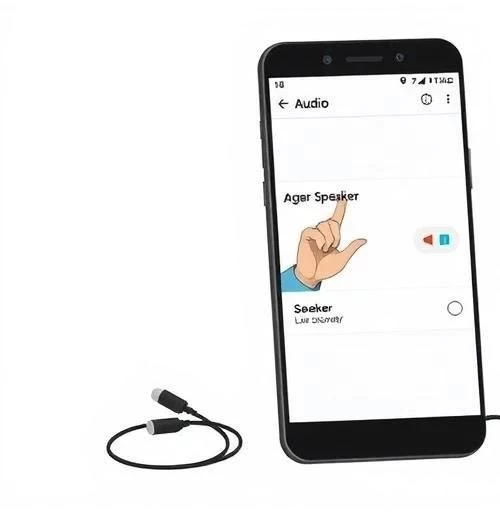
If your Xiaomi phone keeps showing a headphone icon after you unplug your headset, sound may continue to be routed to an audio output the phone believes is connected. The cause can be a temporary software glitch, a dirty or damp port, or a faulty accessory. Try the steps below in order, checking the sound after each one.
Check the connection and audio settings
Unplug wired headphones or an adapter fully, then reconnect and remove them once. If you use Bluetooth headphones, open Settings > Bluetooth, select the connected device, and disconnect it. Menu names can differ between MIUI, HyperOS, and phone models. Also check the sound-output selector, if it appears in the volume panel or media controls, and choose the phone speaker.
Restart the phone
A restart can clear a temporary routing error. Hold the power button and choose Restart; on some models, the power menu opens with a different button combination. After the phone starts, leave headphones disconnected and play a short audio clip. If the icon disappears and the speaker works, no further action is needed.
Inspect and clean the audio port safely
If your model has a 3.5 mm headphone jack, check it for lint, dust, or moisture. Switch off the phone before cleaning. Hold it with the port facing down and gently remove loose debris with a dry, soft brush; Do not insert pins, metal objects, or cotton swabs, and do not pour liquid or use a hair dryer. These can damage contacts or push debris farther inside.
For a USB-C headset, inspect the connector and phone port in the same way. Make sure the connector is dry and undamaged. If the phone has been exposed to water, disconnect accessories and let it dry in a ventilated place. Do not charge it while the port may be wet; follow the device’s moisture warning, if shown.
Test with another accessory
A damaged plug or adapter may keep the phone’s audio state from updating. Try a known-working, compatible headset, then disconnect it carefully. If possible, test your original headset on another device. If the Xiaomi behaves normally with a different accessory, replace or stop using the faulty one.
Check Bluetooth and restart audio playback
Turn Bluetooth off briefly in Settings, even if you believe no headphones are connected. Some audio devices reconnect automatically or remain selected as the output. Close the music or video app, reopen it, and test again. You can also disconnect other paired audio devices from the Bluetooth list, then reconnect only the device you intend to use.
Update software and check app behavior
Install available system updates through Settings > About phone or the system update page; wording varies by software version. Updates may fix software bugs, but they will not repair a damaged port. If the issue happens only in one app, update or restart that app and test audio in another app before changing system settings.
When the icon will not disappear
Back up important data before considering a factory reset; it erases information and is rarely the first solution. Do not install unfamiliar “headphone mode fixer” apps or change hidden service settings, since they may create security or stability problems. If cleaning, restarting, and testing accessories do not help, the jack, USB-C port, or internal audio component may need inspection.
Contact Xiaomi support or an authorized service center if the phone was dropped, exposed to liquid, or still routes all sound to headphones. Describe the model, software version, when the issue began, and which steps you tried. A technician can check the port and audio hardware without risking further damage;
Quick checklist
- Disconnect wired and Bluetooth audio devices.
- Restart the phone and test its speaker.
- Check the port for debris or moisture; clean only gently and dry.
- Test a compatible headset and install available updates.
- Seek service if the icon remains or the port appears damaged.
Menu labels and available audio controls vary across Xiaomi, Redmi, and POCO models. Use the instructions that match your device, and avoid forcing anything into a port.


1 Comment. Оставить новый
The troubleshooting steps are presented in a clear order, with useful safety precautions for checking and cleaning the audio port.