
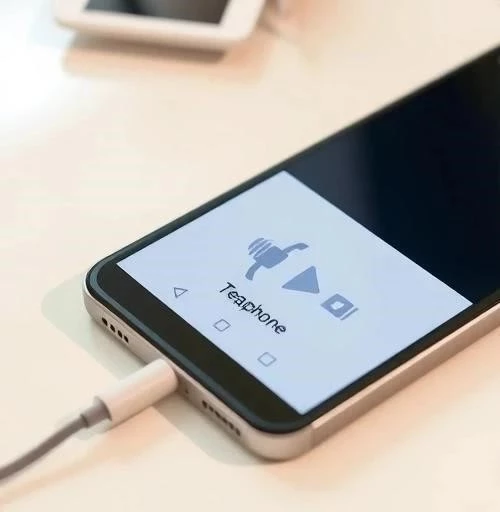
If your Xiaomi phone shows a headphone icon, sends sound to “headphones,” or stays silent through its loudspeaker after you unplug a headset, it may be stuck in headphone mode․ The phone is behaving as if a wired audio accessory is still connected․ This can affect calls, music, videos, alarms, and voice messages․ In many cases, the cause is a temporary software glitch or debris in the connector, and you can resolve it at home․ The steps below apply broadly to Xiaomi, Redmi, and POCO phones running MIUI or HyperOS; menu names may differ slightly between models and software versions․
First, identify what is happening
Check the volume panel or status bar for a headphone symbol, then play audio and listen for where it comes out․ Some Xiaomi phones have a 3․5 mm headphone jack; others use USB-C audio, Bluetooth, or a combination of these․ A phone may route sound to a connected Bluetooth device without showing the same icon as a wired headset․ Also test more than one app: if the speaker works in one app but not another, the issue may be that app’s settings rather than the phone’s audio routing․
Try a normal phone call on speakerphone, a short video, and a ringtone preview․ If all sound is routed away from the built-in speaker and the phone continues to show headphones when nothing is connected, continue with the troubleshooting steps․ If the phone never displays a headphone indicator but one particular app is silent, check that app’s audio output, volume, and permissions first․
Quick fixes to try first
- Disconnect every audio device․ Unplug wired headphones or a USB-C adapter․ Turn Bluetooth off temporarily, or disconnect earbuds from the Bluetooth settings․ Audio may still be routed to earbuds in a pocket, a car system, a speaker, or another paired device․
- Restart the phone․ A restart can reset a stuck audio service and refresh the connection state․ Use the power menu, restart, then check the icon and speaker again․ If the phone is frozen, follow the model’s official instructions for a forced restart rather than repeatedly pressing random button combinations․
- Reconnect the accessory once․ If it is safe and the port is dry, insert the correct, undamaged headset plug fully and remove it gently․ This may help the phone register a connection change․ Do not force a connector or repeatedly wiggle it; doing so can damage the port․
- Raise the correct volume․ While playing audio, press the volume buttons and open the expanded volume controls․ Media, call, ringtone, and alarm volumes are separate․ Make sure the relevant slider is up and that the phone is not muted or in a mode that suppresses the sound you are testing․
- Check the output selector․ On some versions of Android, the volume panel or media notification lets you choose an audio output․ Select this phone or its speaker instead of headphones, a TV, or another Bluetooth device;
Check the headphone jack or USB-C port safely
Lint, dust, moisture, or a damaged connector can make a phone misread the state of its audio port․ Inspect the port under good light․ Look for visible debris, bent parts, corrosion, or signs of liquid․ A case or plug adapter can also prevent a connector from seating correctly, so remove the case and test again if it obstructs the port․
If the port looks dry, hold the phone with the opening facing downward and gently tap the side of the device against your palm to dislodge loose dust․ You may use a clean, soft, dry brush around the opening, without pushing it inside․ Avoid pins, needles, paper clips, metal tools, liquids, cleaning sprays, and forceful blasts of compressed air․ These can short contacts, compact debris, or damage delicate components․ Do not insert cotton swabs or other objects into the port․
If the phone or connector may be wet, disconnect accessories and power the phone off if it is safe to do so․ Let it dry naturally in a cool, well-ventilated place․ Do not charge through a wet port, use a hair dryer, place the phone on a heater, or put it in rice․ If a moisture warning appears, follow the instructions on the screen and wait until the port is completely dry․ Persistent moisture or corrosion needs professional inspection․
Rule out Bluetooth and accessory problems
Wireless earbuds can remain the active output even after you put them in their case, particularly if the case has no charge or the earbuds fail to disconnect․ Open Bluetooth settings, disconnect the device, and test the phone speaker․ You can also switch Bluetooth off briefly․ If audio returns, charge and reconnect the earbuds, remove unused pairings, and check whether another nearby device is connecting automatically․
For a wired headset, test a known-good compatible headset, adapter, or pair of headphones․ If only one accessory causes the problem, its plug, cable, or adapter may be faulty․ USB-C audio compatibility varies: some phones and adapters require a particular type of digital or analog audio support․ A connector that physically fits is not necessarily compatible․ Use an accessory recommended for your phone model and avoid testing with a visibly damaged plug․
Review software and audio settings
Install available stable system updates through Settings > About phone or the update section shown on your device․ A software update can correct an audio-routing bug, though the exact menu path varies by MIUI or HyperOS release․ Use a reliable Wi-Fi connection and keep the phone sufficiently charged․ Do not install unofficial firmware or random “audio repair” applications; they can create security and stability problems without fixing a damaged port․
Check whether the issue began after installing an app, changing a sound setting, or connecting a new accessory․ If it did, temporarily disable or uninstall the suspected app and restart․ Equalizers, call-recording tools, accessibility services, audio enhancers, and third-party volume controls may affect sound output․ Review the phone’s accessibility and sound settings for an option that routes audio to a particular device․ The labels and available features differ between models․
You can also test in Safe mode, if your model and software provide it․ Safe mode starts the phone with most downloaded apps disabled․ Follow Xiaomi’s instructions for entering and leaving Safe mode for your specific device․ If the speaker works normally there, a recently installed app is a likely cause․ Remove or update apps one at a time, restarting and testing after each change․ Safe mode does not repair hardware; it helps distinguish an app problem from a system or port problem․
When a reset may help—and when it will not
If the problem started immediately after a settings change and simpler steps have failed, look for a network, app-preference, or sound-settings reset that does not erase personal files․ The exact reset choices vary by phone․ Read the confirmation screen carefully: some options remove saved Wi-Fi networks or Bluetooth pairings․ Back up important information before choosing any reset that may erase data․
A factory reset should be a last software troubleshooting step, not the first․ It deletes local data and may require your account credentials to set the phone up again․ Before proceeding, back up photos, contacts, messages, and other files, confirm you can sign in to your Xiaomi and Google accounts, and follow the device’s official reset instructions․ If the headphone indicator remains after a reset, or returns as soon as the phone is set up, a physical port or board fault becomes more likely․ A factory reset cannot repair damaged hardware․
When to contact Xiaomi support or a repair shop
Arrange professional service if the connector is bent, loose, corroded, or visibly damaged; if the phone was dropped or exposed to liquid; if the issue returns after careful cleaning and a restart; or if no compatible headset works correctly․ Seek help sooner if charging through USB-C is also unreliable, the phone becomes unusually hot, or it shows other signs of liquid damage․ A technician can inspect the jack, USB-C port, internal contacts, and audio circuitry without risking further damage․
Before handing over the phone, back up your data, remove the SIM or memory card if appropriate, and ask about repair costs and data handling․ Use an authorized Xiaomi service provider where available, particularly if the phone is under warranty․ Do not open the phone yourself unless you have the skills and tools to do so: opening it can damage the battery or seals and may affect warranty coverage․
How to narrow down the cause
- The icon disappears after a restart: a temporary software or connection-state glitch is likely․
- The issue appears only with one headset: check that headset, its cable, or its adapter․
- Bluetooth off restores the speaker: investigate the paired earbuds or another wireless output․
- The port looks dirty or the problem follows moisture: stop inserting accessories and allow safe drying or seek service․
- The indicator persists with no accessory, after updates and a reset: request a hardware inspection․
Frequently asked questions
Can I turn off headphone mode in Settings?
Most Xiaomi phones do not offer a universal switch that forces the speaker on while the phone detects a connected headset․ Audio output controls may let you select a speaker in some situations, but they cannot reliably override a faulty port․ Fix the connection or have the hardware checked rather than relying on a hidden menu or an unverified app․
Why does the headphone icon appear and disappear?
An unstable connection, debris, a worn plug, moisture, or a damaged port can make detection intermittent․ Remove the case, disconnect the accessory, and inspect the port without probing it․ If the icon changes when the phone or connector is moved, stop testing by wiggling it and arrange a repair; movement can worsen damage․
Will cleaning the port always fix it?
No․ Cleaning may help when loose, dry debris is the cause, but it will not repair corrosion, a broken contact, a software fault, or a faulty accessory․ Use only gentle, dry methods․ If you cannot see or safely remove the obstruction, leave the work to a technician․
When a Xiaomi phone thinks headphones are plugged in, first disconnect wired and Bluetooth accessories, restart the phone, check the selected audio output, and test a known-good compatible headset․ Inspect the port carefully and keep it dry; never scrape it with metal or force anything inside․ Then review updates and apps․ If the headphone symbol persists, the port is damaged, or charging is affected too, back up your data and contact a qualified repair provider․ The symptom is frustrating, but these checks can help identify whether the cause is an accessory, software, moisture, or hardware․
4 Comments. Оставить новый
The suggested first steps are sensible and easy to try at home. I would also welcome a follow-up covering safe ways to clean the audio connector.
The troubleshooting steps are clear and practical, especially the reminder to check Bluetooth before assuming the wired jack is at fault.
I appreciate the advice to test sound in several apps and during a call. That makes it easier to tell whether the problem is system-wide or app-specific.
This is a helpful guide for Xiaomi, Redmi, and POCO users. The note that menu names can vary between MIUI and HyperOS is useful.