
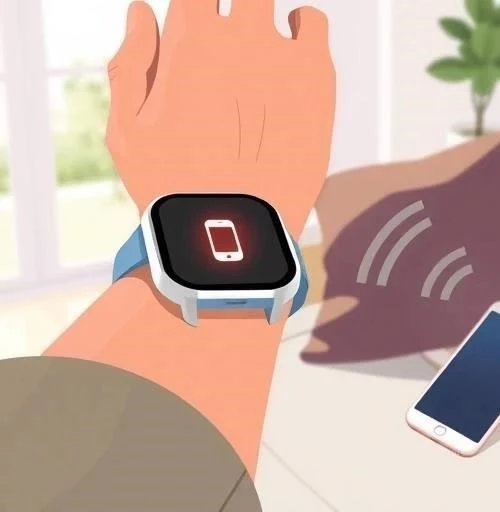
Your iPhone has a talent for disappearing precisely when you need it: under a cushion, in a coat pocket, or somewhere in the mysterious territory between “I just had it” and “Where is it?” Fortunately, your Apple Watch can act as a tiny homing beacon. It can make a nearby iPhone play a sound, help you locate it on a map, and—on supported devices—guide you toward it with greater precision.
The quick trick: make your iPhone ping
- Wake your Apple Watch and press the side button to open Control Center. On older watchOS versions, swipe up from the watch face instead.
- Tap the button showing an iPhone with sound waves.
- Listen. Your iPhone should play a ping, even if it is set to silent or has its volume turned down.
Follow the sound like a detective tracking a very small, very familiar clue. When you find the phone, tap its screen or press a button to stop the noise.
Make the iPhone flash, too
If the room is dark, touch and hold the ping-iPhone button in Control Center instead of tapping it. On supported setups, the iPhone plays its sound and flashes its LED, making it easier to spot beneath furniture or inside a bag. The flash is a visual hint, not a guarantee: availability can vary by model and software version.
If the iPhone is not close by
A sound ping is best for a phone somewhere within reach of the Watch’s connection. If you are not sure the iPhone is nearby, open Find Devices on your Apple Watch:
- Press the Digital Crown to see your apps, then open Find Devices.
- Choose your iPhone from the list.
- Check the location shown. If available, tap the directions option and follow the route.
The map can help when your phone is at the office, in a café, or at the other end of the house. Depending on the device, connection, and Find My settings, you may see its current location or its last known location. A last known location is a useful breadcrumb—not proof that the phone is still there.
When the map offers a closer search
Some combinations of newer iPhone and Apple Watch support more precise nearby locating. If your Watch displays an option such as Find Nearby, open it and follow the on-screen distance or direction cues. This feature depends on compatible hardware, software, and conditions, so it may not appear on every setup. If you only see a map or a sound button, use those tools instead.
What if the ping button does nothing?
- Check the connection. A nearby ping generally needs the Watch and iPhone to be connected, typically through Bluetooth or Wi‑Fi. Move to another room and try again.
- Use Find Devices. If the phone is farther away, the app may still show a location through Find My, provided the feature was set up beforehand.
- Give it a moment. A device that is offline, out of battery, or unable to connect may show only its last reported location. It cannot play a sound until it becomes reachable.
- Check your setup. The iPhone and Watch should be associated with your Apple Account, and Find My iPhone should have been enabled on the iPhone before it went missing.
If you think the phone is lost or stolen
Use Find Devices on the Watch, or the Find My app on another Apple device, to view the iPhone and mark it as lost when that option is available. Lost Mode can lock the device and let you display contact information for someone who finds it. If you cannot use another Apple device, visit iCloud.com/find from a browser and sign in to your Apple Account.
If the map points to an unfamiliar place, do not confront anyone or put yourself at risk to retrieve the phone. Secure your account, contact your carrier if needed, and report suspected theft to local authorities. Never share your passcode or account verification codes with someone claiming they can return the device.
Make future hide-and-seek easier
Before trouble strikes, check that Find My iPhone is enabled in your iPhone’s Apple Account settings, keep both devices updated, and learn where Control Center lives on your Watch. A quick ping is the household solution; Find Devices is the longer-range search party. One turns a sofa into a crime scene with an audible clue. The other gives you a map, a direction, and a much better chance of ending the mystery with your phone back in your hand.
In short: press the Watch’s side button, tap the iPhone-ping control, and listen. If the phone is not nearby, open Find Devices and check its location. Your wrist may not know where you left your keys—but it can often help reunite you with your iPhone.

4 Comments. Оставить новый
A missing phone becomes a tiny detective story, and the Watch is its most patient sidekick. The distinction between a nearby ping and a last-known map location is especially useful—it keeps the search clever without promising magic.
The flashlight-and-sound detail is a lovely touch: sometimes technology’s grandest rescue mission is finding a phone hiding in a dark coat pocket. Clear, practical guidance, with just enough caution about which features may vary.
This guide gives a small everyday problem the satisfying shape of a treasure hunt. Its best advice may be the simplest: know the difference between a phone that is nearby and one whose location is only a recent echo.
I like how this turns a familiar moment of panic into a calm sequence of clues: ping, listen, then check the map if the sound cannot reach. The “breadcrumb, not proof” reminder is both memorable and sensible.