
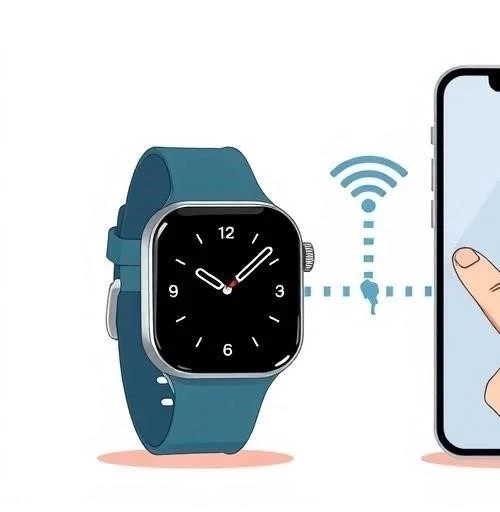
If your Apple Watch will not connect to your iPhone, check the basic settings first. Keep the devices close together, make sure the watch is on your wrist or awake, and confirm that Airplane Mode is off on both. On the iPhone, open Control Center and check that Bluetooth and Wi-Fi are enabled. The watch uses Bluetooth for a nearby connection and may use Wi-Fi when the phone is not close.
Check the connection
- Look at the watch face. A red iPhone icon or a red X can indicate that the devices are disconnected.
- On the iPhone, open Settings and make sure Bluetooth is on. Also check that Wi-Fi is enabled and that the phone has a working internet connection.
- Turn Airplane Mode on briefly on both devices, then turn it off. Keep them next to each other and wait a minute.
- Check that the iPhone is compatible with the watch model and has a supported version of iOS. If an update is available, install it after backing up important data and ensuring both devices have sufficient charge.
Restart both devices
Restart the iPhone and Apple Watch, then check the connection again. To restart the watch, press and hold the side button, tap the power control, and turn it off. Turn it back on by holding the side button. If the watch is unresponsive, force-restart it by holding the Digital Crown and side button together for about ten seconds, until the Apple logo appears. Do not force-restart during a software update.
Pair the watch again
If the devices still will not connect, open the Watch app on the iPhone and check whether the watch appears under All Watches. If it does, follow the app’s on-screen reconnect instructions. If it does not, the watch may need to be paired again. In the Watch app, choose All Watches, tap the information button next to the watch, and select Unpair Apple Watch. Then follow the setup instructions to pair it again. Unpairing normally creates a backup on the iPhone, which can be used during setup.
If the iPhone shows the camera pairing screen, center the watch face in the viewfinder. If camera pairing does not work, choose the manual pairing option and follow the prompts. Keep both devices charged and nearby throughout setup. Avoid erasing the watch unless the setup process or Apple Support advises it.
When to contact support
If pairing fails repeatedly, check Apple’s support guidance or contact Apple Support. Provide the iPhone and watch models, software versions, and any error message. If the watch was previously paired with another iPhone, or asks for an Apple Account password, use the account associated with that watch; Activation Lock cannot be bypassed by ordinary pairing steps.

2 Comments. Оставить новый
The article presents a clear troubleshooting sequence, starting with basic connection checks and moving to restarting and pairing steps. The warning not to force-restart during an update is useful.
The instructions are practical and easy to follow. The article could be more complete if it included guidance on what to do if the pairing process still fails or if the devices are incompatible.