
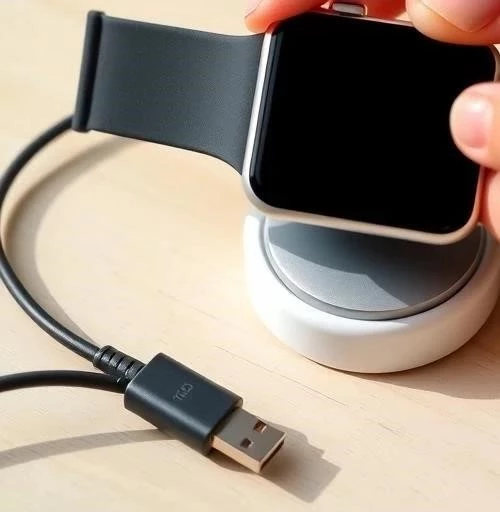
A black screen does not necessarily mean your Apple Watch is broken. A fully drained battery‚ a poor connection to the charger‚ or a temporary software freeze can all make it appear unresponsive. Work through these checks in order: they are safer and more useful than repeatedly pressing buttons or trying to open the watch.
Charge it and check the setup
Place the watch on its magnetic charging cable and leave it for at least 30 minutes. If the battery is deeply depleted‚ the screen may stay blank for a while before a charging symbol appears. Make sure the cable is connected firmly to a working power adapter and outlet. Try another outlet or compatible adapter if possible.
Check that the back of the watch and the charger are clean and dry‚ then reposition the watch so the magnets align. Remove any case or accessory that could prevent contact. If you see a red or green lightning symbol‚ the watch is responding: leave it charging rather than repeatedly attempting to start it. Avoid charging a wet device until it is dry.
Try a force restart
If the watch has charged but remains frozen‚ press and hold the side button and Digital Crown at the same time. Keep holding both for about 10 seconds‚ then release them when the Apple logo appears. This does not erase your data. Do not force-restart during a watchOS update; interrupting an update can create additional problems. If the logo does not appear‚ charge the watch for another 30 minutes and try once more.
Look for signs of damage
Think about whether the watch was recently dropped‚ exposed to liquid‚ or subjected to unusual heat. Do not heat it‚ put it in rice‚ pry it open‚ or use an unapproved charger to test it. These measures can cause further damage or compromise its water resistance. If the screen is cracked‚ the case is swollen‚ or the device becomes unusually hot‚ disconnect it from power and seek professional help.
When to contact Apple
If a known-working charger and a force restart do not help‚ the battery‚ display‚ charging hardware‚ or another component may need inspection. Contact Apple Support or an authorized service provider and describe the steps you have tried. Use Apple’s official support site at support.apple.com to find service options. Prompt diagnosis is safer than repeated experiments and can help prevent a minor fault from becoming a more costly repair.

6 Comments. Оставить новый
The safety guidance is particularly useful. Advising readers not to use heat, rice, or improvised tools discourages common responses that may damage the watch rather than fix it.
The force-restart instructions are clear and include an important qualification about not interrupting a watchOS update. That caveat helps keep a routine troubleshooting step from creating a more serious problem.
I appreciate the distinction between a charging symbol and a truly unresponsive watch. Explaining what the red or green lightning symbol means can prevent people from interrupting charging unnecessarily.
The instructions are easy to follow because they move from simple checks to more involved troubleshooting. I also like that the article notes a force restart does not erase data, which may reassure someone worried about trying it.
This article gives readers a reasonable point at which to stop troubleshooting and seek professional help. The warnings about swelling, cracks, liquid exposure, and unusual heat make that advice more specific.
The step-by-step order is sensible: checking the charger and allowing time for a depleted battery to respond should come before attempting a restart. The reminders to verify the power source and align the magnets make the advice practical.