
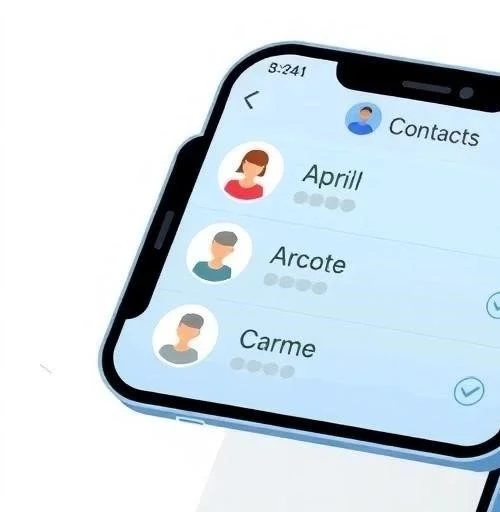
A contact list can turn into a tiny museum: old delivery drivers, one-time contractors, duplicate entries and people saved under mysterious names like “Alex new.” If you use a Xiaomi phone, you usually do not need to remove these records one by one. Select a batch, review it, and delete it in a few careful steps. Menu names vary slightly between MIUI, HyperOS and versions of the Contacts app, but the process is much the same.
Before you start: check where your contacts live
Xiaomi may show contacts from several places together: your Google account, a Xiaomi account, the SIM card, or the phone itself. Deleting a contact from one source can also remove it from other devices synchronised with that account. If the names matter, make a backup first: open the Contacts app, look for Fix & manage, Import/export or a similar option, and export contacts to a VCF file. You can also check that Google Contacts sync is enabled in your account settings.
Method 1: select several contacts in Xiaomi Contacts
- Open Contacts. If you cannot find it, swipe up to search for the app, or open the Phone app and tap its Contacts tab.
- Choose the list or account you want to clean, if the app offers a filter. This helps prevent deleting a work contact while you meant to tidy a personal list.
- Touch and hold one contact until a selection mark appears. On some versions, the first screen has a Select or three-dot menu instead.
- Tap the other names you want to remove. Scroll as needed; selected contacts should remain marked. Check each name before continuing—similar names are easy to confuse.
- Tap the trash-can icon or open the menu and choose Delete. Confirm the action when asked.
That is the quick route: long-press, tap the rest, delete. If your Contacts app does not show selection marks, try its menu, update the app, or use Google Contacts as described below. Do not assume that selecting a group label is the same as selecting every person inside it; inspect the actual list first.
Method 2: use Google Contacts
If your Xiaomi contacts are saved to Google, the Google Contacts app is often the clearest option. Open it, sign in to the correct Google account, then touch and hold a contact. Tap additional contacts to build your selection and choose the trash icon. You may also visit contacts.google.com in a browser, sign in, tick the boxes beside the entries, and choose Delete. A change may take a little time to sync back to the phone, so avoid repeating the deletion while the list is still refreshing.
Be precise about the account shown in the app. A contact stored only on the SIM or locally on the phone may not appear in Google Contacts. Conversely, deleting a synced Google contact on Xiaomi can remove it from Google and other devices using that account—not merely hide it on this handset.
Nothing is selectable? Try these checks
- Check the app: Xiaomi’s built-in Contacts app and Google Contacts have different menus. Look for a long-press selection, a tick-box icon, or a three-dot menu.
- Check the view: switch from a favourites or filtered view to the full contacts list, then select the entries there.
- Check permissions and sync: make sure the app can access contacts and that the desired account is enabled under Settings > Accounts & sync. Labels may differ by software version.
- Restart or update: if the app is stuck, restart the phone and check for app or system updates before trying again.
Can you undo a bulk deletion?
Possibly. Google Contacts keeps deleted entries in its Trash for a limited period—often up to 30 days—where you can restore them, provided they were synced with Google and the recovery window has not expired. Open Google Contacts and look for Trash. A locally stored or SIM contact may not have the same recovery option. Your VCF export is a useful fallback: import it only if needed, because importing can create duplicates.
A tidy-up without regrets
For a safe clean-out, delete a small test batch first, allow sync to finish, and check another device or the web account. Then remove the rest. If you only want to hide a person, consider removing the account from the displayed list or using a label instead of deleting the record. The best bulk cleanup is not the fastest tap-fest; it is the one that leaves the right people reachable—and your future self out of the digital detective business.

6 Comments. Оставить новый
Clear, calm instructions for a task that often feels like wandering through phone settings with a tiny flashlight. The version caveat is especially useful.
The backup reminder is the quiet hero here. A few seconds spent saving a VCF file could spare someone the modern-day equivalent of losing an address book in a rainstorm.
This turns a cluttered contact list into a manageable little project. I like the reminder to check each name—“Alex new” deserves a second look before disappearing.
The “tiny museum” image is delightful—and painfully familiar. This guide makes digital decluttering feel less like chores and more like curating the people you actually want to keep close.
Practical without sounding robotic, and the account-by-account approach is a smart touch. It reads like advice from someone who has learned that one wrong tap can echo across every device.
I appreciate the warning about contacts from different accounts. The delete button may look simple, but synced data can have a surprisingly long reach.