
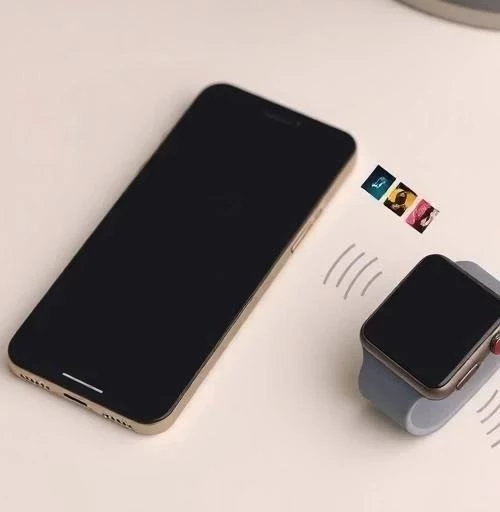
Your Series 5 can be a tiny concert hall on your wrist: no phone in your pocket‚ just a playlist and Bluetooth headphones. The trick is to download tracks before you leave. Syncing is managed from the paired iPhone‚ not by dragging songs onto the watch.
Before you begin
Keep your iPhone and watch close together‚ with Bluetooth on. Check that the watch has enough free storage‚ and place it on its charger for a smoother sync. You’ll need music in your iPhone’s library or an Apple Music subscription for eligible catalog tracks. Menus can look slightly different depending on your watchOS version.
Sync music from your iPhone
- Open the Watch app on your iPhone.
- Tap My Watch‚ then Music.
- Choose Add Music. Browse your library and tap the plus sign beside a playlist‚ album‚ or artist selection.
- Leave the watch near the iPhone while the music transfers. A playlist may not appear immediately; syncing can take a little time‚ especially for a large collection.
On some versions‚ you can also turn on automatic additions for recent or frequently played music. This is handy if you want a changing soundtrack‚ but check available storage so your watch doesn’t become a crowded record shop.
Listen without your phone
Pair Bluetooth headphones: on the watch‚ open Settings > Bluetooth‚ select your headphones‚ and follow any prompts. Then open the Music app‚ tap Library‚ and choose Downloaded or the synced playlist. Press play and head out; the downloaded tracks can play without an iPhone nearby.
Streaming‚ storage‚ and fixes
Apple Music streaming is different from syncing: streaming generally needs a network connection and an eligible subscription‚ while downloaded music is stored on the watch for offline listening. For a run beyond Wi-Fi or cellular range‚ download tracks first. Series 5 storage is limited‚ so a few carefully chosen albums often work better than trying to copy your entire library.
If music won’t show up‚ put the watch on its charger‚ keep the iPhone nearby‚ and check the Music section in the Watch app. Remove an old playlist if space is tight‚ then try syncing again. A restart of both devices can help if the transfer appears stuck. Once the playlist shows under Downloads‚ your wrist-sized jukebox is ready.
6 Comments. Оставить новый
This makes offline listening feel less like a technical chore and more like packing a tiny travel bag: choose a few albums, charge up, pair headphones, and go.
Clear, useful, and refreshingly honest about the limits of a Series 5. The charger tip is a humble detail, but it may be the difference between a smooth transfer and a frustrating wait.
The distinction between syncing and streaming is the star here. It saves readers from discovering, halfway through a phone-free run, that their soundtrack was only visiting.
A concise field guide for anyone who wants their wrist to carry the beat while their phone stays home. The troubleshooting advice gives the article a nice finish beyond the basic tap-by-tap.
I like how the steps stay calm and specific. The small reminder that menus may vary by watchOS version is a useful compass when the buttons don’t quite match.
A practical little guide that turns the watch into a pocket-sized jukebox without pretending storage is infinite. The “crowded record shop” image makes the advice memorable.