A Xiaomi temperature and humidity sensor can show readings in the Mi Home (Xiaomi Home) app and‚ with compatible equipment‚ trigger smart-home automations. The exact setup depends on the model: Bluetooth sensors and Zigbee sensors do not connect in the same way. Check the model number and its packaging or manual before you begin; a hub that works with one sensor may not support another.
Before you start
- Install or update the Mi Home/Xiaomi Home app‚ sign in‚ and enable Bluetooth on your phone.
- Have the sensor’s battery installed and make sure it has charge.
- If the sensor requires a hub‚ power it on and add it to the app first. Confirm that the hub supports your sensor’s protocol and model.
- Select the correct app region. Some Xiaomi devices are region-restricted‚ so a sensor may not appear if the app’s region does not match its intended market.
Pair a Bluetooth sensor
- Open the app and tap the plus sign or Add device. Keep the phone close to the sensor.
- Choose the exact sensor from the list‚ or let the app search for nearby devices. Follow the on-screen instructions and grant Bluetooth or nearby-device permissions when requested.
- If the sensor is not found‚ activate pairing using its button as described in the model’s manual. The indicator may blink to show pairing mode. Button location‚ press duration‚ and reset procedure vary‚ so do not assume every model uses the same sequence.
- When pairing completes‚ name the sensor and assign it to a room. Wait briefly for the first temperature and humidity readings to appear.
A Bluetooth sensor may report to the app only while your phone is nearby. For remote viewing or dependable automation when you are away‚ you may need a compatible Xiaomi Bluetooth gateway or hub. Add the gateway to Mi Home first‚ then pair the sensor through the gateway’s device-add menu.
Connect a Zigbee sensor
A Zigbee model generally cannot pair directly with a phone. Add a compatible Zigbee hub to Mi Home‚ put the hub into “add subdevice” mode‚ then reset or wake the sensor according to its instructions. Keep it close to the hub until the app confirms it has joined. If your setup uses another platform‚ such as Home Assistant‚ verify support for the specific sensor and hub rather than relying on the Xiaomi name alone.
If connection fails
Move the sensor close to the phone or hub‚ check the battery‚ and try again. Confirm Bluetooth and app permissions‚ the selected region‚ and hub compatibility. If it was previously paired‚ remove its old entry or reset it using the manual‚ then retry. Avoid resetting the hub unless necessary‚ since that can disconnect other devices. After successful pairing‚ place the sensor away from direct sunlight‚ heaters‚ windows‚ and damp surfaces; poor placement can make readings misleading.
Use readings in automations
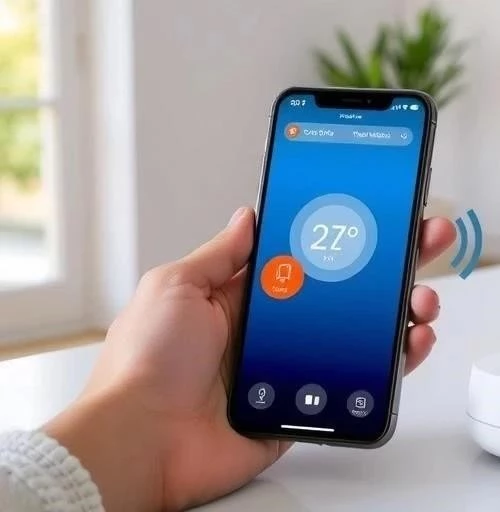
In the app‚ create a scene or automation and choose the sensor as the condition—for example‚ when the temperature rises above a chosen value‚ switch on a fan. Test the rule and remember that small sensors may update readings at intervals rather than continuously. A gateway is important if the automation must run while your phone is offline.
In short: identify whether your Xiaomi sensor uses Bluetooth or Zigbee‚ pair it through the appropriate app or compatible hub‚ and follow the model-specific reset instructions. This avoids the most common setup problem: trying to connect a sensor directly to a phone when it actually requires a gateway.