
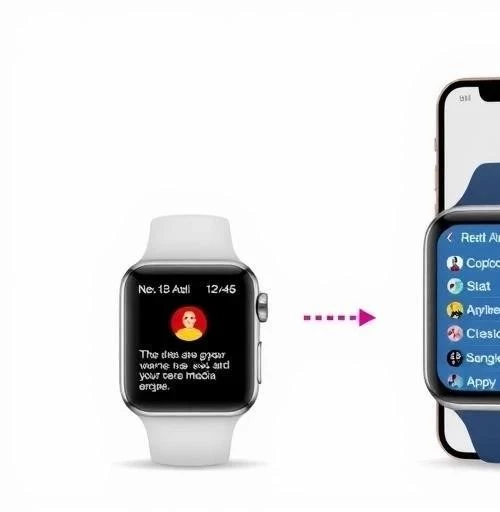
If you have been searching your Apple Watch SE for Instagram and cannot find it, you have not missed a hidden setting. Instagram does not currently offer an official, native Apple Watch app. You cannot install the full iPhone app on the watch or use the Watch app to turn it into a complete Instagram client. Older watch versions of Instagram were discontinued, so instructions that promise the original app may be out of date.
You can still use your watch for Instagram-related tasks. The most reliable option is to receive notifications from the Instagram app on your iPhone. Depending on your watchOS version and the apps available in your region, you may also be able to open Instagram pages through a third-party watch app or a web link. These alternatives are limited and are not made or supported by Instagram.
Turn on Instagram notifications
This is the simplest way to see alerts about messages, comments, likes, and other activity on your wrist. Instagram must be installed and signed in on your iPhone, and your Apple Watch SE must be paired with it.
- On your iPhone, open Settings > Notifications > Instagram. Turn on Allow Notifications and choose the alert types you want.
- Open the Watch app on your iPhone and tap Notifications.
- Scroll to Instagram. If it appears, enable its notifications or choose to mirror iPhone alerts.
- Keep Bluetooth enabled and make sure the watch is connected to the iPhone. Test the setup by asking someone to send you a message or by triggering another Instagram alert.
Notification behavior depends on your settings and whether the iPhone is locked or in use. You can usually read an alert or respond with the options Apple provides, but notifications do not give you the full Instagram feed. If Instagram is missing from the Watch app’s notification list, update iOS and watchOS, check Instagram’s iPhone notification settings, and restart both devices. Some alerts may not be available as separate choices.
Check for a third-party watch app
Some developers offer Apple Watch apps that display social-media content through a companion iPhone app or a web service. Names, features, prices, and availability can change, and an app may not appear in every country. For example, apps such as Lens for Watch have been advertised for browsing Instagram on a watch, but availability and compatibility should be checked in the App Store at the time you try to install them;
- On the iPhone, open the App Store and search for an Apple Watch Instagram viewer. Read the current listing carefully.
- Check that the app supports your Apple Watch SE, your installed watchOS version, and your region; Review recent ratings, privacy details, subscription terms, and the developer’s identity.
- Install the app on your iPhone first. If it includes a watch component, open the Watch app, scroll to Available Apps, and tap Install. Alternatively, use the app’s own setup instructions.
- Open the companion app on the iPhone and follow its sign-in steps. Then launch the watch app and allow only the permissions you understand and need.
A third-party viewer is not the official Instagram app. It may show only selected parts of your account, require an iPhone connection, stop working after an Instagram update, or ask for a subscription. Never enter your Instagram password into an unfamiliar app or share verification codes. If an app requests access that seems excessive, do not proceed; remove it and change your password if you have already shared credentials.
Try opening a web link from the watch
Apple Watch does not provide the same general-purpose browsing experience as an iPhone. On some watchOS versions, tapping a web link in a message or email can open a simplified webpage viewer. You can send yourself a link to an Instagram profile or post, then tap it on the watch. Pages may load slowly, require sign-in, display poorly, or fail to play media. This is a limited workaround, not an Instagram installation.
Shortcuts may also help you open a saved Instagram URL, but the result depends on the watchOS version and shortcut actions available. Create and test the shortcut on your iPhone first; do not assume that every iPhone shortcut can run independently on Apple Watch. Avoid entering your account details into a page reached through an unknown link.
Installing and troubleshooting watch apps
For any compatible watch app, open the Watch app on your iPhone, choose My Watch, and look under Available Apps. Tap Install beside the app. You can also open the App Store directly on Apple Watch, search for an app, and download it if it offers a watchOS version. Automatic installation of compatible iPhone apps can be managed under My Watch > General > Automatic App Install. An iPhone app alone does not guarantee that a watch version exists.
If installation fails, check the watch’s free storage, internet connection, pairing, and software updates. Confirm that the app supports your exact watchOS version and is available in your region. Apple Watch SE models differ by generation, and features or software support can vary. Follow the compatibility information in the App Store listing rather than assuming every SE supports every release.
What to expect
The practical answer is that you cannot install an official Instagram app on Apple Watch SE at present. Use mirrored notifications for dependable alerts, and consider a reputable third-party viewer or a tapped web link only if you accept its limitations. For posting, viewing the full feed, managing messages, or changing account settings, use Instagram on your iPhone. Keep watchOS, iOS, and apps updated, and check the App Store again if Instagram or a trusted developer releases a supported watch app in the future.
8 Comments. Оставить новый
I appreciate the distinction between receiving notifications and using the full Instagram app. That avoids a lot of confusion.
The step-by-step instructions are easy to follow, especially for someone setting up Instagram alerts for the first time.
The article is straightforward and does not overpromise what third-party apps or web links can do on the watch.
Clear, concise, and timely. Mentioning that older instructions may be outdated is especially helpful.
This clearly explains that there is no official native Instagram app for Apple Watch SE and sets realistic expectations about notifications.
A useful guide for Apple Watch SE owners. It explains the limitations while still offering a simple way to see Instagram activity.
Good advice about checking notification settings on both devices and making sure the watch is connected to the iPhone.
Helpful and practical. The troubleshooting suggestions are useful if Instagram does not appear in the Watch app settings.