
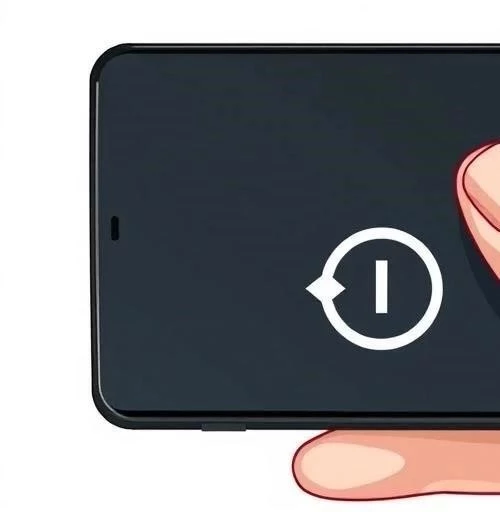
A frozen or unresponsive touchscreen does not necessarily mean your Xiaomi phone is broken. A forced restart uses the physical buttons, so it can help when the display is on but touch input fails. It normally does not erase personal data. Try the steps below before considering a repair or a factory reset.
Force-restart the phone
- Press and hold the Power button for about 10–15 seconds. Keep holding it even if nothing happens immediately.
- Release the button when the screen goes black, the phone vibrates, or the Xiaomi/Redmi logo appears.
- Allow the phone a minute or two to start. Do not press other buttons while it is rebooting.
Button behavior can vary slightly by model. If a brief press only turns off the screen, keep holding Power longer. On some devices, holding Power for around 30 seconds may be needed. This is a forced reboot, not a reset of the phone’s settings.
If Power alone does not work
Connect the phone to a reliable charger for at least 15–30 minutes, then try holding Power again. A very low battery can make the screen appear frozen. If the phone has a removable case, take it off in case it is pressing a button. Check that the Power and volume buttons are not stuck or damaged.
Some Xiaomi models respond to Power + Volume Up, held together for several seconds. Use this only if the ordinary restart fails, and release the buttons when a recovery screen appears. Menu controls may differ by model. If you see options such as “Wipe Data” or “Factory Reset,” do not select them: they can erase files. Choose a clearly labelled reboot option if available, or hold Power to exit.
After the phone restarts
If touch works again, back up important photos and files. Remove recently installed apps, check for system updates, and inspect the screen for moisture, cracks, or a poorly fitted protector. A restart can clear a temporary software freeze, but repeated failures suggest a deeper software or hardware problem.
When to seek help
If the phone will not restart, keeps freezing, or the touchscreen remains unresponsive after booting, contact Xiaomi support or a qualified repair shop. A damaged display, loose connector, liquid exposure, or system fault may require diagnosis. Avoid opening the phone yourself, especially while it is under warranty. A factory reset should be a last resort: it may delete data and cannot repair physical damage.
In short: charge the device, hold Power to force a restart, and avoid recovery options that erase data. If the problem returns, arrange a proper diagnosis rather than repeatedly forcing reboots.

9 Comments. Оставить новый
This article avoids promising that a restart will fix every problem. Explaining that repeated freezes may point to a deeper software or hardware issue sets realistic expectations.
I appreciate that the instructions start with the simplest method and only suggest a button combination if that fails. The warning about avoiding “Wipe Data” is important for anyone unfamiliar with recovery menus.
The distinction between a forced restart and a factory reset is especially helpful. It reassures readers that holding the Power button is a sensible first step when touch input is unavailable.
This is clear and measured guidance. Mentioning that button behavior can vary by model helps prevent readers from assuming that a different response means the phone is beyond recovery.
I found the warning about recovery-screen options valuable. Readers may be tempted to choose a reset option without realizing it could erase their data, so the caution is well placed.
The steps are easy to follow even when the touchscreen cannot be used. I also like that the guidance advises readers to wait for the phone to reboot rather than pressing more buttons.
The post does a good job of separating immediate troubleshooting from follow-up care. Backing up files after the phone restarts is a sensible step, especially if the problem happens again.
The advice to charge the phone before trying again is practical. A nearly empty battery can be mistaken for a serious freeze, so this is a useful check before seeking repair.
The suggestions to remove a case and check for stuck buttons add useful troubleshooting detail. They address simple physical causes without making the instructions unnecessarily complicated.