
Your MediaPad T3 10 is a little digital house: apps occupy rooms, downloaded videos pile up in the hallway, and cached images collect like dust behind the furniture. When Android warns that storage is running low, the answer is not necessarily to delete everything. A careful clean-out can free space while keeping your photos, messages, and favorite apps safe.
This guide walks through practical ways to reclaim internal storage on the Huawei MediaPad T3 10, from quick housekeeping to a full reset. Menu names may differ slightly depending on your Android and EMUI version. Read each confirmation screen before removing anything, and back up files you cannot replace.
First, check what is using the space
- Open Settings.
- Look for Storage, or try Settings > Advanced settings > Memory & storage. The exact route varies by software version.
- Review the categories shown: apps, images, videos, audio, downloads, cached data, and system storage.
This screen is your storage map. If videos dominate, clearing browser cache will make little difference; if one large game is responsible, deleting a few tiny photographs will not solve the problem. Note the available space before you begin so you can tell whether your cleanup worked.
Important distinction: storage is where files and apps live; memory, often called RAM, is where running tasks temporarily work. Closing apps may affect performance for a moment, but it does not permanently clear internal storage. This guide focuses on storage.
Remove files you no longer need
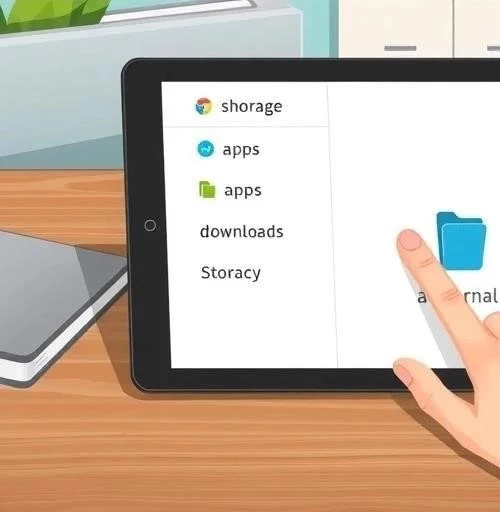
Open the tablet’s Files or File Manager app and inspect folders such as Downloads, Documents, Bluetooth, and folders created by apps. Old installation files, duplicate PDFs, presentation decks, and videos received in chats can quietly take up more room than expected.
- Sort files by size or date if the file manager offers those options.
- Open unfamiliar files before deleting them. A name such as “backup” may be important.
- Delete only items you recognize and no longer want.
- Check the file manager’s Recently deleted or Trash folder, if available. Items there may continue to occupy space until permanently removed.
Be cautious with folders named Android, data, or obb. They may contain app data or game files. Deleting them by hand can break an app, erase downloaded content, or cause a game to download its files again. Prefer the app’s own storage controls or uninstall the app normally.
Give photographs and videos a new home
Photos and videos are often the biggest residents of a tablet’s internal storage. Connect the MediaPad to a computer with a suitable USB cable, unlock the tablet, and choose a file-transfer option if Android asks how to use the USB connection. Copy your pictures and videos to the computer, then open a few copied files to confirm the transfer succeeded. Only then delete the originals from the tablet.
You can also use a microSD card if your particular MediaPad configuration supports one. Check the card capacity and compatibility for your model before buying it. In the file manager, move—not merely copy—selected media to the card only after confirming that the files open correctly there. Some apps store their data internally even when a card is installed, so a card does not automatically expand every kind of storage.
Cloud photo services are another option, but uploading uses an internet connection and may involve account limits or fees. Make sure the upload has finished before using any “free up space” feature. A cloud thumbnail is not the same thing as a locally saved original.
Clear temporary app cache carefully
Cached data consists of temporary files that apps keep to load pages, images, or content more quickly. Clearing a cache is usually a low-risk first step, although the app may take longer to load some material again. On many versions of EMUI, open Settings > Apps (or Apps & notifications), choose an app, open Storage, then tap Clear cache.
Start with apps that handle lots of media or browsing, such as a web browser, video service, or social app. The labels and buttons vary; if you see both Clear cache and Clear data, choose the cache option when your goal is routine cleanup.
Do not confuse “Clear cache” with “Clear data.” Clearing data can reset an app, remove downloaded files, sign you out, or erase information stored only on the tablet. Before using it, check whether the app’s important content is backed up or synced to an account. If you are unsure, leave its data alone.
Uninstall apps that have become digital clutter
Open Settings > Apps, select an app you no longer use, and choose Uninstall. You can also press and hold an app icon and use the uninstall option if your home screen offers it. Large games, offline video apps, and editing tools are good candidates to review because they may store substantial extra content.
Before uninstalling, consider whether the app contains local projects, saved recordings, or offline downloads. Sync or export anything important first. Some preinstalled system apps cannot be removed; depending on the software version, they may allow you to disable updates or disable the app instead. Do not disable unfamiliar system components just to experiment—some are required for normal tablet functions.
For an app you want to keep, look inside its own settings for options such as Downloads, Offline content, Manage storage, or Delete temporary files. Removing a finished movie or an old map download may recover space without removing the app itself.
Tidy browser and messaging downloads
Browsers can accumulate downloaded files as well as cached website content. In the browser’s settings, review browsing data and choose temporary cache files if that is all you intend to remove. Selecting cookies, passwords, or saved form data may sign you out or erase useful saved information, so read the choices before confirming.
Messaging apps may keep copies of photos, voice notes, and videos in addition to the copies in your gallery. Use the app’s built-in storage manager, if available, to find large conversations or media. Review items before deleting them: an old clip may be the only copy you have. Removing a message attachment may not remove a separate copy saved to the Photos or Gallery app.
Use an SD card or computer for long-term storage
If you regularly collect photos, music, or documents, make a simple storage habit: keep current projects on the tablet and archive finished material elsewhere. A microSD card can be convenient for compatible media and documents, while a computer or secure cloud backup can provide another copy. Important files deserve more than one home.
Never remove a card while files are being moved or copied. Use the system’s eject or unmount option first, where available. If a card becomes unreadable, avoid formatting it immediately: formatting can erase the files you are trying to recover.
Restart and check the result
After cleanup, restart the tablet and revisit Settings > Storage. A restart can refresh the displayed figures, but it is not a cleaning method by itself. If the available space has barely changed, return to the storage breakdown and look for a large app, offline download, or media folder you missed.
Try to keep some free space available rather than filling internal storage to the last megabyte. Android needs working room for updates, temporary files, and ordinary app activity. If the tablet is still nearly full, move another verified batch of personal files or remove an app you no longer use.
When a factory reset is appropriate
A factory reset is the last resort, not a shortcut for routine cleaning. It removes personal data and installed apps from the tablet and returns its software to an initial state. A reset may help when you want to start fresh or troubleshoot persistent problems, but it cannot increase the device’s physical storage capacity.
Before resetting, back up photos, documents, contacts, and anything else you need. Confirm that the backup can be opened, note the passwords for accounts you will need afterward, and make sure the tablet has enough battery or is connected to power. Then look in Settings for a menu such as System > Reset or Backup & reset; wording depends on the installed EMUI version. Read the final warning carefully and proceed only when you are certain.
What not to do
- Do not delete system folders at random; The tablet may lose app data or behave unpredictably.
- Do not install a “cleaner” just because it promises a one-tap miracle. Unnecessary cleaner apps can add notifications, consume resources, or request broad access. Android’s own storage and app settings are a safer place to begin.
- Do not clear all app data indiscriminately. It can remove sign-ins, settings, and content that is not backed up.
- Do not assume moving an icon moves an app. Removing a shortcut from the home screen usually removes only the shortcut, not the installed app.
- Do not erase a backup source before checking its copy. Open the transferred files first.
A simple monthly storage ritual
- Check the storage screen and identify the largest category.
- Delete unneeded downloads and finished offline content.
- Back up photos and videos, then verify the backup.
- Clear selected app caches and uninstall apps you no longer use.
- Restart the tablet and check available space again.
Think of it as opening a window rather than demolishing the house. Start with visible clutter, move treasured files somewhere safe, and use app controls for the hidden corners. On a Huawei MediaPad T3 10, a few deliberate steps—especially reviewing large downloads, media, and unused apps—are usually more effective and safer than wiping everything in sight.
Quickest safe route: check Settings > Storage, remove recognizable items from Downloads, back up and clear unwanted videos, uninstall unused large apps, and clear cache rather than app data. If menu labels differ, search Settings for “Storage” or “Apps.” Always pause at confirmation screens: the best cleanup is the one that frees space without making an important file disappear.



1 Comment. Оставить новый
I like the “storage map” idea: it turns a tablet cleanup from frantic digital spring-cleaning into a small investigation. The reminder that storage and RAM are different problems is especially valuable, as is the advice to inspect files before deleting them. Clear, cautious, and useful—exactly the sort of guide that helps a tablet breathe without tossing out its memories.