
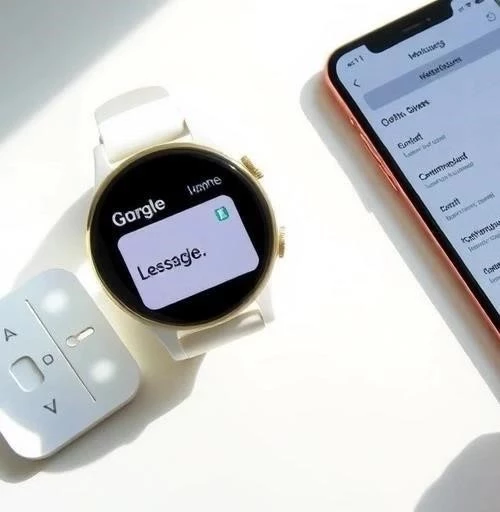
Your Apple Watch can bring Telegram alerts to your wrist‚ but there is an important plot twist: Telegram does not currently provide a full official Apple Watch app. You cannot install the iPhone app on the watch and browse every chat as if it were a miniature phone. What you can do is set up reliable notifications—and‚ when the alert and watchOS allow it‚ reply right from your wrist.
Think of the watch as a message lighthouse‚ not a second Telegram harbor. It flashes when something arrives‚ shows the notification‚ and may offer a quick way to answer. Here is how to make that lighthouse shine.
Check the essentials
- Pair your Apple Watch with your iPhone and keep both devices updated.
- Install Telegram on the iPhone‚ sign in‚ and confirm that messages arrive there.
- Check that Bluetooth and Wi-Fi or cellular connectivity are available. The watch normally receives notifications through its paired iPhone; a cellular watch can also connect independently in some situations.
If Telegram is not installed or signed in on the iPhone‚ begin there. The watch relies on the iPhone’s Telegram notifications; it does not become a separate Telegram account.
Allow Telegram notifications on iPhone
- On your iPhone‚ open Settings → Notifications → Telegram.
- Turn on Allow Notifications. Choose where alerts appear—Lock Screen‚ Notification Center‚ and banners—and select a sound if you want one.
- Open Telegram‚ then go to Settings → Notifications and Sounds. Check that notifications are enabled for private chats‚ groups‚ or channels as needed.
These are two different gates: iOS must permit the alert‚ and Telegram must be configured to send it. If either gate is closed‚ your watch may stay quieter than a library during a snowstorm.
Mirror Telegram to Apple Watch
- Open the Watch app on your iPhone.
- Tap My Watch → Notifications.
- Find Telegram in the list of apps. If it appears‚ switch on its notifications or choose Mirror iPhone Alerts‚ depending on the options shown.
Apple’s settings can vary slightly by iOS and watchOS version. If Telegram is not listed as an app with its own watch settings‚ look for the option to mirror iPhone alerts and make sure Telegram alerts are enabled on the phone. Apple Watch generally mirrors notifications from iPhone apps that do not have a dedicated watch app.
For a quick test‚ lock your iPhone‚ wear the unlocked watch‚ and ask someone to send you a Telegram message. If the phone is unlocked and in use‚ alerts may appear on the iPhone instead of the watch. That is normal behavior‚ not a missing-message mystery.
Read and answer from your wrist
When a Telegram notification arrives‚ raise your wrist or tap the alert to read it. Depending on the message‚ your watchOS version‚ and the notification’s available actions‚ you may be able to respond using dictation‚ Scribble‚ an emoji‚ or a suggested reply. Tap Reply if it is offered‚ choose an input method‚ and send.
Replies are a convenience‚ not a full chat interface. You may not be able to open your entire conversation history‚ browse contacts‚ search messages‚ manage channels‚ or start a new chat from the watch. Some alerts offer no reply button at all. In that case‚ open Telegram on your iPhone and answer there.
If Telegram alerts do not appear
- Check notification permissions: Revisit Telegram’s iPhone notification settings and its own notification controls.
- Check the Watch app: Confirm that alerts are mirrored or enabled for Telegram.
- Look at Focus and Do Not Disturb: A Focus mode‚ Sleep mode‚ or muted chat can silence the alert; Review the relevant iPhone and watch settings.
- Check the connection: Keep the devices near each other‚ make sure Bluetooth is on‚ and confirm that Telegram works on the iPhone.
- Check how you wear the watch: Wrist Detection‚ a locked watch‚ or an active iPhone screen can affect where notifications appear.
- Restart and update: Restart both devices and install available iOS‚ watchOS‚ and Telegram updates.
Also inspect Telegram’s settings for the specific chat. A muted group will not suddenly become noisy just because it has been invited to your wrist.
Should you install a third-party watch app?
Some third-party apps advertise Telegram access on Apple Watch. They are not the official Telegram app‚ and their features‚ reliability‚ pricing‚ and privacy practices can differ. Before connecting an account‚ inspect the developer‚ recent reviews‚ permissions‚ subscription terms‚ and privacy policy. Never hand over your password or login code to an app you do not trust. For most people‚ mirrored notifications are the simplest and safest setup.
The practical setup
Enable Telegram notifications on iPhone‚ mirror them in the Watch app‚ and test with the phone locked. Your Apple Watch can then act as a discreet message window: glance‚ decide whether the message deserves a reply‚ and answer when the option appears. It is not Telegram shrunk to the size of a coin—but with a few settings in place‚ it is a rather useful little post office on your wrist.
6 Comments. Оставить новый
The snowstorm-in-a-library comparison made me smile. It gives a very ordinary troubleshooting step an unexpectedly vivid little scene.
The “message lighthouse” image is a delightful way to explain the watch’s limits without making them sound like a disappointment. It turns a settings guide into something with a little glow.
This is refreshingly honest about what the Apple Watch can and cannot do. No magical promises, just a practical route to getting the useful parts working.
A helpful guide for anyone expecting a miniature Telegram harbor on their wrist. The lighthouse metaphor makes the difference between an app and an alert system easy to remember.
I appreciate the clear distinction between iPhone permissions and Telegram’s own notification settings. Two tiny gates can cause a surprisingly large silence.
The steps are neatly organized, and the explanation of how the watch depends on the paired iPhone is especially useful. It feels like advice from someone who has already chased down a mysteriously quiet notification.