
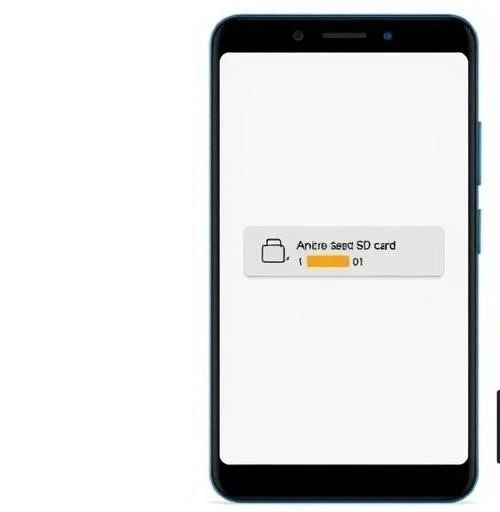
On the Redmi 7, an app may need permission to read or save files on a microSD card. The exact steps depend on the app and MIUI version: Android usually asks you to approve access when the app first opens or saves a file. Follow these steps to give access safely.
Check that the card is detected
- Turn off the phone before inserting or removing the microSD card. Make sure it sits correctly in the tray, then turn the phone back on.
- Open Settings and look for About phone or Storage. Confirm that the SD card appears and has free space.
- If the phone offers to format an unreadable card, remember that formatting erases its contents. Back up important files first, preferably using a computer.
Approve access from the app
Open the app that needs the card and try to browse, import, or save a file. When Android’s file picker appears, tap the menu icon and select the SD card. Choose the requested folder, then tap Use this folder or Select and confirm Allow. The wording varies by Android and MIUI release. This grants that app access to the selected location; it does not automatically give every app access to the whole card.
For a file manager, open its storage or location menu and select the card. If a permission prompt appears, approve it. Some apps can only access folders you explicitly select through the system file picker.
Review app permissions
Go to Settings > Apps > Manage apps, select the app, then open App permissions or Permissions. Allow Files and media, Storage, or a similarly named permission if it is listed. Menu names differ between MIUI versions. If no storage permission is shown, use the in-app file picker instead; newer Android versions rely on this method.
Choose the card for saving
Check the app’s own settings for Storage location, Download location, or Save to SD card. Select the card and confirm the folder access prompt. Camera and messaging apps may have separate storage settings. Moving an app to the card is not the same as allowing it to save photos or documents there, and some apps do not support SD-card storage.
If access still fails
- Restart the phone, reseat the card, and check that it works in another device.
- Update the app and MIUI, then retry the permission prompt.
- Check that the card is not full, damaged, or set to read-only. Copy files elsewhere before attempting repairs or formatting.
- Use the system file picker to grant the app access to the correct folder again.
Avoid granting broad file access to unfamiliar apps. If these steps do not match your menus, check the installed MIUI/Android version under Settings > About phone; available options can vary.




4 Comments. Оставить новый
Good troubleshooting advice, particularly checking that the phone detects the card before changing app settings. A concise and reassuring explanation for anyone who is unsure about storage permissions.
Useful step-by-step guidance. The safety notes about powering off before handling the card and backing up files before formatting are easy to overlook, so it’s great to see them included.
The distinction between selecting a folder in Android’s file picker and granting broad storage permission is helpful. The menu-name caveat should make the instructions useful across different MIUI versions.
This is a clear, practical guide to granting an app access to a microSD card. I especially appreciate the reminder that formatting erases the card’s contents.