
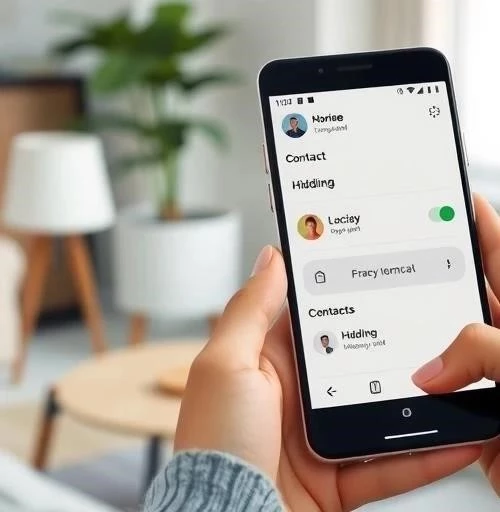
If you want a person’s details to be less visible on a Xiaomi phone, first decide what “hide” means: removing the contact from the usual list, protecting it from someone who can use your phone, or keeping its number out of view on the lock screen․ Xiaomi menus vary between MIUI and HyperOS versions, and the Contacts app may come from Google or Xiaomi․ There is not one universal “hide contact” switch, but the methods below cover the practical options․
Option 1: Use a private space or Second space
This is usually the strongest built-in approach when your Xiaomi model offers Second space․ It creates a separate phone environment with its own apps, data, and contacts․ A person using your main space will not normally see contacts stored only in the second one․
- Open Settings and search for Second space․ Depending on the software version, it may be under Additional settings or Special features․
- Tap Turn on Second space and follow the prompts to set a separate password or fingerprint․
- Switch to the new space, open Contacts, and add the contact there․ Check which account is selected before saving․
- Return to your main space and confirm the contact does not appear in its Contacts app․
Second space is not available on every device or software release․ If you cannot find it in Settings, use Settings search or check your model’s current feature list․ Do not merely copy a contact into the second space while leaving the original in your main account: that original may still be visible․
Option 2: Lock the Contacts app
If the contact can remain in your address book but you want to stop casual access, use Xiaomi’s app-lock feature․ Open Settings, search for App lock, set it up, and enable protection for Contacts․ On some versions, App lock is under Apps or the Security app․ Choose a strong unlock method and, if offered, enable fingerprint unlocking․
This protects the app rather than hiding one individual entry․ It may not protect contact information shown in call history, message threads, search suggestions, widgets, or another app that has permission to read contacts․ Review those places too, and avoid sharing your unlock code․
Option 3: Check whether your Contacts app can hide an entry
Open Contacts and look for its menu, then check Settings, Customize view, or Contacts to display․ Some versions let you show only selected accounts or groups․ If the contact is stored in an account or group that can be hidden from the view, deselect that source․ This changes what the list displays; it does not necessarily secure the contact․ Anyone who changes the view, searches another account, or opens a synced contacts app may find it․
Google Contacts does not generally provide a reliable per-contact privacy lock․ Moving an entry to another account or creating a label is not the same as hiding it․ Check the selected account before saving and remember that syncing can make the entry appear on other devices signed in to that account․
Option 4: Remove the entry from the main list
If you only need it out of the ordinary address book, first make sure you have a safe copy of the number․ You can then delete the contact from the account or device where it is stored, or move it to a separate account used only in a protected space․ Deleting a synced contact may delete it from other devices too․ Confirm which account owns it and understand the sync or recovery options before proceeding․
Saving a number under an obscure name is not a security measure: it can still appear in search, call logs, messaging apps, and cloud backups․ Likewise, hiding a chat does not hide the contact itself․
Check visibility and privacy
- Search the name and number in Contacts, Phone, Messages, and any messaging apps you use․
- Review call history, favorites, contact widgets, and recent-search suggestions․
- Check lock-screen notification previews; set them to hide sensitive content if needed․
- Review app permissions and account sync settings․ A contact saved to Google or another cloud account may be visible on its website or other signed-in devices․
- Use a screen lock, keep your system updated, and do not install “contact hider” apps unless you trust the developer and understand the permissions requested․
Which method should you choose?
For genuine separation, use Second space if your phone supports it and store the contact only there․ For protection against casual browsing, lock Contacts and check notifications and call records․ For a cleaner list, adjust the displayed accounts, but do not treat that as secure concealment․ Menu names change across Xiaomi models, so use the Settings search bar when the paths above differ․ After setup, test from the main space or a locked screen to make sure the information is no longer exposed where you expect․

3 Comments. Оставить новый
The explanation of App lock makes its limitations clear: it protects the Contacts app, not an individual entry. That distinction helps readers choose the right approach for their needs.
This guide clearly distinguishes between hiding a contact and protecting access to it. The reminder to check which account is selected when adding a contact to Second space is especially useful.
A practical overview of Xiaomi privacy options. I appreciate the note that Second space is not available on every device and that menus can differ across MIUI and HyperOS.