
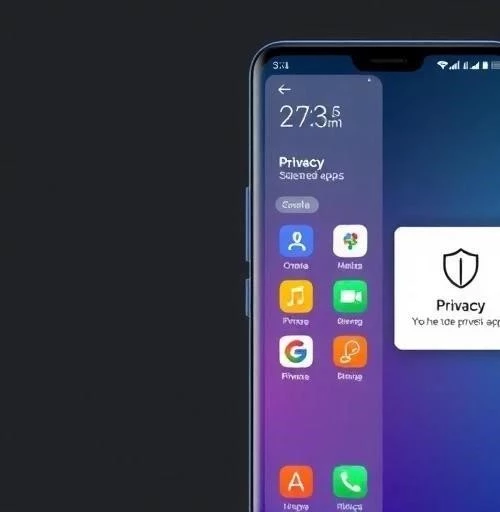
You can hide apps on a Xiaomi Redmi Note 8 using MIUI’s built-in privacy or launcher features, if they are available in your phone’s software version․ The exact menu names and gestures vary between MIUI releases and regions, so a setting described below may appear under a slightly different name—or may not be included at all․ Hiding an icon is also not the same as locking an app: use App lock as well if you want to prevent someone from opening it․
Method 1: Use the Hidden apps feature
- Open the Security app on your phone․
- Look for Hidden apps․ Depending on your MIUI version, it may be on the Security app’s main screen or within App lock․
- If prompted, set up an unlock pattern or password․ You may also be asked to sign in to a Xiaomi account or set recovery information․
- Find the app you want to hide and switch on the control beside it․
- Return to the home screen and check that the app icon no longer appears in the usual app list․
On some MIUI versions, you can open the hidden-apps area by placing two fingers on an empty part of the home screen and spreading them apart, as if zooming in on a photo․ Follow the on-screen prompt to enter the password or pattern․ This gesture is not supported on every Redmi Note 8 software build․ If it does nothing, open Security and look for the feature there rather than repeatedly changing your screen settings․
Method 2: Check App lock settings
Some versions put hiding controls inside App lock․ Open Settings and try Apps > App lock, or open the Security app and tap App lock․ Complete the setup, then look for an option such as Hidden apps, Hide app icons, or Manage hidden apps․ Select the app you want to conceal․
App lock and app hiding do different jobs․ App lock asks for authentication before an app can be opened; hiding removes its icon from ordinary launcher views․ If your phone offers both controls, enable both for better privacy․ Otherwise, a person may still find and open an app through search, a notification, a link, or the Apps page in Settings․
If you cannot find the option
First check your MIUI version under Settings > About phone․ Menu labels and features can differ after system updates, and instructions for one MIUI release may not match another․ Update the Security app and system software through the phone’s official update tools, then check Security and App lock again․ Restarting the phone can also help if a setting has recently appeared or changed․
Next, check which home-screen layout is active․ Open Settings > Home screen and look for an app-drawer or launcher option․ Some builds use a traditional home screen, while others offer an app drawer; hiding controls can behave differently in each layout․ If the Hidden apps option is absent, your installed MIUI version or region may not support Xiaomi’s built-in method․ Do not assume that every Redmi Note 8 has the same menu․
Other ways to reduce an app’s visibility
Remove its home-screen shortcut
If you only want to tidy the screen, press and hold the app icon and choose Remove or drag it to the remove area․ This usually removes the shortcut, not the app itself․ The app may remain visible in the app drawer, search results, notifications, and Settings․
Turn off notifications on the lock screen
Notifications can reveal an app’s name or message even when its icon is hidden․ Open Settings > Notifications (the label may vary), choose the relevant app, and limit or disable its notifications․ You can also review lock-screen notification previews and hide sensitive content․ Disabling notifications may cause you to miss messages or alerts․
Use a second space, if available
Some Xiaomi software versions include Second space, a separate phone environment with its own apps and data․ Search Settings for “Second space” to see whether your device supports it․ It is a broader separation tool, not simply an invisible-app switch: you must set it up, move or install the relevant apps there, and switch between spaces to use them․ Keep the space’s password safe and back up important data․
How to show an app again
Open Security > Hidden apps, or return to the Hidden apps section inside App lock․ Authenticate, find the app, and switch off its hidden status․ If you used the home-screen gesture, open the hidden-apps panel with the same gesture and restore the app from its settings․ The icon should then become available in the launcher again; you may need to add a shortcut to the home screen manually․
Important privacy limitations
Hiding an icon is a convenience feature, not complete concealment․ The app may still appear in Settings > Apps, battery or data-usage screens, Play Store history, recent-app views, notifications, or searches․ A person who knows your unlock credentials may be able to find it․ App hiding also does not encrypt the app’s data or erase its records․
For personal information, set a strong screen lock, use App lock where supported, disable sensitive notification previews, and keep the phone’s software up to date․ Avoid third-party “vault” or launcher apps unless you trust the developer and understand the permissions requested; such apps may collect data or affect normal launcher behavior․ Do not use these steps to interfere with another person’s device or bypass an organization’s security controls․
Troubleshooting
- The gesture does not work: Confirm that your MIUI build supports it, and open Hidden apps from Security instead․
- The app is still visible: Check whether you hid it in the correct profile or space, then restart the launcher or phone․
- You forgot the App lock credential: Use the recovery option shown on the phone․ Do not reset the device unless you have backed up important files and understand that a reset can erase data․
- The app appears in notifications: Change that app’s notification and lock-screen preview settings separately․
Quick summary
On a Redmi Note 8, start with Security > Hidden apps․ If that option is missing, check App lock and search Settings for the relevant feature; availability depends on the installed MIUI version․ Use App lock and notification controls if you need more privacy, and remember that hiding an icon does not remove or encrypt the app․


1 Comment. Оставить новый
Helpful guide, especially the reminder that MIUI features and menu names vary by version. The distinction between hiding an app and locking it is useful too.