
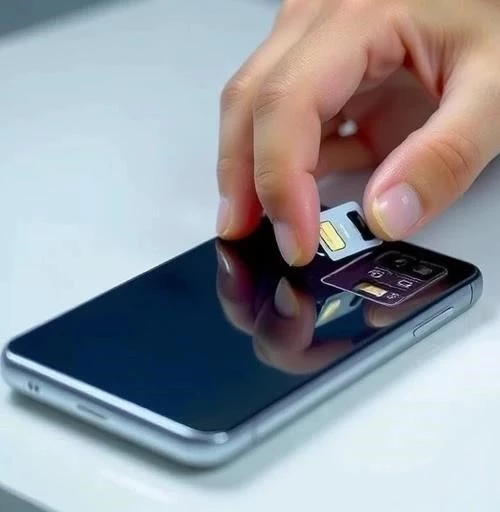
Inserting a SIM card into a Huawei smartphone is usually straightforward, but the exact tray design and supported SIM configuration vary by model․ Some phones have a single-SIM tray, others support two physical SIM cards, and certain models may offer a combination of a SIM card and a memory card․ A small number of devices or regional versions may also support eSIM․ For that reason, do not rely on a general picture or assume that every Huawei phone opens in exactly the same way․ Check the instructions for your particular model before you begin․
This guide explains how to identify the SIM tray, prepare the card, insert it safely, and check that the phone recognizes it․ The key principle is simple: use the correct tray and orientation, and never force a card or tray that does not fit easily․
Before you start
- Identify your exact phone model․ The model name or number is commonly listed in Settings under About phone, on the original packaging, or on the device documentation․ Menu names can differ by software version․
- Check which SIM format it takes․ Most recent Huawei phones with a physical SIM tray use nano-SIM, the smallest common removable SIM format․ Older devices may use a different size․ Confirm the format in the model’s user guide or with your mobile operator․
- Find the proper eject tool․ Use the SIM-eject pin supplied with the phone․ If it is unavailable, a straightened paper clip with a narrow, blunt end may work, but use it carefully․ Do not use a needle or a sharp object that could slip, damage the phone, or injure you․
- Save important work and, if practical, switch the phone off․ Many phones allow SIM changes while powered on, but turning the device off first is a cautious approach․ It also makes it easier to tell whether the phone detects the card after restarting․
Step-by-step instructions
-
Locate the SIM tray․ Look along the sides or top edge of the phone for a narrow outline of a removable tray and a tiny round eject hole beside it․ The tray is not always in the same place on every Huawei model․ Check the user guide if you are unsure․ Do not mistake a microphone opening for a tray-release hole: a microphone hole is usually a small opening without a visible tray outline․ Pushing a tool into the wrong opening can damage the device․
-
Hold the phone securely․ Place it on a clean, dry surface or hold it firmly with the tray edge facing you․ Keep the eject tool aligned with the hole․ Avoid working over a sink, outdoors in wind, or anywhere a tiny SIM could easily be lost․
-
Release the tray․ Insert the eject pin straight into the small release hole and press gently until the tray pops out slightly․ The tool should go into the hole, not into the gap around the tray․ Do not twist it, lever it sideways, or push with excessive force․ If the tray does not release with gentle pressure, stop and check that you have found the correct hole and are using the correct tool․
-
Pull the tray out carefully․ Once it has loosened, take hold of the exposed edge and slide it out without bending it․ Notice the tray’s shape and the position of its cut-out corners․ A tray may have more than one marked position, such as SIM 1, SIM 2, or a memory-card position; The markings and the phone’s documentation determine what each position supports․
-
Place the SIM in the correct position․ Match the card’s clipped corner to the corresponding corner in the tray․ The metal contacts should face the direction shown by the tray or the device guide; their orientation is not identical across every model, so do not guess if the markings are unclear․ The card should lie flat and fit within its outline․ A nano-SIM should not overlap the tray edges or sit at an angle․
-
Check the tray configuration․ If your phone supports two physical SIM cards, use the labeled SIM positions and confirm that the second slot is enabled in the phone settings after insertion․ Some models use a shared or hybrid position that accepts either a second SIM or a memory card, but not both at the same time․ Do not try to fit a memory card into a SIM-only recess or stack cards on top of one another․
-
Slide the tray back into the phone․ Keep it level and aligned with the opening, then push it in gently until it sits flush with the phone’s edge․ It should move smoothly․ If it catches, protrudes, or requires substantial force, remove it and check that the SIM is seated correctly and that the tray is facing the right way․ Forcing it can bend the tray, dislodge the card, or damage the slot․
-
Turn the phone on and wait for registration․ If the phone was off, power it on․ Give it a short time to detect the SIM and connect to the mobile network․ You may be asked to enter the SIM PIN․ This PIN is supplied or set through your mobile operator; it is not necessarily the same as the phone’s screen-lock code․ If you do not know the PIN, do not keep guessing, because repeated incorrect entries can require a PUK code from the operator․
How to confirm that the SIM is working
Look for the operator’s name or a mobile signal indicator in the status bar․ You can also open Settings and look for a section such as Mobile network, SIM management, or Mobile networks․ Exact labels depend on the Huawei model and software version․ On a dual-SIM phone, check that the intended card is enabled and, if necessary, choose which SIM should be used for calls, messages, or mobile data․
To test basic service, try making a call or sending a text message, provided your plan supports those services․ For mobile internet, check that mobile data is switched on and that the correct SIM is selected for data․ A phone may recognize a SIM but still show no internet if the plan is inactive, the account has a restriction, or the network settings have not been configured by the operator․ Recognition of the card and availability of service are related but separate issues․
If the phone does not recognize the SIM
- Restart the phone․ A restart can prompt the device to detect the card again․ After restarting, wait briefly for network registration instead of repeatedly removing the tray․
- Check that the SIM is seated correctly․ Power off the phone, remove the tray, and confirm that the card lies flat in the correct recess, with its clipped corner aligned․ Reinsert the tray gently and fully․
- Inspect the card and tray․ Look for visible dirt, moisture, cracks, or bending․ Do not scrape the gold contacts or use liquids, abrasive materials, or household cleaners․ If the contacts appear dirty, ask your operator or a qualified service provider how to clean or replace the SIM safely․
- Check whether the card is active․ A new, replacement, expired, or recently transferred SIM may need activation by the operator․ Contact the operator to confirm that the account and service are active and that the card is not blocked․
- Try a careful cross-check․ If possible, test the SIM in another compatible phone and test a known-working compatible SIM in your Huawei․ If your card fails in another phone, the issue may be with the SIM or account․ If multiple working cards fail in your Huawei, the tray, slot, settings, or device may need attention․ Power devices off before moving cards where practical․
- Check the network settings․ Make sure the SIM is enabled and that airplane mode is off․ If the phone shows the SIM but cannot connect, check network selection and mobile-data settings․ Avoid changing advanced settings unless you understand their effect; your operator can provide the correct configuration․
- Seek help if the tray is stuck or damaged․ Do not pry it out with a knife, screwdriver, or other hard tool․ A bent tray or damaged slot should be inspected by an authorized service provider or a qualified repair professional․
Important precautions
Use a SIM card that has been cut or manufactured to the exact size required by the phone․ Do not place a larger card in the tray and trim it while it is inside the device․ Avoid loose adapters unless the phone’s instructions or a qualified technician specifically recommends one: an adapter can shift, catch on the slot, or leave the card misaligned․ Keep the eject pin and SIM cards away from children and pets, and handle the tray over a surface where small parts cannot fall into a drain․
Do not force the tray in either direction․ If the phone has been dropped, exposed to liquid, or repaired, the tray may no longer align correctly․ Stop if you feel unusual resistance, see a bent edge, or cannot tell which way the tray belongs․ A brief pause to verify the model-specific guide is safer and usually quicker than attempting a repair after damage occurs․
What about eSIM?
An eSIM is a digital SIM profile and does not require inserting a plastic card into a tray․ Support depends on the exact Huawei model, its regional version, software, and the mobile operator․ If your phone and operator support eSIM, setup normally involves following the operator’s activation instructions, which may include scanning a QR code or using an app․ Do not assume that a phone supports eSIM just because another device in the same product family does․ Confirm compatibility with Huawei’s information for your model and with your operator․
Quick checklist
- Confirm the exact Huawei model and required SIM size․
- Find the tray by its outline, not by guessing at a tiny opening․
- Use the eject tool gently and keep it straight․
- Align the clipped corner and follow the tray markings․
- Never stack cards or force a misaligned tray․
- Restart the phone, check SIM settings, and contact the operator if service is unavailable․
Final advice
For most Huawei phones with a physical SIM tray, the process is: identify the correct tray, release it with the eject pin, place the correctly sized SIM in its marked recess, and slide the tray back in without force․ The steps are simple, but tray layouts differ, so the phone’s own markings and model-specific instructions should take priority over generic guidance․ If the tray will not open, the card will not sit flat, or the phone continues to report that no SIM is present, stop experimenting and ask the mobile operator or a qualified Huawei service provider for help․
Huawei’s consumer support pages and the documentation supplied for an individual device are useful places to verify model-specific details․ A short check before inserting the card can prevent damage and help distinguish a physical installation issue from an inactive SIM, network problem, or unsupported configuration․


8 Comments. Оставить новый
The opening is easy to follow and sets realistic expectations about differences between devices. Its focus on correct orientation and gentle handling gives readers a sound basis for proceeding safely.
This is a clear introduction for someone who has never handled a SIM tray. The advice to power down the phone first is presented as a precaution rather than an absolute requirement, which is appropriately balanced.
I appreciate that the article mentions regional differences and eSIM support rather than assuming every Huawei phone uses the same physical SIM setup. That qualification makes the guidance more reliable.
The reminder to check the exact phone model is especially useful, since tray layouts can differ even among Huawei devices. It helps prevent readers from following instructions that do not match their phone.
This guide takes a sensible safety-first approach. Advising readers not to force the tray or card is important because even a small mistake could damage the phone.
The article does a good job emphasizing that model-specific instructions matter. That is a useful point because a general guide cannot account for every tray design or card combination.
The preparation checklist is practical, particularly the suggestion to confirm the SIM format before starting. Readers can avoid unnecessary trouble by checking the user guide or asking their carrier first.
The warning about using a sharp object is worthwhile. A supplied eject tool is the safest option, and the alternative is described with appropriate caution.