
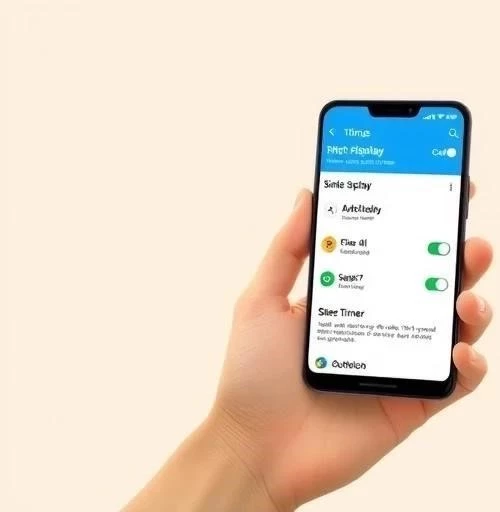
On Xiaomi phones, “sleep mode” usually means that the display turns off automatically after a period of inactivity. You can extend this screen timeout, but the exact settings depend on your MIUI or HyperOS version. Keeping the display on indefinitely is not always offered, and it can drain the battery, cause screen burn-in on OLED models, and expose private information. In most cases, a longer timeout is a better choice than disabling sleep altogether.
Change the screen timeout
- Open Settings.
- Tap Always-on display & Lock screen, or look for Lock screen or Display. Menu names vary by model and software version.
- Select Sleep or Screen timeout.
- Choose the longest available interval, such as 10 minutes.
If you cannot find the option, use the search box at the top of Settings and search for “Sleep” or “Screen timeout.” Setting a longer interval prevents the screen from going dark as quickly, while still allowing it to switch off eventually and conserve power.
Keep the screen on while charging
For a phone used as a desk display, you can enable Android’s developer option to keep the screen awake during charging:
- Go to Settings > About phone and tap OS version (or MIUI version) repeatedly until developer mode is enabled.
- Open Settings > Additional settings > Developer options.
- Turn on Stay awake, which keeps the display on while the phone is connected to a charger.
On some releases, Developer options may be under a different submenu. Use Settings search if needed. This setting does not keep the display on when the phone is unplugged, and it is generally safer than trying to disable the timeout system-wide.
Check other power settings
If the display still turns off sooner than expected, check Battery settings and disable Battery Saver temporarily. Battery-saving modes can restrict background activity or alter display behavior. Also review any app-specific settings: video players, navigation apps, and presentation tools may offer a “keep screen on” option while they are open. Prefer that targeted control when you only need the display awake for one task.
Important cautions
There may be no “Never” timeout choice on your Xiaomi model. Avoid installing unknown apps or changing hidden system settings to force one: they may require excessive permissions, affect security, or increase battery and heat. A static bright image left on an OLED screen for hours can also contribute to image retention. When you finish, lock the phone manually or restore a shorter timeout. If menu labels differ, tell us your Xiaomi model and MIUI or HyperOS version for more precise steps.

4 Comments. Оставить новый
The instructions account for differences between MIUI and HyperOS, which is useful because menu names can vary across Xiaomi phones. Suggesting Settings search when an option is hard to find makes the advice easier to follow.
This is a practical guide that clearly distinguishes between changing the screen timeout and keeping the display awake only while charging. The warnings about battery use, burn-in, and privacy help readers make an informed choice rather than simply disabling sleep.
The guide is well organized and offers sensible troubleshooting steps, including checking battery-saving settings. One limitation is that the final section appears to end mid-sentence, so the article may need a quick edit to ensure it is complete.
I like that the article recommends a longer timeout as a safer alternative to keeping the screen on indefinitely. The separate charging workaround is also clearly scoped, so readers know it will not keep the display awake when the phone is unplugged.