
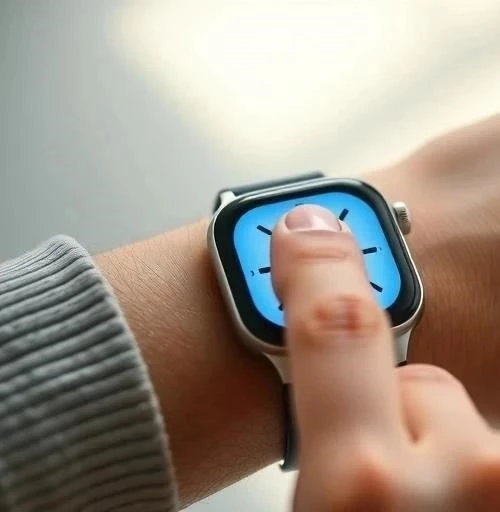
If your Apple Watch goes dark before you have finished checking the time, a workout, or a notification, you can change how its display behaves. The right setting depends on what you mean by “stay on”: you may want a dim clock to remain visible when your wrist is down, or you may want the screen to stay awake longer after you tap it. These are different features, and neither makes the display stay brightly lit forever. Apple limits screen-on time to help preserve battery life and prevent accidental touches.
Turn on Always On
On a compatible model, Always On keeps a dimmed version of the watch face visible when you lower your wrist. Raise your wrist or tap the display and it brightens. This is usually the best option if you want to glance at the time without making a wrist gesture.
- On your watch, open Settings.
- Tap Display & Brightness, then Always On.
- Turn on Always On. If available, use the same menu to choose whether information such as complications, notifications, and apps can appear while the display is dimmed.
You can also make this change on your iPhone: open the Watch app, tap My Watch, and go to Display & Brightness > Always On. The precise wording can vary slightly with your software version.
Always On is available on supported models, including Apple Watch Series 5 and later models that include the feature, and Apple Watch Ultra. Apple Watch SE models do not offer Always On. If you cannot find the setting, check your watch model and update watchOS before troubleshooting further.
Make the screen stay awake longer after a tap
If your screen wakes when you tap it but goes dark too quickly, increase its wake duration. On the watch, open Settings > Display & Brightness > Wake Duration, then select Wake for 70 Seconds instead of 15 seconds. This gives you more time to read an item or use an app after waking the display.
This setting does not keep the screen continuously illuminated. It controls how long the display remains awake after you wake it. For a persistent, dim watch face, use Always On if your model supports it.
Check wrist and display settings
Apple Watch can wake its display when you raise your wrist. If the screen does not respond reliably, check that wrist detection and orientation are set correctly. In the Watch app on iPhone, go to My Watch > General > Watch Orientation and confirm the wrist and Digital Crown position. A watch worn loosely or with its display facing the wrong direction may not recognise your gesture consistently.
Also check whether Theater Mode is on. It prevents the screen from lighting up automatically when you raise your wrist, which is useful in a dark room but can make the watch seem unresponsive. Press the side button to open Control Center, then tap the Theater Mode icon (the two masks) to turn it off. You can still wake the watch by tapping the screen or pressing a button.
Keep a workout or app on screen
For a workout, you may want the Workout app to return instead of the watch face. On the watch, open Settings > General > Return to Clock > Workout and choose While in Session, if that option is available. This helps keep the workout view accessible, but it does not override the display’s sleep behaviour. If your model supports Always On, that feature can keep a dim workout display visible during a session.
For other apps, check their own settings and the watch’s Return to Clock options. Apps may return to the clock after a period of inactivity, even when Always On is enabled. Always On keeps information visible in a dim state; it does not guarantee that every app remains fully active or shows its full-brightness screen.
Consider battery and power settings
A screen that stays visible uses more power than one that turns off, particularly at high brightness. Lower brightness in Settings > Display & Brightness if battery life matters. Low Power Mode and other power-saving settings may also limit display behaviour or disable Always On, depending on your watchOS version. If the display goes dark only when the battery is low or a power-saving mode is enabled, check that mode before changing other settings.
Leaving the screen brightly lit without interruption is not a practical or supported way to use Apple Watch: it can drain the battery faster and increase the risk of unwanted touches. For most people, the best balance is to enable Always On for quick glances and set Wake Duration to 70 seconds for longer interactions.
If the screen still turns off
- Confirm that Always On is enabled and that your model supports it.
- Turn off Theater Mode and check whether a power-saving mode is active.
- Restart the watch, then install any available watchOS update.
- If the display remains black or behaves unexpectedly, contact Apple Support.
In short: use Always On to keep a dim watch face visible, and Wake Duration to extend the time the screen stays awake after you tap it. The distinction matters: changing one setting will not necessarily produce the behaviour of the other.

5 Comments. Оставить новый
The compatibility note is important, especially for people who cannot find the Always On option. Checking the model before troubleshooting can save time and prevent confusion.
The distinction between Always On and Wake Duration is useful because they solve different problems. The article makes it clear that a longer wake duration does not keep the display continuously lit.
I appreciate that the instructions cover both the watch and the iPhone Watch app. Including both routes makes the guidance easier to follow for readers who prefer changing settings on their phone.
The explanation of dimming when the wrist is lowered sets realistic expectations. It helps readers understand that Always On preserves a visible watch face without promising a bright screen at all times.
This is a practical guide because it connects each setting to a specific need: glancing at the time or having more time to read after waking the display. The battery-life context also explains why the screen cannot remain fully lit indefinitely.