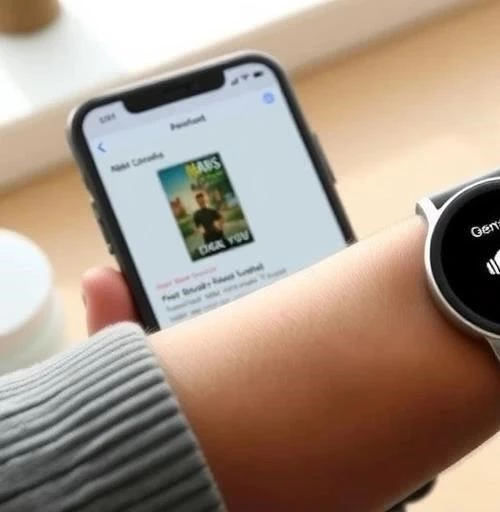
Listening to an audiobook on Apple Watch is useful when you want to walk, run, or commute without carrying your iPhone. The key is to prepare the book and make sure it is available on the watch: Bluetooth headphones can connect directly to the watch, and many titles can play offline. The exact menus depend on the audiobook service and software version, but Apple Books and Audible are common options.
Option 1: Use Apple Books
If you bought or downloaded an audiobook through Apple Books, start by checking that it is in the Books library on your iPhone. Audiobooks generally need to be obtained or managed on the iPhone before you can add them to Apple Watch. Then follow these steps:
- Keep your iPhone and Apple Watch nearby, with Bluetooth and Wi-Fi enabled. Make sure the watch has enough free storage and is charged.
- On the iPhone, open the Watch app and tap My Watch.
- Scroll to Audiobooks. Choose a title to add, or adjust automatic additions if that option is shown.
- Allow time for the book to transfer. Keeping the watch on its charger and near the iPhone can help with syncing.
- On Apple Watch, open the Audiobooks app, choose the title, and tap play.
Menu labels and syncing behavior can vary by watchOS and iOS version. If a book does not appear, confirm that it is downloaded or available in your iPhone library, then reopen the Watch app and check the Audiobooks settings. A large title may take a while to transfer, and the watch needs enough available storage.
Option 2: Use Audible
Audible offers its own Apple Watch app for people who listen through an Audible account. Install Audible on the iPhone and Apple Watch, sign in, and use the Audible app’s transfer or download controls to make a title available on the watch. The wording and available choices can change with app updates, so follow the prompts shown in your version. Wait for the transfer to finish before leaving your phone behind. Then open Audible on the watch and select the book.
Do not assume that installing an app automatically downloads every audiobook. Before going out, check that your chosen title is listed in the watch app and ready to play. Some services may support streaming under particular conditions, but offline playback is more dependable when you will be away from Wi-Fi or cellular coverage.
Connect headphones and play
Apple Watch can send sound to compatible Bluetooth headphones or earbuds. Put the headphones in pairing mode, open Settings on the watch, tap Bluetooth, and select them. If your headphones are already paired with your iPhone, they may connect automatically, but it is worth checking the watch’s audio output before you leave.
Start playback in Books or Audible. You can pause, resume, skip forward or back, and adjust volume from the app’s playback screen. The Now Playing screen may also show controls when audio is playing. If the watch seems to control music rather than your book, open the audiobook app directly and select the title there.
Listening without your iPhone
For phone-free listening, the audiobook must be stored on the watch, and your headphones must be connected to it. A cellular Apple Watch can sometimes stream supported content when it has a connection, but this depends on the app, plan, signal, and settings. Downloading or transferring the book in advance is the safer choice: it avoids interruptions in areas with poor reception and does not use mobile data during playback.
Try a short test before relying on offline playback. Put your iPhone out of Bluetooth range, or enable Airplane Mode on the watch while leaving Bluetooth available for your headphones, then play the book. If playback fails, reconnect to the iPhone or internet, check the download status, and transfer the title again.
Fix common problems
- The book is missing: Check that it is in the correct service’s library and that the account is signed in. Refresh the app and review the Watch app’s audiobook settings.
- Transfer is slow or stuck: Charge the watch, keep it close to the iPhone, free storage if necessary, and give syncing time. Restarting both devices can help if the transfer remains stalled.
- No sound: Check the watch’s Bluetooth connection and volume, and confirm that audio is routed to the headphones rather than another device.
- Playback stops away from the phone: The title may not be stored locally. Re-download or transfer it, then test again without the iPhone nearby.
Make listening comfortable
Choose a moderate volume and use the playback-speed setting if your app provides one. A sleep timer is helpful when listening in bed; availability and controls depend on the service. It is also sensible to check battery level before a long session, because Bluetooth playback and cellular use can consume power. For most listeners, the simplest reliable routine is to add one or two books, confirm they are on the watch, pair headphones, and test playback before heading out.
In short: add the audiobook through Apple Books or a supported service such as Audible, transfer or download it to Apple Watch, connect Bluetooth headphones, and verify offline playback if you plan to leave your iPhone behind. A quick check beforehand makes listening simpler and more reliable.