
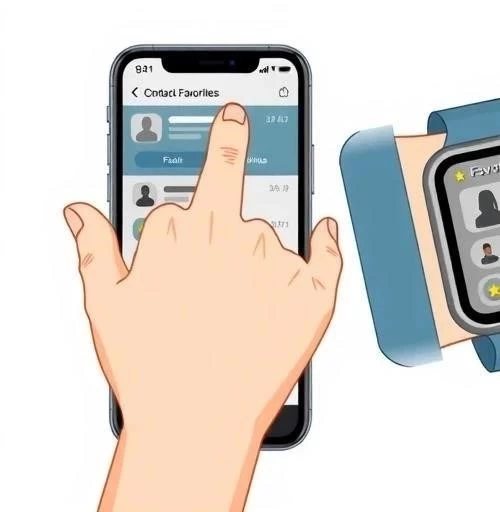
Your Apple Watch’s Favorites list is a tiny guest list with a big job: it puts the people you reach for most within a few taps. But the watch usually doesn’t maintain this list independently. To add, remove, or rearrange Favorites, start on the iPhone paired with your watch; then let the change travel to your wrist.
Update the list on your iPhone
- Open the Phone app on your iPhone and go to Favorites. Depending on your iOS version, Favorites may appear as a tab at the bottom or within the app’s navigation.
- To add someone, tap the + button, choose a contact, and select the action you want available—such as a phone call or FaceTime. The exact choices can vary with your iOS version and the contact’s details.
- To remove or rearrange people, tap Edit. Use the remove control to delete an entry, or drag its handle to change its position. Tap Done when you’re finished.
Think of this as editing the master guest list, not writing a separate one for the watch. In most setups, the Favorites shown in the watch’s Phone app follow the paired iPhone’s Phone Favorites. If you add someone only to the Contacts app, that alone may not make them a Favorite.
Check the change on Apple Watch
- Keep the iPhone and Apple Watch near each other. Make sure Bluetooth and Wi‑Fi are on, and that both devices have a connection if they need one.
- On the watch, press the Digital Crown, open Phone, and look for Favorites. Tap a person to see or start the available contact action.
- If the old list is still there, give the devices a short moment to sync, then close and reopen the Phone app on the watch.
The watch is the quick-access window; the iPhone is usually the control room. You generally don’t need to delete and re-add your watch or erase either device just to refresh Favorites.
If Favorites are missing or out of date
- Confirm you edited the right list. Check Favorites inside the iPhone’s Phone app—not merely the Contacts app, a Messages pin, or a list in another calling service.
- Check the pairing; Make sure the watch is paired with the iPhone where you changed Favorites. If you use more than one iPhone or Apple Account, the wrong pairing can make the list seem mysteriously unchanged.
- Check connectivity. Bring the devices together, switch Bluetooth and Wi‑Fi on, and wait briefly. A watch without a current connection may not show a recent update right away.
- Restart both devices. Restart the iPhone and Apple Watch, then open Phone on the watch again. A simple restart can clear a temporary sync delay.
- Install available updates. Check for iOS updates on the iPhone and watchOS updates in the Watch app. Menu names can differ slightly between software versions.
- Review your contacts account. If a Favorite’s name or number looks wrong, check that person’s contact card and the account that stores it, such as iCloud or another contacts provider. A correct Favorite can still point to outdated contact details.
What changes—and what doesn’t
Adding a contact to Favorites is not the same as granting new access to your data or changing a contact’s details. It simply makes a chosen person easier to reach through supported Phone actions. If a person appears on the iPhone but not on the watch, first check the paired iPhone and the Phone app’s Favorites list before troubleshooting individual contact cards.
Also, don’t confuse Favorites with the watch face’s complications, widgets, or the Recents list. Recents records recent activity; Favorites is a deliberately curated shortlist. A contact may appear in one and not the other. If your software offers different Phone layouts, look for the Favorites section inside the Phone app rather than expecting it to appear as a separate watch-face feature.
A quick refresh routine
Edit on iPhone → wait for sync → open Phone on Apple Watch. That’s the whole ritual in most cases. Add a new VIP, move a frequent caller to the top, or retire a number you no longer use. If the watch still refuses to catch up, verify pairing and connectivity, restart both devices, and check their software versions before trying more disruptive fixes.
Your wrist-sized phonebook should feel less like an archive and more like a well-run backstage pass: only the people you want, in the order you want, ready when the moment calls.
6 Comments. Оставить новый
A clear guide with the satisfying rhythm of a checklist. The “guest list” metaphor gives the instructions a bit of personality, while the version caveat keeps the directions grounded in the real world.
This turns a fiddly settings task into a calm, almost pocket-sized ritual: edit the list, give the devices a moment, check the watch. The reminder that Contacts and Favorites are different doors is a useful detail.
The article gives good advice without making a simple sync hiccup sound like a crisis. Its best feature is knowing what not to do: no dramatic unpairing, no digital bonfire, just a few sensible checks.
A helpful little map of the route between iPhone and wrist. I especially like the “control room” idea—it makes syncing feel less mysterious and saves readers from reaching for the digital equivalent of a fire extinguisher.
A small tech task, explained with the gentleness of someone untangling headphones rather than blaming the knots. The troubleshooting advice is refreshingly proportionate—and that can be the most useful feature of all.
I appreciate how this explains the relationship between the paired devices instead of treating the watch like a tiny, independent phone. It’s practical, reassuring, and easy to follow even if your Favorites have wandered off.