
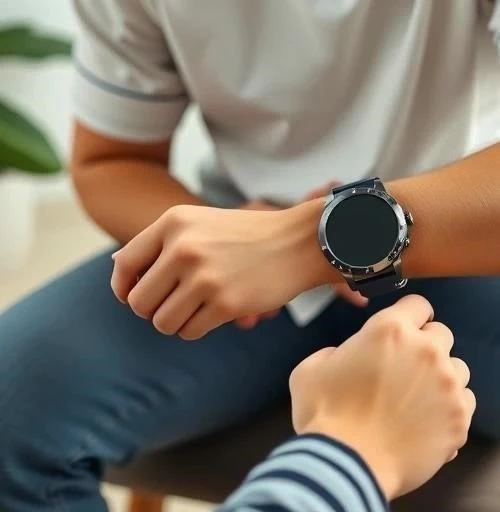
Your Galaxy Watch Active2 can estimate blood pressure, but it needs a proper starting point: a reading from a conventional upper-arm monitor. Think of that cuff as the watch’s compass. The watch then uses changes in your pulse to estimate readings between calibrations. It is not a replacement for a medical-grade blood-pressure monitor or professional advice.
Before you begin
- Check that Samsung Health Monitor and its blood-pressure feature are available for your country, phone and watch software. Availability and compatibility vary. The feature generally requires a compatible Samsung Galaxy phone paired with the watch.
- Install or update Samsung Health Monitor on both devices, then follow its pairing and permission prompts. If the blood-pressure option is missing, check Samsung’s regional support information and update both devices; availability may be the reason.
- Get a validated upper-arm blood-pressure monitor. You will use it to calibrate the watch, and again whenever the app asks you to recalibrate.
Calibrate the watch first
- Choose a quiet room. Avoid exercise, smoking, caffeine and meals immediately beforehand; sit calmly for about five minutes.
- Wear the Active2 snugly on one wrist, following the app’s fit guidance. Put the cuff on the other arm. Sit with your back supported, feet flat and arm resting at heart level. Do not talk or move during a reading.
- Open Samsung Health Monitor on your phone and select the blood-pressure calibration option. Start a cuff reading when prompted, then enter the result in the app. Repeat until you have completed the three calibration readings requested by the app. Follow its on-screen instructions if they differ.
- Keep the watch on the same wrist and use the same arm arrangement for later watch measurements. Calibration expires: Samsung’s guidance calls for recalibration every 28 days, and the app will prompt you.
Take a reading
Rest quietly again, with the watch fitted as during calibration. Open Samsung Health Monitor on the watch, choose Measure or the blood-pressure option, and remain still until the measurement finishes. Check the result and timestamp in the app; save notes such as the time, symptoms or medication changes if useful. For a reliable trend, measure at a consistent time and under similar conditions rather than reacting to one number.
If the result looks odd
Check that the watch is snug, your arm is supported at heart level, and you have been still and quiet. Repeat after resting for a few minutes. If readings remain surprising, compare them with a properly used upper-arm cuff and ask a healthcare professional for guidance. Do not change medication based on a watch reading.
Important: The Active2’s estimate is for wellness and tracking, not diagnosis or emergency decisions. It can be inaccurate, and it does not detect every blood-pressure problem. Follow your clinician’s instructions and use a validated cuff when accuracy matters. If you feel seriously unwell, seek urgent medical help regardless of what the watch displays.


5 Comments. Оставить новый
The “cuff as compass” image makes the calibration idea click without pretending the watch is a clinic. A memorable metaphor doing responsible work.
The quiet-room details turn this from gadget advice into a little ritual of patience. Feet flat, arm steady, no chatter—the body gets a chance to stop improvising.
The calibration section reads like a small checklist for avoiding false confidence. Clear, calm, and more useful than another paragraph of smartwatch hype.
I appreciate that compatibility gets its own warning before anyone starts tapping through menus. Sometimes the most useful instruction is knowing why a feature might be missing.
A refreshingly grounded guide: it gives the watch a role, but keeps the medical-grade monitor in the lead. That distinction deserves the spotlight.