
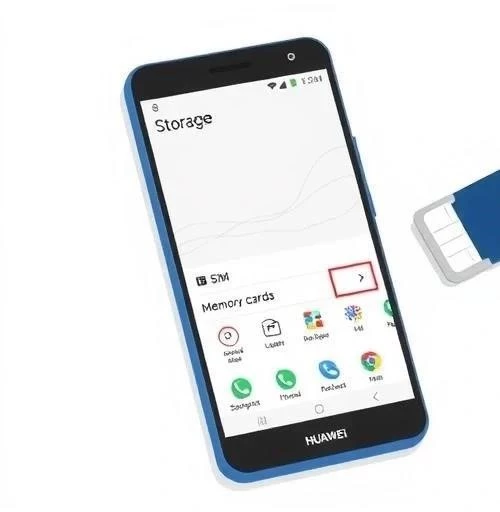
Your Huawei phone is a small city. Apps are the buildings, updates are roadworks, and internal storage is the crowded town square where everything tries to meet. A memory card can give that city more room—but it does not always let you move the buildings. On many Huawei phones, an SD card is excellent for photos, videos, music, downloads, and documents, while apps must stay in internal storage.
That distinction matters. The steps depend on your exact phone model, Android or HarmonyOS version, EMUI version, and the app itself. This guide shows you how to check what your Huawei supports, move apps when the option is available, and reclaim space safely when it is not.
First: can your Huawei phone install apps on a memory card?
There is no single answer for every Huawei device. Some older models and software versions may offer a built-in Move to SD card option for certain apps. Many newer Huawei phones do not. Android’s “adoptable storage” feature—which can turn a card into part of a phone’s internal storage—is also unavailable or restricted on many Huawei configurations.
Even when a phone accepts a card, an app may refuse to move. The developer, the operating system, or Huawei’s software can require that app to remain in internal storage. System apps, widgets, apps that provide background services, and some banking or security apps are especially likely to stay put. So the reliable test is not the model name alone: check the storage settings on your own device.
Before you begin: check the card and make a backup
- Confirm that the phone has a card slot. Not every Huawei model supports expandable storage. Depending on the model, the tray may accept a microSD card or Huawei NM Card, and some dual-SIM trays share a position between a second SIM and a memory card. Check the device’s specifications or the markings on its tray before buying a card.
- Choose a compatible, reputable card. A genuine card from a known manufacturer is less likely to cause errors or lose data. Capacity and speed support vary by phone, so check Huawei’s specifications for your model. A faster card can make file browsing and media playback smoother, but it will not necessarily make every app run faster.
- Back up the card before formatting it. Formatting erases the card. Copy its contents to a computer, cloud storage, or another safe location first, especially if the card has been used before.
- Charge the phone and close open apps. This is particularly useful if you are changing storage settings or moving a large amount of data.
Insert or remove the card only as directed for your phone. If the tray is designed to be removed while the device is on, still avoid handling the card during transfers. To remove a card safely, open Settings and look under Storage for an eject or unmount option, if your software provides one. Removing a card while files are being written can damage data.
Method 1: use Huawei’s built-in “Move to SD card” option
Try this first. Menu names differ slightly across EMUI, Android, and HarmonyOS releases, but the usual route is:
- Open Settings.
- Tap Apps, Apps and services, or a similarly named section.
- Open Apps or App management, then select an app you installed.
- Tap Storage or Storage usage.
- Look for Change, Move to SD card, or a storage-location option.
- If the option is available, choose the card and confirm. Wait for the transfer to finish before opening or updating the app.
If you cannot find the setting, check Settings > Storage as well. Some software versions show storage controls in a different place. You can also use the Settings search box and search for “SD card,” “storage,” or “move.”
What it means when there is no “Change” button
If the app’s storage screen shows no location control—or the control is greyed out—your phone or that particular app does not allow the move through its standard settings. This is not a sign that the card is broken. It usually means the software has chosen to keep the app in internal storage. Installing a file manager will not override that restriction.
Some phones show a move option for one app but not another. That is normal: the feature is permission-based, and apps can have different storage requirements. Moving an app may also leave some data or cache behind in internal storage, so the amount of space freed can be smaller than the app’s displayed size.
Method 2: set the card as the default location for files
Even if apps cannot move, a card can take over many of the files that quietly fill a phone. On supported models, open Settings > Storage, select the SD card, and look for an option such as Default location or Preferred storage location. If offered, choose the card for supported content.
The exact controls vary, and “default location” does not mean every future app will install there. It may affect particular downloads or media, or simply help Huawei’s own apps save selected files to the card. Check the individual app’s settings too: the Camera app, for example, may have a Save to SD card choice under its settings menu. If you do not see one, that model or software version may not provide it.
Move photos, videos, downloads, and documents
For many Huawei owners, this is the most useful way to make the card feel like extra room. Open Files or File Manager, find the files you want, select them, and choose Move or Copy. Browse to the SD card and place them in a clearly named folder, such as Pictures, Videos, or Documents. Use Move only when you are comfortable removing the original from internal storage; use Copy first if you want to verify that the card’s copy works.
Photo and video libraries can be very large, so move them in manageable batches and keep the phone powered on. Afterward, open a few files from the card to confirm they are readable. Remember that a gallery app may take a little time to rescan the card. Avoid moving folders whose purpose you do not recognize, and do not move Android system folders by hand as a substitute for the app-management feature.
Why apps may still use internal storage
An app is more than the icon you tap. It can include program files, downloaded content, accounts, databases, temporary files, and data needed before the phone has fully started. A removable card can be slower than internal storage and may not be available every time the phone needs the app. For reliability and security, Huawei’s software may keep an app—or part of its data—inside the phone.
That is why a card can contain gigabytes of media while the phone still reports that app storage is nearly full. It is also why a card should not be treated as a guaranteed way to install every large game. Some games download additional files after installation, and those files may have their own storage rules.
Free up internal space without moving apps
- Remove apps you no longer use. Open Settings > Apps, review the list, and uninstall apps you recognize and no longer need. Avoid deleting unfamiliar system components.
- Clear cache selectively. In an app’s storage page, Clear cache removes temporary files. Clear data is different: it may erase local settings, downloaded content, or sign-in information. Read the confirmation carefully.
- Clean up downloads and offline media. Check music, video, podcast, map, and messaging apps for downloads you can remove or save elsewhere.
- Back up large media files. Move older photos and videos to a computer or trusted cloud service, then delete only the copies you have verified.
- Review messaging attachments. Chats can accumulate large videos and duplicate images. Use the messaging app’s own storage tools where possible.
- Restart after cleanup. The storage display may take a short time to update, and a restart can help the phone refresh its view.
Portable storage versus internal or “adopted” storage
If your phone offers a choice when preparing a card, read the description carefully. Portable storage keeps the card as a removable place for files. It is usually the safer, more flexible choice: you can move the card to another compatible device, although that device may not read every file or format.
Internal or adopted storage, when a device offers it, formats and encrypts the card for that phone. The card may then behave more like built-in storage, but it is generally tied to that device and may not work elsewhere without being erased. Not all Huawei phones offer this mode. Do not format a card as internal storage unless the phone itself presents the option and you understand the consequences. Never rely on a memory card as your only copy of important data.
Common problems and safe fixes
The phone does not recognize the card
Power down if your model’s instructions recommend it, then check that the card is seated correctly and that the tray is not damaged. If possible, test the card in another compatible reader. A phone may ask to format a card that uses an unsupported file system; formatting erases everything, so back it up first. If several known-good cards fail, consult Huawei support or a repair professional rather than repeatedly forcing the tray.
An app moved, then stopped working
If the option was provided by the phone, restart the device and check whether the app has an update. If the card was removed or became unreadable, put it back and let the phone detect it before launching the app. If the problem continues, move the app back to internal storage if that option is available, or reinstall it from a trusted source. Be aware that uninstalling can delete local app data.
The card is full, but internal storage is still full too
They are separate storage areas. Moving photos can free space on the phone, but it does not automatically relocate app files. Open Settings > Storage to see which categories are using internal space. Then target the largest safe items instead of deleting files at random.
Avoid risky shortcuts
Be wary of apps or online instructions promising to force every application onto an SD card. “Phone cleaner” tools cannot reliably bypass system restrictions; Rooting the device, changing hidden settings, or using commands intended for other Android models can cause boot problems, data loss, broken updates, or security vulnerabilities. It may also affect warranty or support. Do not download modified app packages from unknown websites just to save space; they can contain malware or steal account information.
For installations, use Huawei AppGallery or another official, trusted app store available for your device and region. Keep the operating system and apps updated, and maintain a separate backup of important files. A memory card is helpful, but it is not a substitute for a backup.
The practical answer
To install an app on a Huawei memory card, open that app’s page in Settings > Apps > Storage and use Change or Move to SD card if your phone displays the option. If it does not, that app cannot be moved using the supported settings on your current setup. You can still use the card for photos, videos, documents, and other files, and free internal space by removing unused apps and downloads.
Think of the SD card not as a magic basement where every app can be hidden, but as a well-organized annex: a spacious home for the things your phone allows you to keep there. Check the settings on your exact Huawei model, back up before formatting, and let the phone’s own controls decide what can safely move.

1 Comment. Оставить новый
A useful reminder that a memory card is more like an extra bookshelf than an extension of the phone’s living room: it can hold plenty, but the system still decides what gets to move in. The model-by-model caveat is especially valuable, since a quick check in Settings can save readers from buying a card expecting it to solve every storage problem.