
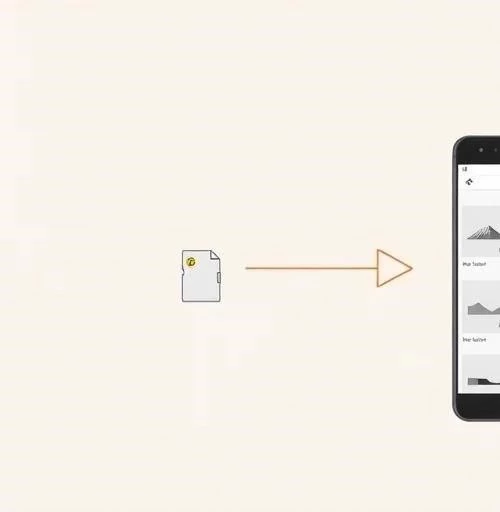
An SD card can free up space on a Xiaomi phone by storing photos, videos, music and documents. The exact menus vary between models and MIUI or HyperOS versions, and some Xiaomi phones have no microSD slot. Check your model’s specifications first. If there is no slot, use cloud storage, a computer or a USB-C drive instead.
Before you begin
- Use a compatible, reliable microSD card with enough free capacity. Back up anything already on it before formatting.
- Power off the phone before inserting the card, unless your model specifically supports hot-swapping. Reinsert the tray carefully.
- Open Settings > About phone > Storage (menu names may differ) and make sure the card is detected.
- Keep important files backed up. A card can be lost, damaged or become unreadable.
Move files with File Manager
For existing downloads, documents, music and other personal files, the built-in File Manager is usually the simplest option:
- Open File Manager and choose a category, such as Images, Videos or Documents, or browse Internal storage.
- Long-press a file or folder, select the other items you want, then tap Move. If you want to keep the originals, choose Copy instead.
- Go back to the storage locations and open the SD card. Create a folder if needed, such as Pictures, Movies or Documents.
- Choose Paste or Move here, then wait for the transfer to finish. Large videos may take several minutes.
Menu labels differ by software version. If the card does not appear as a destination, check that it is mounted in Settings > Storage, and that it is not read-only or full. Do not remove it while files are being copied;
Save new photos and videos to the card
Open the Camera app, tap its settings icon and look for Save to SD card or Storage location. Turn it on if available. Some camera versions or models do not offer this setting; in that case, move images from the DCIM folder manually or back them up elsewhere. Check the setting after a system or camera-app update.
Move apps: important limitations
Many Xiaomi phones do not let users move installed apps to an SD card. Even when an app offers a storage option, only some app data may be movable; updates and essential components can remain in internal storage. Look under Settings > Apps > Manage apps, select an app and check whether Storage includes a move option. If it is absent, there is no supported move function for that app on your device. Avoid rooting or unofficial tools: they can cause data loss, security problems or update failures.
What about contacts, messages and settings?
These are not ordinary files, so copying folders to an SD card will not transfer them properly. Use Xiaomi Cloud, Google backup or the phone’s built-in transfer and backup tools. Menu availability depends on your region and software version. Verify that syncing or backup has completed, then restore through the same account or tool on the destination phone. Do not erase the old phone until you have checked the restored data.
Format or use the card as internal storage?
If prompted to format a new card, read the warning carefully: formatting erases its contents. Xiaomi phones commonly use an SD card as portable storage, for files that can also be read by other devices. Some Android versions offer “adoptable” internal storage, but many Xiaomi models do not. Do not assume apps can be installed on the card or format it as internal storage unless the phone explicitly provides that option. Portable cards can be removed; adopted cards may be encrypted and tied to that phone.
If the transfer fails
- Confirm the card has free space and is formatted in a file system supported by your phone.
- Restart the phone, reseat the card, and test it in another compatible device if possible.
- Try moving a small file first. If only one item fails, its name, permissions or file damage may be the cause.
- After copying, open several files from the SD card before deleting the originals.
Best practice: move personal media with File Manager, set the camera to use the card if the option exists, and keep a separate backup of anything important.

2 Comments. Оставить новый
The step-by-step instructions are easy to follow, and the note that menu names vary across Xiaomi models sets realistic expectations.
Clear and practical guide. The reminders to check for a microSD slot and back up files before formatting are especially helpful.