
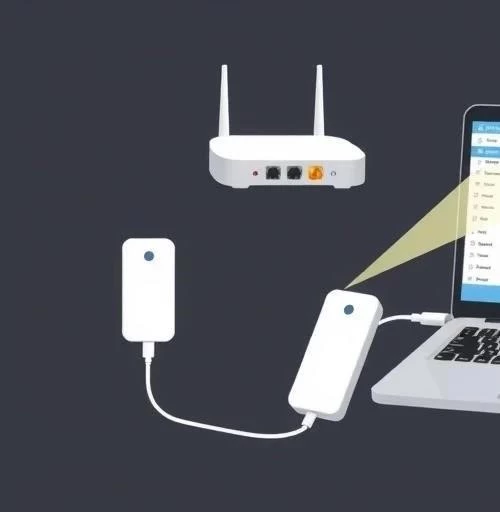
Opening a port sounds like asking a tiny digital gatekeeper to let a visitor through. With the Huawei E3372, however, the gatekeeper may be a USB modem, a mobile network, and your computer—all at once. The right instructions depend on which E3372 version and firmware you have, and on whether your mobile operator gives you a public IP address. Follow the steps below in order: first identify the device’s mode, then check whether incoming connections can reach it, and only then configure a forwarding rule.
First, the important distinction: E3372 is not always a router
The E3372 is commonly sold in two broad configurations. A HiLink version behaves like a small USB-connected router: it creates a local network interface and usually offers a browser-based control panel. A Stick or “stick mode” version behaves more like a traditional USB modem and relies on software or the operating system to establish the mobile connection. Names, firmware, menus, and capabilities differ between hardware revisions and carrier-customized versions.
This difference matters because port forwarding is normally configured on the device performing network address translation (NAT). A HiLink E3372 may provide a virtual-server or port-mapping menu. A Stick-mode modem may have no such menu at all; in that case, there is no modem-side forwarding switch to enable. You may need a router, a computer configured for the connection, a VPN with inbound access, or a different mobile plan.
Step 1: Identify your E3372’s mode
- Connect the modem to your computer and wait until it registers on the mobile network.
- Open a browser and try the modem’s local management address. On many HiLink units, this is http://192.168.8.1. If that does not open, check the modem documentation or your computer’s network details for the default gateway. The address can vary.
- If a Huawei-style web dashboard appears, sign in using the password you set or the credentials supplied with the device. Look for menus such as Settings, Security, Virtual Server, or Port Mapping.
- If there is no web dashboard, or the modem appears only as a dial-up/mobile broadband connection, it may be a Stick configuration. Do not assume that installing another dashboard or changing firmware is necessary; first check the exact model, firmware, and carrier instructions.
Do not reset or flash the modem simply to make a menu appear. A reset can erase connection settings, and unofficial firmware changes may disable the device or create security and warranty problems. The goal is to configure the equipment you have, not to turn a working modem into an interesting paperweight;
Step 2: Check whether the mobile network will accept incoming traffic
Port forwarding only works when a connection from the internet can reach your modem’s public-facing address. Many mobile operators place customers behind carrier-grade NAT (CGNAT). In that arrangement, the address shown on the modem is shared with other subscribers, and the operator controls the outer NAT. A forwarding rule on your E3372 cannot open a gate that is managed upstream.
Compare the WAN/mobile address shown in the modem dashboard with the public IP address reported by a reputable “what is my IP” service. If the addresses differ, or the modem’s address is in a private or shared range such as 10.0.0.0/8, 172.16.0.0–172.31.255.255, 192.168.0.0/16, or 100.64.0.0/10, you are probably behind another layer of NAT. This is a strong clue, not a complete diagnosis: network setups vary, and an address can change when the connection reconnects.
Ask your mobile operator whether your plan supports unsolicited inbound connections and whether a public IPv4 address or a suitable IPv6 service is available. Some operators offer a public or static address as an add-on; others do not permit inbound connections. If CGNAT is in use and no public address is available, changing the modem’s port rule will not solve the problem. Consider an outbound VPN or tunnel that provides a reachable endpoint, a cloud relay, or a service designed to work through NAT.
Step 3: Give the target device a stable local address
A forwarding rule points to a device on your local network, such as a computer running a game server, camera, or test service. That device needs a dependable local IP address. If its address changes after a restart, the rule may quietly point to the wrong place.
- Check the E3372 dashboard for a DHCP reservation or address-reservation feature, and reserve an address for the target device if available.
- If there is no reservation feature, configure a manual address on the computer only after checking the modem’s DHCP range. Choose an unused address on the same subnet, and enter the correct subnet mask, gateway, and DNS settings.
- Write down the target device’s local IP address—for example, 192.168.8.20—but use the address that matches your own network. The example is not universal.
Before adding a rule, confirm that the service is actually running on the target device. A port cannot forward traffic to an application that is closed, listening on a different port, or bound only to the computer’s loopback address (127.0.0.1).
Step 4: Create the port-forwarding rule
If your HiLink firmware includes a virtual-server or port-mapping page, the usual process is:
- Sign in to the E3372 dashboard from a device connected to it.
- Open the port-forwarding section. Depending on firmware, it may be nested under Settings → Security or a similarly named menu.
- Add a rule with a clear label, such as “Home server”. Enter the target device’s local IP address.
- Choose the required protocol: TCP, UDP, or both only if the application specifically needs both. Enter the external port and the internal port. They are often the same, but they do not have to be.
- Enable and save the rule. If the dashboard requests a restart, allow the modem to reconnect before testing.
For example, if a test service listens on TCP port 25565 on a computer at 192.168.8.20, a rule might forward external TCP port 25565 to 192.168.8.20:25565. Replace every example with the values your service actually uses; Do not forward remote-administration ports or broad ranges just because they are convenient.
Some firmware may offer a DMZ option instead of, or alongside, individual rules. DMZ forwarding exposes a device much more broadly than a single-port rule. Avoid it as a quick fix, especially for a computer with file sharing, remote desktop, or weakly protected services. Use the narrowest rule that meets the need.
Step 5: Test from outside, not from beside the modem
A test performed from the same Wi-Fi or local network may fail or appear to succeed because of local routing behavior. Test from a genuinely separate connection, such as a phone with Wi-Fi switched off, or ask someone on another network to connect. Check that the target application is running and listening, and temporarily verify that the computer’s firewall allows the chosen port and protocol.
Use a port-checking service only while the application is running; many checkers report a port as closed when nothing is listening, even if forwarding is configured correctly. Also remember that mobile IP addresses can change. If the address changes, a bookmarked address may stop working; dynamic DNS can help with changing public addresses, but it cannot bypass CGNAT.
When there is no forwarding menu—or the rule does not work
- No web interface: You may have a Stick-mode device, a different management address, or carrier software that hides the controls. Confirm the exact hardware and firmware before making changes.
- Rule saves, but the port stays closed: Check the target IP, protocol, application status, computer firewall, and whether the application listens on the expected port.
- Local tests work, outside tests fail: Investigate CGNAT, the operator’s inbound-traffic policy, and any additional router or firewall between the internet and the target.
- It worked yesterday: The modem may have received a new mobile IP, the target device may have received a different local IP, or the service may have stopped.
- The operator confirms CGNAT: Ask about a public-IP option, use an appropriate tunnel or relay, or host the service somewhere with a reachable address.
Security: open a small door, not the whole house
Every exposed port is an invitation for internet traffic to reach a service. Keep the application and operating system updated, use strong unique passwords, disable services you do not need, and allow access only from trusted source addresses when the modem or application supports that restriction. Avoid exposing cameras, file servers, remote desktop, or modem administration directly unless you understand the risks and have secured them properly.
When finished, test the service and then review the rule list. Remove temporary rules, keep a note of what each remaining rule is for, and change the modem’s default administrator password. If you no longer need remote access, disable the forwarding rule rather than leaving it as a permanent, forgotten doorway.
The practical answer
To open a port on a Huawei E3372, use its web dashboard—often at 192.168.8.1 on HiLink models—to create a virtual-server rule pointing to a device with a stable local IP. But that is only one link in the chain. The E3372 must support forwarding, the target service and firewall must be ready, and the mobile operator must provide a routeable public address or an equivalent inbound-access option. If any link is missing, the port will remain closed, no matter how carefully you click “Save”.
Think of the setup as three gates: the service on your device, the modem’s forwarding rule, and the mobile operator’s network. Check them in that order, and the mystery becomes a diagnosis rather than a guessing game.


2 Comments. Оставить новый
This guide treats port forwarding like a detective story: identify the device, trace the network path, then look for the missing door. The HiLink-versus-Stick distinction is especially useful—it saves readers from hunting for a setting their modem may never have had.
A refreshing antidote to the usual “just open a port” advice. The reminder that a carrier’s network can block incoming traffic even after local configuration is spot-on; sometimes the locked gate is miles away, not inside the modem.