
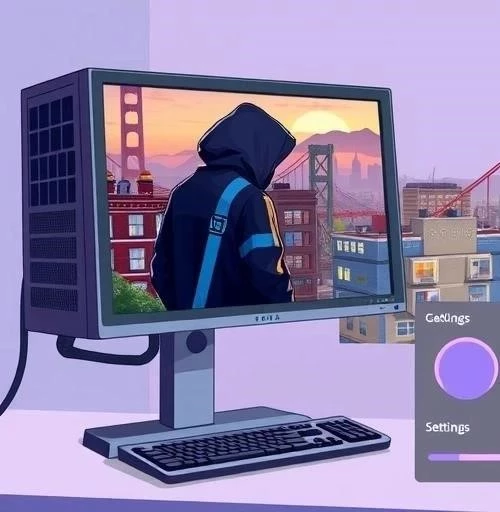
Watch Dogs 2 can be demanding because its open world combines dense city scenes, traffic, crowds, reflections, and long sightlines. A good optimization plan is therefore more effective than blindly lowering every setting: first identify whether the limit is the graphics card, processor, memory, or heat, then change the settings that address it. This preserves image quality while making frame rates and frame pacing more consistent.
Check the system before changing settings
Update the graphics driver from NVIDIA, AMD, or Intel, and install Windows updates that are appropriate for your PC. Restart after updates, then close unnecessary browser tabs, launchers, recording tools, and other background applications. Check Task Manager while the game is running: high CPU or memory use from another program can cause stutter even when the GPU is not fully loaded.
Make sure the game is installed on a drive with adequate free space. An SSD can improve loading and reduce some streaming-related pauses, although it will not directly raise average FPS in every situation. On a laptop, connect the charger and select a performance-oriented power mode. On a desktop, confirm that the game is using the dedicated graphics card rather than integrated graphics.
Establish a reliable baseline
Use the same save, location, camera direction, and route when comparing settings. Let the game run for a few minutes before recording results, since loading and shader preparation can affect early performance. Track average FPS as well as dips and stutter; a stable 50 FPS may feel better than a rate that swings between 40 and 80. Change one option at a time so you can tell what actually helps.
Start at your monitor’s native resolution. If performance is already smooth, there may be no reason to sacrifice clarity. If the GPU is consistently near full utilization and frame rates are too low, reduce resolution or the game’s resolution scale in small steps. This is usually a more direct GPU workload reduction than changing several minor options together, but lower resolution makes the image softer.
Adjust the most expensive graphics options
- Anti-aliasing: Multisample anti-aliasing (MSAA) can be costly. Reduce or disable it first if the GPU is the bottleneck. Compare the result while moving, not only in a still image, because jagged edges are more noticeable in motion.
- Shadows and reflections: Lower these when busy streets or reflective surfaces cause large drops. Their visual impact varies by scene, so test them in the areas where you play most.
- Geometry, vegetation, and extra detail: These settings affect how much of the world is drawn in detail. Lower them if performance worsens in crowded areas or at long viewing distances. Avoid reducing every setting to its minimum unless necessary.
- Textures: Texture quality is primarily a video-memory concern. Keep it high if the card has enough VRAM and the game remains smooth; lower it if you see texture pop-in, hitching, or memory-related problems.
- Resolution scale and temporal filtering: These can change both sharpness and performance. Test them individually, since the best balance depends on your GPU and preferred image quality.
Do not assume that the lowest preset is automatically best. On a CPU-limited system, reducing visual effects that mainly burden the GPU may barely improve frame rate. Conversely, a GPU-limited system often benefits noticeably from a lower render resolution, reduced anti-aliasing, and less demanding shadows or reflections;
Improve consistency, not just peak FPS
If the frame rate fluctuates, set a sensible in-game or driver-level limit near a rate your PC can sustain. A stable cap can reduce sudden swings and make controls feel more consistent. Use V-Sync if screen tearing bothers you, but compare it with V-Sync off: depending on the display and system, synchronization may add latency or make dips more apparent. Avoid stacking multiple frame limiters unless you know how they interact.
For persistent stutter, check temperatures and clock speeds during play. Dust, obstructed vents, or an aggressive quiet mode can cause thermal throttling; improving airflow or cleaning the system safely may help more than another graphics tweak. Also check that Windows power settings are not restricting performance. Microsoft’s Windows guidance recommends reviewing startup applications, storage, and drive optimization as part of general PC maintenance. These steps can help an overloaded computer, but registry cleaners and random “FPS boost” tools are not a substitute for diagnosing the actual bottleneck.
Troubleshoot carefully
If performance suddenly worsens, verify the game files through its launcher, restart the PC, and check whether a recent driver or setting change coincided with the problem. Disable overlays or capture software temporarily to test for conflicts. Keep the Windows page file system-managed unless you have a specific, well-tested reason to change it. Avoid unofficial executable patches and extreme system tweaks: they can introduce crashes, security risks, or harder-to-diagnose problems.
A practical order of operations
- Update drivers, restart, close unnecessary background programs, and confirm the dedicated GPU is active.
- Test a repeatable scene and record both average FPS and noticeable dips.
- If GPU-limited, lower MSAA, resolution scale, shadows, or reflections one at a time.
- If stutter remains, inspect memory use, temperatures, storage activity, and background CPU load.
- Choose a sustainable frame-rate cap and recheck image quality and stability during normal play.
The best Watch Dogs 2 settings depend on the hardware, so there is no universal preset that guarantees a particular FPS. A measured approach is more reliable: preserve native resolution and useful detail where possible, reduce the options that are actually limiting performance, and prioritize steady frame pacing over a brief, higher peak. That delivers a clearer picture of what each change achieves and avoids unnecessary compromises.
7 Comments. Оставить новый
The article sensibly recommends diagnosing the bottleneck before lowering graphics options. That approach avoids sacrificing image quality when the real cause might be background CPU or memory use.
Starting with native resolution is a good recommendation because it preserves clarity unless performance measurements show that the GPU is the limiting factor. The article gives readers a reasoned way to decide when to reduce it.
The advice to establish a consistent baseline is especially useful. Comparing the same location and route makes it much easier to tell whether a setting change actually improves performance rather than relying on impressions.
I appreciate that this distinguishes average FPS from frame-time consistency. In a busy open-world game, reducing sudden drops can make the experience feel smoother even if the average frame rate changes very little.
The step-by-step method of changing one option at a time is practical and easy to follow. It also makes troubleshooting more reliable because the effect of each adjustment remains clear.
The system checks are a valuable inclusion. Driver updates, laptop power settings, and confirming the dedicated GPU are straightforward steps that can solve problems before users make unnecessary visual compromises.
It is helpful to clarify that an SSD can reduce loading and some streaming pauses but does not guarantee higher average FPS. That distinction sets realistic expectations for readers considering an upgrade.