
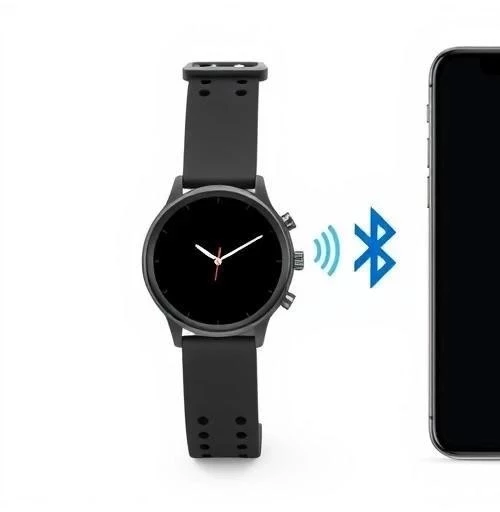
Pairing a Haylou Smart Watch 2 should feel less like wrestling with Bluetooth and more like opening a small door between your wrist and your phone. The key is simple: set it up through the correct Haylou app first, rather than trying to pair it only from the phone’s Bluetooth menu.
Before you begin
- Charge the watch. Give it enough power to complete setup without switching off midway.
- Check the model name. “Haylou Smart Watch 2” is often associated with the LS02, but look at the label, packaging, or manual to confirm your exact model.
- Install the companion app. For many Smart Watch 2/LS02 units this is Haylou Fit. The app name can vary by model or region, so scan the QR code in your watch’s manual or use the app recommended there. Download it from the Apple App Store or Google Play—not from an unfamiliar download site.
- Keep the devices close. Place the watch beside your phone and turn on Bluetooth.
Pair the watch, step by step
- Wake the watch. Press its button or tap the screen. If it is brand new, select the language if prompted.
- Open the companion app. Sign in or create an account if the app asks. Follow its introductory screens until you reach device setup.
- Allow the required permissions. Approve Bluetooth access and any nearby-device or location permission requested for finding the watch. On some Android phones, location services must also be switched on during scanning. These permissions help the app discover the watch; they do not mean the watch is tracking you everywhere.
- Choose “Add device,” “Bind device,” or a similar option. Start the scan and select the Haylou watch when its name appears. If several devices show up, compare the name with the model printed on the watch or in its manual.
- Confirm the connection. Accept the pairing request on the phone and, if displayed, on the watch. Wait for the app to finish synchronizing. The watch may show a connection symbol, while the app should list it as connected.
That last pause matters. A Bluetooth connection made directly from the phone’s Settings screen may not finish linking the watch to its app. If you have already selected the watch there, remove or “forget” that pairing, then return to the Haylou app and repeat the setup from Add device.
Turn on useful features
Once paired, explore the app’s device page. You can usually choose which phone apps may send notifications, adjust activity settings, set alarms, and change watch preferences. Enable only the alerts you actually want; otherwise your wrist can become a tiny, persistent town crier.
For notifications, allow the companion app to send notifications in your phone’s system settings. Android may also offer notification access, background activity, or battery-optimization settings. If alerts stop when the phone is locked, allow the app to run in the background and exclude it from aggressive battery saving, if your phone provides that option. On an iPhone, check Bluetooth and notification permissions, and make sure the app is allowed to refresh where available;
Keep expectations model-specific: menus and features vary, and not every Haylou watch supports phone calls or every type of notification. Use the app and manual for the options shown for your particular watch.
If the watch refuses to appear
- Restart both devices. Toggle Bluetooth off and on, then reopen the app and scan again.
- Check distance and power. Keep the phone nearby and make sure the watch is charged.
- Remove old connections. If the watch was paired to another phone, disconnect it in that phone’s app and Bluetooth settings. A watch may not bind to two phones at once.
- Check permissions. Revisit the app’s Bluetooth, nearby-device, location, and notification permissions. The names differ between Android versions and iOS.
- Try a reset as a last resort. If the watch has been used before and still will not connect, use its reset option, then pair it again in the app. A reset can erase watch settings and local data.
How to know setup worked
Look for a connected status in the Haylou app, then wait for time and basic data to synchronize. If the watch shows the correct time and a test notification arrives, your wrist-side companion is ready. If it disconnects repeatedly, keep the app updated, avoid pairing it simultaneously through another phone, and check whether your phone is closing the app in the background.
The short version
Charge the watch, install the companion app specified for your model, grant the permissions it needs, and add the watch inside the app. Once the first sync finishes, adjust notifications and background settings. A few careful taps turn the Haylou Smart Watch 2 from a quiet little screen into a useful partner—without making Bluetooth the main character of your day.



6 Comments. Оставить новый
Clear, approachable, and refreshingly free of tech bravado. The final connection-symbol check gives readers a neat finish line: no guessing, no Bluetooth archaeology, just a watch and phone finally agreeing to meet.
I like how the instructions leave room for model differences instead of pretending every Haylou watch follows one identical script. Checking the manual’s QR code is a small tip with surprisingly large “save your afternoon” energy.
A good setup guide should lower the pulse, not raise it. Keeping the watch nearby, charging it first, and waiting for synchronization gives this one the rhythm of a patient little checklist.
The permissions explanation is a welcome bit of clarity. Location access can sound ominous, but explaining why Android may need it for scanning makes setup feel less like handing your phone to a mysterious wizard.
The best detail is the warning not to download the app from an unfamiliar site. It’s practical advice tucked into a routine task—like finding a safety pin hidden in a sewing basket.
This guide turns Bluetooth pairing from a tiny-tech séance into a calm sequence of sensible steps. The reminder to use the companion app first is especially useful—it’s the difference between knocking on the right door and shouting at the whole street.