
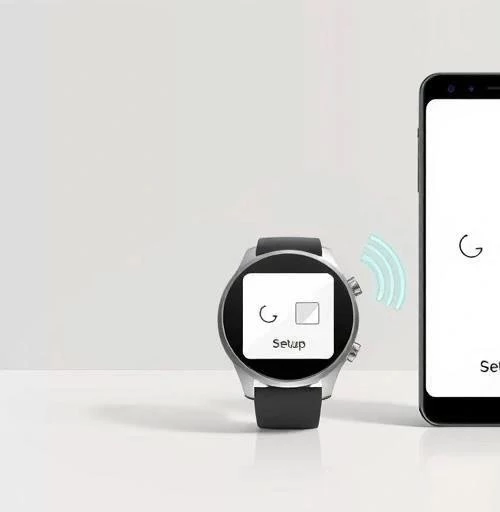
Your watch is a tiny traveler with a message for your phone: “Let’s keep time together.” To make the introduction‚ you’ll need a compatible Android phone‚ a charged watch‚ Bluetooth‚ and—usually—the manufacturer’s companion app. The exact route varies by brand‚ but the steps below cover most Wear OS‚ Samsung Galaxy‚ and other Android-friendly watches.
Before the first handshake
- Check compatibility. Look up your watch model’s requirements on the maker’s website or box. Some watches need a particular Android version or companion app. An Apple Watch generally cannot be paired with an Android phone.
- Charge both devices. A setup interrupted by a dead battery is a rather dramatic opening‚ but not a useful one. Aim for at least 50% charge.
- Prepare your phone. Turn on Bluetooth and Wi-Fi‚ update Android if an update is available‚ and keep the phone close to the watch.
- Install the right app. Use Google Play and search for the watch’s brand or model. Wear OS watches may use the Wear OS app or the maker’s own app; Samsung watches commonly use Galaxy Wearable. Follow the watch manufacturer’s instructions if they name a specific app.
Pair them‚ step by step
- Wake the watch. Turn it on and choose a language. If it has been used before‚ look for an option such as Reset or Disconnect and reset. A watch already linked to another phone may need a reset before it can start fresh. This can erase data stored on the watch.
- Open the companion app. On your Android phone‚ launch the app and choose Add device‚ Set up a new watch‚ or a similar option. Accept the requested Bluetooth or nearby-device permissions. Depending on your Android version and app‚ location permission may also be needed during discovery.
- Choose your watch. Select its name from the list. If it does not appear‚ keep the devices close‚ make sure the watch is awake‚ and tap Scan or Search again.
- Match the codes. A number may appear on both screens. Check that the codes match‚ then confirm pairing on the phone and watch. Think of this as a secret handshake: if the numbers differ‚ cancel and try again.
- Finish setup. Follow the prompts to connect to Wi-Fi‚ sign in to an account‚ install an update‚ or choose which features to enable. Keep the watch near the phone while updates download; the progress bar is not a racehorse.
- Choose what your watch can do. Set notification access‚ contacts‚ calendar‚ health features‚ and other permissions in the app. Enable only what you want. You can usually change these choices later in the app or Android settings.
If the connection gets shy
If setup stalls‚ try the simplest fixes first. Turn Bluetooth off and on‚ restart both devices‚ and reopen the companion app. Check that the watch is not still paired to an old phone. If it is‚ remove the old connection or reset the watch according to its instructions. On Android‚ you can inspect saved connections under Settings → Connected devices → Connection preferences → Bluetooth; menu names vary by phone. If you remove a watch there‚ return to its companion app to pair it again.
Still no watch in the app? Update the app‚ allow nearby-device permissions‚ and temporarily move away from other Bluetooth gadgets. If pairing repeatedly fails‚ forget the watch in Bluetooth settings‚ restart both devices‚ and begin again from the companion app—not from a random pairing prompt. As a last resort‚ back up anything you need and factory-reset the watch. A reset clears its stored data‚ so check the manufacturer’s backup guidance first.
Make the connection feel like yours
Once paired‚ open the app to choose watch faces‚ notification filters‚ app tiles‚ and health goals. Send yourself a test message or make a test call if your model supports it. If notifications do not arrive‚ check that the companion app is allowed to run in the background and that Android’s notification access is enabled. Some phones’ battery-saving settings can pause apps; allow the watch app to run without restrictions if needed.
Your watch should reconnect automatically whenever Bluetooth is on and the devices are within range. If you switch phones later‚ use the watch maker’s transfer or backup instructions first. Pairing is not merely a technical link: it is a miniature bridge between a busy pocket and a wrist that knows what matters. Give the two devices a minute‚ and soon your Android will whisper the time‚ your reminders‚ and perhaps the occasional gentle nudge—all without you fishing your phone from the depths of a bag.

4 Comments. Оставить новый
Clear, calm, and refreshingly brand-aware. Instead of pretending every watch follows the same ritual, the article points readers toward the right companion app and leaves room for manufacturers’ quirks.
A helpful guide that treats pairing less like a button hunt and more like a tiny diplomatic mission between two devices. The reminder to check compatibility before charging into setup could save readers a lot of needless tapping.
This makes setup feel manageable without burying the reader in technical jargon. The small troubleshooting cues—keep the watch close, wake it, scan again—are the sort of breadcrumbs that turn a frustrating pairing screen into progress.
The advice to charge both devices is wonderfully practical—technology has a gift for choosing the worst possible moment to go dark. I also appreciate the warning that resetting a previously paired watch can erase its data.