
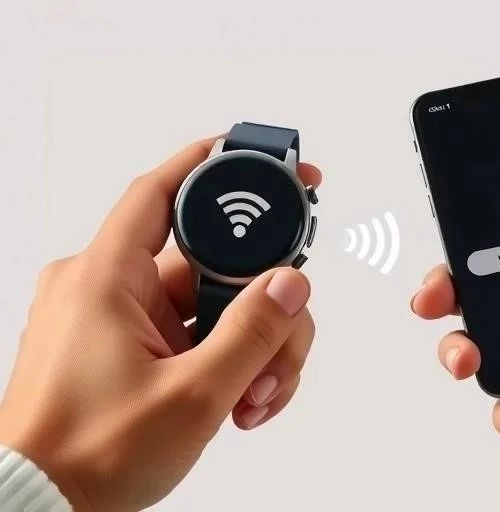
Pairing a watch is a little like introducing two tiny co-workers: your phone carries the conversation, while the watch puts it on your wrist. Once they’re connected, you may be able to see notifications, answer calls, or speak through the watch itself. The exact steps depend on the watch model, so use its manual or manufacturer’s app if the instructions on-screen differ.
Before you begin
- Charge the watch and keep it close to your phone.
- Turn on Bluetooth on your phone. Keep the watch powered on, too.
- Install the official companion app named in the watch’s manual, packaging, or QR code. Different watches use different apps.
- If the watch was paired to another phone before, unpair it there or reset it according to the manufacturer’s instructions.
Pair the watch with your phone
- Open the companion app. Sign in or create an account if asked. Choose an option such as Add device, Pair new watch, or Set up a device.
- Choose your watch. Select its name from the list. If several devices appear, check the model name or number on the watch or its box.
- Confirm the pairing code. A code may appear on both screens. Make sure the numbers match, then tap Pair or Confirm on the phone and the watch if prompted.
- Allow the requested permissions. Notifications, contacts, microphone, and call access may be needed for particular features. Approve only what you want to use; you can usually change permissions later in your phone’s settings.
- Wait for setup to finish. Keep the devices nearby and the app open while it syncs. A watch may restart or install an update. Don’t interrupt an update unless the manufacturer tells you to.
Use the companion app for the first setup rather than pairing from the phone’s Bluetooth menu alone. Some watches need the app to complete setup, and pairing only in system settings can leave the connection half-finished.
Set up calls
“Connected to the phone” does not always mean “ready to make calls.” Some watches handle calls over Bluetooth through the phone; others require a separate Bluetooth audio connection. Models with cellular service may also need an eSIM or a plan from a supported carrier.
- In the watch app, look for Calls, Bluetooth calling, or a similar setting and switch it on if available.
- If instructed, open your phone’s Bluetooth settings and connect to a second entry for the watch, often labelled with “Call” or “Audio.” Confirm any pairing code on both devices.
- Allow access to contacts and call history if you want those features. Allow microphone access if the watch will be used for two-way conversation.
- Test by making a call from the watch, or accept an incoming call when the watch is nearby. Check which device is carrying the sound: the watch speaker, phone speaker, or a connected headset.
If the watch displays calls but has no sound, raise its call volume and check the phone’s audio-output menu during a call. The phone may be sending audio to earbuds or another Bluetooth device instead. Also check that “Do Not Disturb” or a focus mode isn’t silencing alerts.
If pairing refuses to cooperate
- The watch isn’t listed: Restart both devices, bring them closer, and make sure the watch is in pairing mode. Turn Bluetooth off and on again.
- The code fails: Cancel the attempt on both screens and start again from the companion app. Remove an old watch entry from Bluetooth settings if the manual recommends it.
- It says connected, but features are missing: Open the app and check its permissions, notification settings, and connection status. Some phones restrict background activity to save battery.
- Calls work one way only: Check the watch’s speaker and microphone permissions, call-audio connection, and volume. Disconnect other audio accessories briefly to test.
- Nothing helps: Update the official app and phone software. As a last resort, unpair or reset the watch using the maker’s instructions, then set it up again.
A few useful cautions
Menu names vary between Android phones, iPhones, and watch brands, and some features work only with particular phone models. A Bluetooth watch usually needs the phone nearby for calls; a cellular watch may work independently only after compatible service is activated. Check the manufacturer’s specifications before expecting standalone calling.
Once the test call succeeds, adjust notification and privacy settings to suit you. Pairing is the introduction; permissions decide what the two devices are allowed to share. Keep the watch’s software current, and you’ll have a small, dependable call desk right on your wrist.

6 Comments. Оставить новый
The distinction between being connected and being ready for calls is a smart little plot twist. It helps set expectations before readers wonder why their watch is connected but still quiet.
A useful reminder that Bluetooth is only the doorway, not the whole house. Pointing readers toward the official companion app could save them from a surprisingly common pairing dead end.
The “two tiny co-workers” image makes setup feel less like wrestling with settings and more like introducing a helpful little teammate. Clear, practical steps keep the metaphor from wandering off with the instructions.
This guide treats setup like a calm checklist instead of a technology obstacle course. The warning not to interrupt updates is especially helpful for anyone tempted to tap every button during a long wait.
The matching-code advice is wonderfully unglamorous—and exactly the kind of detail that prevents a watch from accidentally befriending the wrong phone.
I like that permissions are presented as choices rather than a pile of buttons to approve blindly. That small note gives readers a bit more control over what their wrist-sized assistant can access.