
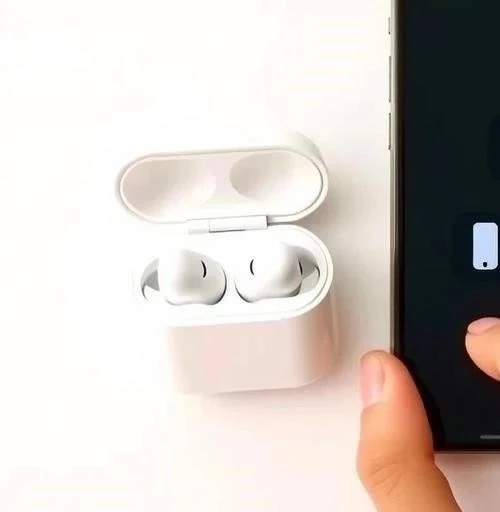
Pairing Xiaomi AirDots is usually straightforward, but the exact controls can differ between generations and models. The reliable approach is to charge the earbuds, put them into pairing mode, and select them in your phone’s Bluetooth settings. If the name or button sequence differs from the instructions below, check the manual for your specific model.
First-time pairing
- Charge the earbuds. Place both AirDots in the charging case and make sure the case has power. If the earbuds are new, remove any protective film covering the charging contacts.
- Prepare your phone. Open Settings and turn Bluetooth on. Keep the phone close to the earbuds, and temporarily disconnect other devices that might connect to them automatically.
- Start pairing mode. Open the case and take out both earbuds. Many AirDots models switch on and enter pairing mode automatically. Wait for an indicator to flash, if your model has one. On models with a case pairing button, press and hold it until the light flashes. Some versions use touch controls instead, so follow the model’s manual rather than assuming every AirDots works identically.
- Select the earbuds. In the phone’s Bluetooth device list, tap the entry named “Redmi AirDots,” “Mi True Wireless Earbuds,” or a similar name. Confirm pairing if prompted. Once connected, the phone should show the earbuds as connected for audio.
Connecting to another phone
If the AirDots are already connected to a different phone, they may not appear in the new phone’s list. Turn Bluetooth off on the previously paired device, or choose “Forget” or “Unpair” for the earbuds there. Then put the AirDots back into pairing mode and select them on the new phone. Pairing is normally done through the phone’s Bluetooth menu; a Xiaomi account or a special app is not required for basic audio connection.
If they do not connect
- Check the charge and contacts. Reseat both earbuds in the case and ensure they are charging. Gently clean dry, visible debris from the contacts.
- Remove an old pairing. In Bluetooth settings, forget the AirDots, switch Bluetooth off and on, then try pairing again.
- Reset only if needed. Reset procedures vary by model. Use the instructions for your exact AirDots version; a reset commonly clears saved connections, so you will need to pair again.
- Try one earbud at a time only as a test. If only one side plays, return both to the case and reconnect them together. Check the phone’s audio balance settings as well.
As a final check, test the earbuds with another phone. If they fail to enter pairing mode or one side remains silent after charging and a model-specific reset, the issue may be with the earbuds or case rather than the phone.
4 Comments. Оставить новый
I appreciate the attention to charging contacts and protective film, since simple power-related issues can look like Bluetooth problems. The article is organized in a sensible order, moving from setup to switching phones and then troubleshooting.
The guidance is clear and appropriately qualified, particularly where indicator lights and pairing controls may differ across versions. Including examples of the device names readers might see also makes the instructions easier to apply in practice.
This is a useful, cautious guide because it recognizes that AirDots controls vary by model rather than presenting one button sequence as universal. The first-time pairing steps are easy to follow, and the reminder to check the specific manual helps prevent confusion.
The advice about disconnecting the earbuds from a previously paired phone is especially practical. It explains a common reason the earbuds may not appear on a new device and gives readers a clear next step without implying that a special app is required.