
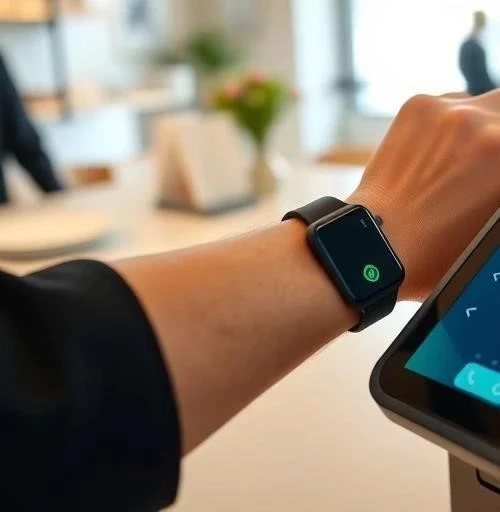
Paying with a Galaxy Watch Active can be quicker than reaching for your phone, but it works only when the watch, country, bank card and payment terminal are all compatible. The original Galaxy Watch Active uses NFC for contactless payments; it does not use the magnetic-stripe technology found in some older Samsung devices. Therefore, you need a contactless terminal, and having NFC hardware alone does not guarantee that payments are available in your region. Check support before relying on the watch as your only way to pay.
Check that your watch and region are supported
First, identify the exact model under Settings > About watch. “Galaxy Watch Active” and “Galaxy Watch Active2” are different models, and payment options can differ by model, software, country and carrier. Samsung Pay availability also varies by market and financial institution. A card that works in Samsung Pay on your phone may not necessarily be eligible for use on your watch.
Open the Galaxy Wearable app on the paired phone and look for Samsung Pay or the payment option offered for your watch and region. On some devices, the service may appear under Samsung Wallet or have a different name after a software update. If no supported payment option appears, do not assume that resetting the watch will enable it: the feature may not be offered for that model or location. Check Samsung’s local support pages and your bank’s compatibility list.
Set up the payment service and add a card
- Connect the watch to your phone using the Galaxy Wearable app, and make sure both devices have current software.
- Open the payment feature in Galaxy Wearable or on the watch. Sign in to the Samsung account if prompted, then accept the service terms.
- Choose Add card and scan the card or enter its details manually. Follow the bank’s verification instructions, which may involve a text message, banking app or call.
- Create or enter the watch’s security PIN if requested. A payment PIN helps protect the card if somebody else gets access to the watch.
- Wait for confirmation that the card has been added. If verification fails, check the card details and contact the bank; repeated attempts may not resolve a bank-side restriction.
Menu names and setup screens can vary with software and region. If the card cannot be added, confirm that the bank supports watch payments, that the card type is eligible, and that the watch’s country or software configuration matches the service. Do not share your PIN or one-time verification code with anyone.
Make a contactless payment
- Put the watch on your wrist and unlock it with the PIN if it asks you to do so.
- Open Samsung Pay or the available wallet app. On supported configurations, you can press and hold the watch’s Back key to open the payment screen; if that does not work, launch the app from the watch’s app list.
- Select the card you want to use, if more than one is stored, and tap Pay or Pay now.
- Hold the watch close to the contactless reader, usually near its NFC symbol. Keep it still for a moment until the terminal confirms the transaction.
- Follow any instruction on the terminal. The merchant may ask for a PIN, signature or another verification for a particular transaction.
Payment terminals differ, so the best position may be beside or above the reader’s contactless mark. If the first attempt fails, reposition the watch and try once more rather than repeatedly tapping. A payment can also be declined by the bank even when the watch and terminal communicate correctly.
Security and practical limits
Keep a screen lock enabled and wear the watch as intended. Many supported watch-payment setups require a PIN after the watch has been removed from the wrist; follow the security prompts shown on your own device. If the watch is lost, use Samsung’s account or device-finding tools where available, and contact your bank to suspend the digital card token. Removing a card from the watch or disabling the service may also be possible through the payment app, but bank instructions take priority.
Remember that watch payments need power, a functioning NFC connection and a compatible terminal. They may not work when the battery is empty, the payment service is unavailable, or the merchant’s reader does not accept contactless transactions. Carry another payment method as a backup, especially while travelling. Also, do not assume that Google Wallet or a newer Samsung Wallet feature can simply be installed on this older watch: app and operating-system support depend on the exact model and region.
If payment does not work
- No payment app: Check regional and model support, then update Galaxy Wearable and the watch. If the option remains absent, the service may not be supported.
- Card setup is rejected: Ask the bank whether that specific card can be provisioned to a Galaxy Watch in your country.
- Terminal does not respond: Confirm that contactless payment is enabled, unlock the watch, open the payment screen and hold the watch near the reader’s NFC area.
- Transaction is declined: Check with the bank. A decline is not necessarily a fault with the watch.
In short: verify compatibility first, add an eligible card through the supported Samsung payment app, then unlock the watch and present it to a contactless reader. These checks matter because the Galaxy Watch Active’s payment capability depends not just on its NFC chip, but on official regional support and approval from the card issuer.


4 Comments. Оставить новый
I appreciate the caution against assuming that a reset will make an unavailable feature appear. Directing readers to official regional support information is a sensible way to distinguish a compatibility limitation from a device problem.
The setup guidance is clear, especially the note that bank verification and a security PIN may be required. It would also be useful to consult the bank directly, since eligibility can vary even when the payment service is available.
The distinction between the original Galaxy Watch Active and the Active2 is useful, since readers could otherwise assume that payment support is identical. Checking the exact model and local bank compatibility before setup is practical advice.
This is a helpful explanation of why NFC alone does not guarantee that a watch can make payments. The reminder to check terminal, regional, and card support sets realistic expectations and may prevent wasted troubleshooting.