
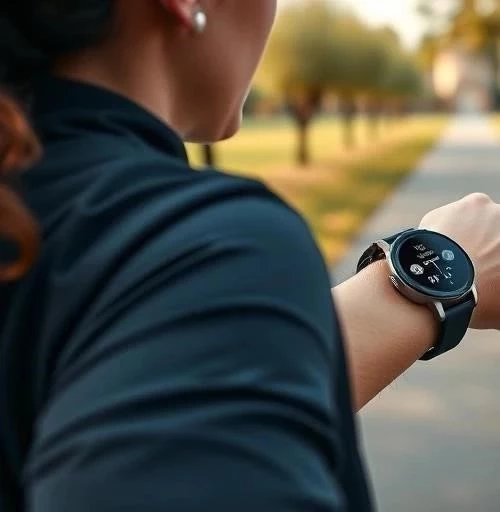
The Galaxy Watch 4 can play music in two useful ways: it can control playback on your phone‚ or play tracks directly through Bluetooth headphones. The second option is ideal for a run without your phone‚ but it requires music stored on the watch or a supported streaming app. Setting up the right method first saves battery and avoids discovering that your playlist needs an internet connection halfway through a workout.
Play music from your phone
For everyday listening‚ keep your phone nearby and use the watch as a remote. Open the music app on your phone‚ then open the music player on the watch. If the phone is not selected as the audio source‚ tap the device or source icon and choose it. You can pause‚ skip tracks‚ adjust volume‚ and often browse the current playlist from your wrist. This method is simple because the phone supplies the music and internet connection; the watch does not need downloaded tracks.
Listen without carrying your phone
To play audio independently‚ pair Bluetooth earbuds with the watch and prepare music on the watch itself. First‚ pair the earbuds: open Settings > Connections > Bluetooth on the watch‚ put the earbuds into pairing mode‚ and select them. Then choose one of these options:
- Download tracks: Install a compatible music service from Google Play on the watch‚ sign in‚ and download songs or playlists if your account and app support offline listening.
- Transfer audio files: Open the Galaxy Wearable app on your phone‚ find the watch’s music or content-management settings‚ and send selected tracks to the watch. Menu names can vary by software version.
Afterward‚ open the music app on the watch‚ select the watch as the playback source‚ and start a downloaded playlist. Offline listening is the more dependable choice outdoors: streaming generally needs Wi-Fi or an LTE connection‚ and service availability and download rules differ. Check that tracks are actually downloaded before leaving home.
Useful checks and tips
If music plays through the phone instead of your earbuds‚ check the selected audio output in the watch’s player and reconnect the earbuds in Bluetooth settings. If a streaming app is missing‚ update the watch and check Google Play on the watch; available apps depend on your region and service. Downloads may also require a paid subscription.
Music playback uses battery‚ especially when streaming. Downloading a playlist and using Bluetooth earbuds usually reduces the watch’s reliance on network access‚ though it cannot eliminate battery use. In short‚ use phone control for convenience‚ and offline downloads for phone-free listening.

9 Comments. Оставить новый
The warning to verify downloads before leaving home is practical. A playlist that appears in an app may still require a connection, so checking offline availability can prevent problems during a run.
The step-by-step pairing instructions make the setup approachable, especially for someone using Bluetooth earbuds with a watch for the first time. Mentioning that menu names can vary is also helpful, since software updates often change the layout.
This is a clear overview for Galaxy Watch 4 owners. Pairing earbuds, selecting the audio source, and preparing offline music are presented as separate tasks, which makes the process easier to troubleshoot.
The article is easy to follow because it separates phone playback from independent watch playback. One useful detail is choosing the watch as the playback source, which could otherwise be overlooked after pairing headphones.
The practical checks are valuable for workouts, when a dropped connection or unavailable playlist can be frustrating. The advice to prepare downloads and test playback before heading out is simple but effective.
The article appropriately notes that streaming may require Wi-Fi or LTE, rather than implying that a watch can always play music independently. That clarification helps set realistic expectations about connectivity and service support.
I appreciate that the instructions cover both downloaded tracks and supported streaming apps rather than suggesting there is only one way to listen. The reminder that offline options depend on the service and account keeps the advice realistic.
The distinction between using the watch as a phone remote and playing music directly from it is useful. It makes clear that carrying earbuds alone is not enough for phone-free listening; the music must also be available on the watch.
This guide explains the trade-off between convenience and independence well: controlling music on a nearby phone is straightforward, while listening without the phone takes extra preparation. That distinction helps readers choose the right setup for their routine.