
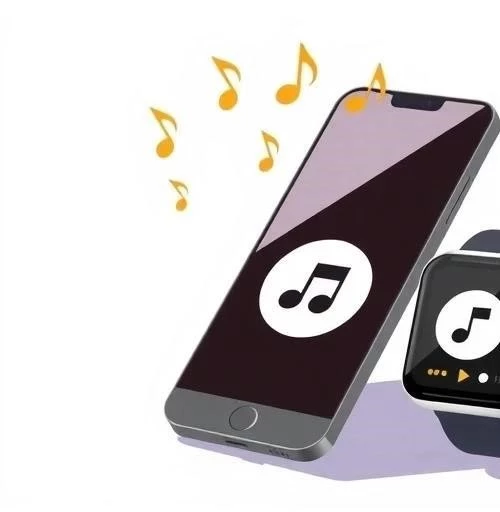
Putting music on an Apple Watch lets you listen while walking, running, or exercising without carrying your iPhone. The key distinction is that syncing stores music on the watch, while streaming plays it over a network. Downloaded music is the more dependable choice when you expect to be offline or want to avoid using mobile data. You will need a compatible Apple Watch, an iPhone paired with it, and enough free storage on the watch.
Before you start
Keep the iPhone and Apple Watch near each other, with Bluetooth and Wi-Fi enabled. Check that both devices have current software if the steps below do not match what you see. Make sure the watch has room for the music you want to add: open the Watch app on the iPhone, tap My Watch, then General and Storage. Removing an unused app, album, or playlist can free space. Also confirm that the tracks are available to your account. Music added through Apple Music may require an active subscription, and some tracks or playlists may not be available in every region.
Sync music using the Watch app
- On the iPhone, open the Watch app.
- Tap My Watch, then scroll to and tap Music.
- Under playlists and albums, tap Add Music.
- Browse your library and select the playlists, albums, or individual items you want on the watch. Depending on your software version, you may need to tap the plus button or confirm the selection.
- Place the Apple Watch on its charger and keep it close to the iPhone while the music transfers.
Apple Watch may wait until it is charging and near the paired iPhone before it transfers selected music. This can make the change appear delayed, but it helps conserve the watch’s battery. Leave the devices connected for a while, especially if you selected a large playlist. The Music section in the Watch app can show the selected content and, on some versions, its download status. Avoid removing the watch from its charger immediately if the transfer has not finished.
Listen from the watch
When the transfer is complete, open the Music app on the watch. Browse your library or choose the synced playlist or album, then tap a track to play it. For private listening, connect Bluetooth headphones: open Settings on the watch, tap Bluetooth, and select your headphones if they are not already paired. You can also start playback from the iPhone and use the watch to control it, but that does not mean the music has been downloaded to the watch.
To check whether you can listen without your phone, move away from it or temporarily turn off the watch’s network connection, then try playing a synced track. If playback still works through Bluetooth headphones, the track is stored locally. If it does not, confirm that the item finished downloading and that it was selected for sync rather than merely added to your library.
Using Apple Music and streaming
Subscribers can often download Apple Music content directly to the watch, but availability depends on the watch model, software, subscription, and network connection. Open Music on the watch, find the item, tap the More button, and choose Add to Library or Download when that option appears. Labels may differ between versions. If the watch has cellular service or Wi-Fi access, it may also stream supported music without a prior download. Streaming is convenient, but it relies on a connection and can use cellular data; downloaded content is usually the safer option for a route with weak reception.
If music will not sync
- Wait and charge: Keep the watch on its charger near the iPhone. A transfer may take longer for a large collection.
- Check storage: Remove music or apps you no longer need, then try adding a smaller playlist.
- Check connectivity: Turn on Bluetooth and Wi-Fi on the iPhone, keep the devices close, and make sure they remain paired.
- Review the selection: In Watch app > My Watch > Music, confirm the intended playlist or album is listed.
- Restart if needed: Restart both devices, reopen the Watch app, and retry the transfer. If one playlist remains stuck, remove it from the sync list and add it again.
Downloaded songs may disappear from the watch if you remove them from the synced selection, run short of storage, or lose access to subscription content. After making changes, allow time for the watch to update. For predictable offline listening, sync a modest playlist in advance, verify that it plays without the iPhone, and keep headphones charged. This approach is more reliable than assuming that a song visible in your library is already stored on the watch.

3 Comments. Оставить новый
The distinction between syncing and streaming is useful because it helps readers choose the right setup for their circumstances. The preparation advice about storage, software, and account availability also makes the instructions more practical.
This is a helpful overview for anyone who wants to listen without carrying an iPhone. The reminders about battery use, available storage, and music access cover common obstacles, though the article appears to end before completing its listening instructions.
The step-by-step guidance is clear, and explaining why the watch may need to be charging helps set realistic expectations about transfer times. A note that menu labels can vary by watchOS version would make the instructions even more adaptable.