
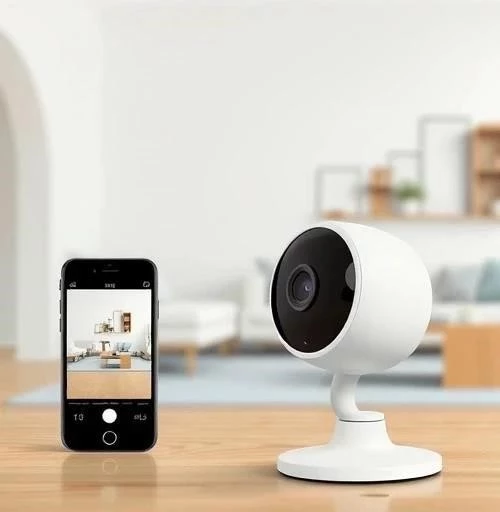
You can usually view one Xiaomi camera from two phones by sharing access through the Xiaomi Home (Mi Home) app. The camera does not normally need to be paired or reset again. Keep it connected to Wi-Fi‚ and use the account that originally added it to invite the second user. Menu names can differ slightly by app version‚ camera model‚ and region.
Before you begin
- Install Xiaomi Home on both phones from the official app store.
- Sign in to separate Xiaomi accounts. The camera owner should know the account ID‚ phone number‚ or email address linked to the other account.
- Check that the camera is online and both accounts use the same app region as the camera. A region mismatch can hide the device or prevent sharing.
- Update the app if sharing controls are missing. Do not give another person your account password.
Share the camera with the second account
- On the first phone‚ open Xiaomi Home and sign in to the account that set up the camera.
- Open the camera’s live view‚ then tap the three-dot menu or the settings icon.
- Look for Share device‚ Device sharing‚ or a similar option. Depending on the app version‚ it may be under the device’s settings or the account’s sharing settings.
- Choose the sharing option‚ enter the second user’s Xiaomi account details‚ and send the invitation. If prompted‚ select the permissions available for that model.
- On the second phone‚ sign in to the invited account‚ open Xiaomi Home‚ and accept the invitation or check the app’s messages. The camera should then appear in the device list.
Using the same account instead
On some camera and app combinations‚ you can sign in to the same Xiaomi account on both phones and open the camera from either device. This is simple‚ but it shares the account’s other devices and settings too‚ and simultaneous viewing may be limited. Separate accounts with device sharing are usually a better choice for family members.
If the camera does not appear
- Confirm the invitation was sent to the correct Xiaomi account and accepted.
- Check that both users selected the same Xiaomi Home region. Do not change regions casually: devices configured in another region may disappear from the app.
- Make sure the camera is online‚ then close and reopen the app or sign out and back in.
- Check the owner’s sharing list and remove and resend the invitation if necessary. Some models or firmware versions may not support every sharing feature.
- Restart the camera only if it is unresponsive. A factory reset is generally unnecessary and can erase its Wi-Fi setup.
Sharing grants access without transferring ownership. The owner can usually revoke it later from the sharing menu. If these steps do not match your screen‚ check the camera’s model-specific instructions in Xiaomi Home.
9 Comments. Оставить новый
The step-by-step sharing instructions are clear, especially the reminder to use separate Xiaomi accounts.
The separate-account option sounds like the safest choice for sharing a camera with family.
This answered my question about viewing one camera from two phones without setting it up again.
Helpful guide. I didn’t realize both accounts needed to use the same app region.
Useful overview of both device sharing and signing in on multiple phones, with the pros and cons explained.
The troubleshooting tips are useful for when the camera invitation doesn’t show up.
Good explanation of why sharing access is usually better than giving someone your account password.
I appreciate that the article mentions menu names can vary by model and app version.
Concise and easy to follow. The region compatibility note may save people a lot of time.