
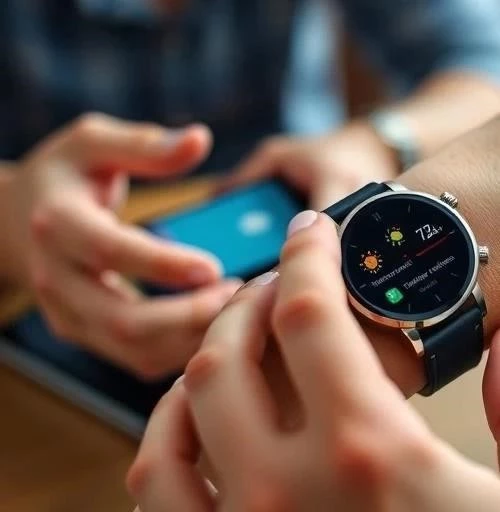
Short answer: You cannot change or directly measure a blood-pressure reading using Apple Watch alone. The watch does not have an inflatable cuff‚ and its heart-rate sensor is not a blood-pressure monitor. If you want to update a reading‚ use a compatible blood-pressure monitor or enter a measurement in the Health app on your iPhone.
Record a blood-pressure reading
- Measure your blood pressure with a validated upper-arm cuff‚ following the cuff maker’s instructions. Sit quietly for several minutes first‚ keep your feet flat‚ and support your arm at heart level.
- If your monitor has an iPhone app‚ connect it as directed. Depending on the monitor and its app‚ readings may be shared with Apple Health automatically. Check the app’s Health permissions if they do not appear.
- To enter a reading yourself‚ open Health on your iPhone‚ tap Browse‚ then Heart and Blood Pressure. Choose Add Data‚ enter the systolic and diastolic values and the time‚ then save. Menu names may vary slightly by iOS version.
- To review the information‚ open the same Blood Pressure section in Health. You can also check the data sources and sharing permissions from the relevant Health screen.
Apple Watch can show Health information on its display or through compatible apps‚ but the iPhone Health app is where you manage the recorded blood-pressure data. Availability of automatic syncing and display features depends on the monitor‚ its software‚ and your devices.
Can you edit or delete a saved value?
Open Health > Browse > Heart > Blood Pressure and find the reading in the data list or chart. Tap the entry to view its details. If the screen offers an edit or delete option‚ use it to correct an error or remove a duplicate. If you cannot change the entry there‚ check the monitor’s companion app; readings imported from another app may need to be corrected at their source. Avoid changing a value simply to make it look better—keep the original measurement accurate.
What about blood-pressure alerts?
Some Apple Watch models and software versions may offer health notifications related to possible patterns associated with hypertension. These notifications are not a blood-pressure measurement and do not let you set or alter your actual blood pressure. Features vary by region‚ device‚ and software‚ so check the Health app and Apple’s current feature information for availability. A notification is not a diagnosis; discuss concerns with a healthcare professional and use a proper cuff for readings.
If you mean air pressure
Apple Watch cannot change atmospheric pressure. Some models can sense barometric pressure for environmental or elevation-related features‚ and compatible apps may display it. This is different from blood pressure‚ which describes the force of blood against artery walls. A barometer reading cannot be used in place of a cuff measurement.
When to seek advice
Take readings as directed by your clinician and record them with their dates and times. One result can be affected by activity‚ stress‚ cuff fit‚ or posture‚ so follow the monitor’s instructions and ask a professional how to interpret repeated readings. Do not change prescribed medication based only on a watch notification or a single home measurement. Seek urgent medical help if a very high reading occurs with severe symptoms such as chest pain‚ difficulty breathing‚ weakness‚ confusion‚ or a sudden severe headache.

2 Comments. Оставить новый
The article clearly distinguishes between measuring blood pressure with a cuff and recording readings in Apple Health. The practical steps are useful, though menu labels may differ depending on the iOS version.
The guidance on checking imported readings and correcting errors at their source is helpful. The reminder to keep measurements accurate provides useful context for managing health data.