
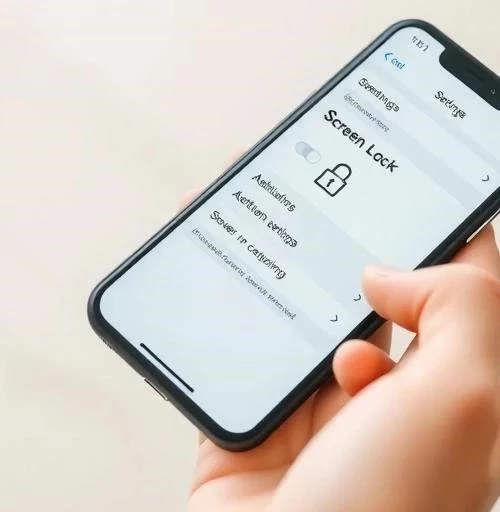
A screen-lock PIN helps protect personal information if a phone is lost or borrowed. If you know the current PIN and want to stop entering it, you can usually change the screen-lock settings. Menu names vary between Huawei models and software versions, so the instructions below may not match every device exactly. Removing the lock also makes the phone less secure.
Before you begin
- Make sure you mean the phone’s screen-lock PIN. A SIM-card PIN is a separate setting, and changing one does not change the other.
- Have the current screen-lock PIN, password, or pattern available. Android normally requires it to confirm a security change.
- Check whether your phone is managed by an employer, school, parental-control app, or device-management service. Such policies may prevent you from removing the lock.
- Consider keeping a screen lock if the phone contains private messages, payment information, work files, or saved account credentials.
Remove a screen-lock PIN when you know it
- Open Settings on the Huawei phone.
- Find the lock-screen security options. Depending on the model and EMUI or HarmonyOS version, look under Biometrics & password, Security, or Lock screen & passwords.
- Tap Lock screen password, Screen lock, or a similarly named option.
- Enter the current PIN, password, or pattern when prompted.
- Select Disable lock screen password, None, or Swipe, if that choice is available. Confirm the change.
On some versions, choosing None or Swipe removes the PIN but leaves a basic swipe-to-open screen. If the phone offers only other PIN, password, or pattern options, do not assume that a hidden menu or third-party app can safely bypass the restriction. The phone may require a credential because of a work policy, an encrypted-data requirement, or another security setting.
If you want to use a different lock instead
In the same screen-lock menu, choose a new PIN, password, or pattern and follow the on-screen instructions. A longer PIN or password is generally harder to guess than a short, familiar code. If fingerprint or face unlock is available, it may be possible to set it up after choosing a screen-lock credential; biometric unlock usually does not replace the underlying PIN or password. The phone may request that credential after restarting or at other security-sensitive times.
Remove a SIM-card PIN
A SIM PIN is requested when the phone starts or reconnects to a mobile network. It protects the SIM card, not the phone’s screen. To change or turn it off, open Settings and look for Security, More security settings, or SIM card lock. Select the relevant SIM, switch off Lock SIM card, and enter the current SIM PIN to confirm. Menu labels differ by device and carrier.
Do not guess a SIM PIN repeatedly. Too many incorrect entries can block the SIM and require its PUK code from the mobile operator. A PUK is not the same as the phone’s screen-lock PIN. If you do not know the SIM PIN, contact the carrier before trying more codes.
If you have forgotten the screen-lock PIN
There is no safe, universal method to reveal or remove a forgotten screen-lock PIN while preserving access to the data on the phone. Avoid websites, apps, or videos that promise a guaranteed bypass, and do not share account passwords or verification codes with anyone offering to unlock the device. Unofficial methods can expose personal data, install malicious software, or make the phone unusable;
First, check whether you can unlock the phone using another method that you previously configured, such as a fingerprint, if the device still permits it. Some phones require the PIN after a restart or after a certain period, so biometrics may not be accepted in every situation. If you can unlock the phone, back up important information and change the lock through Settings using the steps above.
If you cannot unlock it, consult Huawei support or an authorized service provider for options specific to your model and region. They may ask for proof of ownership. A service provider cannot necessarily recover encrypted data without the correct credential.
Factory reset: a last resort
A factory reset can remove the local screen lock by erasing the phone, but it also deletes locally stored data that has not been backed up. The exact reset procedure varies by model. Use Huawei’s official instructions for the device, or ask an authorized service provider for help. Do not follow reset instructions intended for a different model.
After a reset, the phone may require verification using a Google account or Huawei account previously associated with it. This is an anti-theft protection, not a way to retrieve the forgotten PIN. Make sure you know the relevant account details before resetting. If the phone belongs to someone else, obtain their help rather than attempting to bypass account verification.
Common reasons the option is unavailable
- Work or school management: an administrator may require a PIN. Contact the organization’s IT team.
- Device encryption or security settings: some configurations require a screen credential. Review the settings or contact Huawei support before changing related options.
- A managed account or security app: parental controls or device-management software may restrict changes. Check the app’s settings or contact its administrator.
- Different software version: the setting may have a different name or location. Use Settings search for “screen lock,” “lock screen password,” or “SIM card lock.”
If you know the current screen-lock PIN, open the lock-screen security settings, authenticate, and choose the available option to disable the password or use a different lock. Treat the SIM PIN separately. If the screen PIN is forgotten, use official support routes; a reset may erase data and trigger account verification. Removing a lock is a convenience choice, but it leaves information on the phone less protected.