
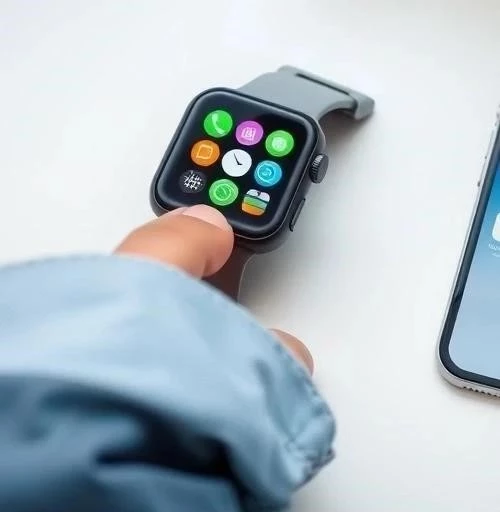
Apple Watch lets you remove some preinstalled apps‚ but not every app that comes with watchOS․ Deleting an app can free a little space and make your app list easier to navigate; it does not remove watchOS itself or disable essential system functions․ The available choices depend on your watchOS version and the particular app‚ so an app without a delete option may not be removable․
Delete an app on the watch
- Press the Digital Crown to open the app screen․
- If your apps appear in a grid‚ touch and hold the screen until the view options appear‚ then tap Edit Apps․
- Tap the delete button (usually an ×) beside the app you want to remove‚ then confirm by tapping Delete App․
- Press the Digital Crown to finish․
In List View‚ swipe left on the app and tap the trash button‚ then confirm․ If neither method offers a delete button‚ that app cannot be removed using your current watchOS setup․ The names or appearance of the controls may vary slightly between versions․
Remove or hide it using your iPhone
Open the Watch app on the paired iPhone and tap My Watch․ Scroll to the app under the section for apps installed on the watch‚ select it‚ and use the available control to remove it or stop showing it on Apple Watch․ The exact options differ by app: some can be removed‚ while others can only be hidden or configured․ Turning off display is not the same as deleting the app‚ so use the watch’s delete control when it is available and you want it gone․
What to consider first
Removing an app is not always the best way to declutter․ If the app supports a watch face complication‚ its complication may disappear when the app is removed․ You may also lose access to its watch-based features until you reinstall it․ Removing an app from Apple Watch does not necessarily mean that its iPhone version has also been removed; check the iPhone separately if that is your goal․
Some built-in apps are tied to watchOS or are not offered as removable apps․ Do not try to delete system files or use unofficial tools: they can cause problems and are not a supported way to customize the watch․ If an app has no delete option‚ leave it in place or use any available setting to hide it․
Restore an app
If you change your mind‚ open the App Store on Apple Watch‚ search for the app by name‚ and tap the download button․ You can also look for it in the App Store on the paired iPhone․ If it does not appear‚ check that the watch is updated and that the app is available for your device and region․
In short: use Edit Apps or swipe left to delete eligible apps‚ and treat missing delete controls as a limitation—not a fault․ Removing only apps you do not use is the safest way to simplify Apple Watch without affecting features you may need․




4 Comments. Оставить новый
The section on possible consequences adds valuable context: removing an app may affect complications or watch-based features, and it does not necessarily remove the iPhone version. These details help readers make an informed choice rather than deleting apps without checking.
Overall, the article is organized around the reader’s main options and explains why some built-in apps may not be removable. The text appears to end mid-sentence, though, so completing the final thought would make the guidance feel more polished.
This is a clear, practical guide to managing Apple Watch apps. I especially appreciate the distinction between deleting an app and merely hiding it, since those actions can have different effects on what remains available on the watch.
The instructions account for both Grid View and List View, which makes the steps more useful for readers with different settings. The reminder that removal options depend on the app and watchOS version also helps set realistic expectations.