
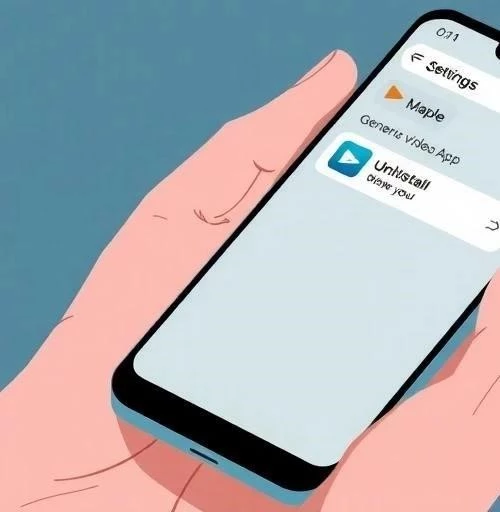
If you want to remove YouTube from a Xiaomi phone, first decide what “remove” means for you. You may only want to take its icon off the home screen, stop the app from running, uninstall an app you downloaded, or remove a preinstalled version as far as Android allows. These are different actions. On many Xiaomi phones, YouTube is included with Google services, so the standard Settings screen may let you disable it or remove its updates rather than permanently delete it from the system.
The instructions below apply broadly to Xiaomi, Redmi, and POCO phones running MIUI or HyperOS. Menu names and available options vary with the phone model, Android version, region, and whether YouTube was installed by you or supplied with the software. Start with the built-in options; they are safer than advanced removal methods.
Before you begin: check what you want to remove
- Remove the icon: YouTube remains installed, but its shortcut disappears from the home screen.
- Uninstall the app: Android removes an app installed by the user, along with its local app data.
- Disable the app: YouTube is turned off and usually disappears from the app drawer. It will not run normally or receive updates until enabled again.
- Uninstall updates: Android returns a preinstalled app to the version stored on the phone. This does not necessarily remove the app itself.
- Remove it for your user with ADB: An advanced method hides or uninstalls the package for the current Android user, but does not erase the system copy from the phone’s firmware.
Method 1: Uninstall YouTube from Settings
Try this first if YouTube was downloaded from Google Play or Xiaomi GetApps. The wording can differ slightly between MIUI and HyperOS.
- Open Settings.
- Tap Apps, then Manage apps. On some versions, you may need to choose App management or See all apps.
- Find and tap YouTube. If it is not immediately visible, use the search field or sort the list alphabetically.
- Tap Uninstall and confirm. If prompted, confirm that you want to remove the app and its data;
You can also check the app’s store page. Open Google Play Store, search for YouTube, and look for Uninstall. If the button is available, tap it and follow the confirmation prompt. If the only options are Open and Update, YouTube may be treated as a preinstalled system app on your phone; use the disable or update-removal instructions below instead.
Method 2: Disable preinstalled YouTube
If Settings does not offer a normal uninstall button, disabling is usually the simplest reversible option. It stops the app from opening and removes it from ordinary use without needing a computer.
- Go to Settings > Apps > Manage apps.
- Search for and open YouTube.
- Tap Disable or Turn off, then confirm. If you see Force stop first, you can use it, but it does not replace disabling the app.
- Restart the phone if the app still appears in the app drawer or a shortcut remains.
On some Xiaomi software versions, the Disable control is unavailable or the phone displays a warning. Do not try to bypass a warning by disabling unrelated Google components. If there is no Disable button, remove the app’s updates and turn off its notifications and background activity instead. You can also hide its icon through the home-screen settings, although hiding is not the same as disabling.
Method 3: Uninstall updates and clear YouTube’s data
A preinstalled app may be part of the phone’s original system image. In that case, Android may allow you to remove later updates but keep the original version. Open Settings > Apps > Manage apps > YouTube, tap the three-dot menu if present, and choose Uninstall updates. Confirm the action. This frees some space used by updates, but the base app can remain installed and may be updated again later.
If you are keeping the app but want to reset it, go to YouTube’s app information page, select Storage or Clear data, and choose the available clear-cache or clear-all-data option. Clearing all data may reset local settings and remove downloaded or temporary app content. It does not delete your Google account or your YouTube channel. Read the confirmation message before proceeding.
Method 4: Remove only the home-screen icon
If your goal is simply a tidier screen, you do not need to uninstall YouTube. Touch and hold the YouTube icon, then drag it to Remove or tap the remove option shown on the screen. On Xiaomi launchers, this normally removes the shortcut from the home screen while leaving the app installed in the app drawer. Avoid choosing Uninstall if you only want to remove the icon.
Advanced option: remove YouTube for the current user with ADB
ADB (Android Debug Bridge) is intended for people comfortable using a computer and command-line tools. On some Xiaomi phones it can remove a preinstalled package from the current user profile when the normal interface offers no uninstall option. This is not a factory-level deletion: the system package may still be present in the firmware and can return after a factory reset or software update. Use this method only if you understand how to reverse it.
What you need
- A computer with Google’s official Android Platform Tools installed.
- A USB cable that supports data transfer.
- Your phone’s screen unlocked, with USB debugging enabled.
- A backup of important information and enough time to check each command.
Steps
- On the phone, open Settings > About phone and tap OS version or MIUI version several times until Developer options are enabled. The exact label can vary.
- Open Settings > Additional settings > Developer options, turn on USB debugging, and approve the computer’s authorization prompt when you connect the phone.
- Open a terminal or command prompt in the Platform Tools folder and enter
adb devices. Check the phone and approve the prompt. Continue only if the device is listed as authorized. - To remove YouTube for the current user, enter
adb shell pm uninstall --user 0 com.google.android.youtube. The package name for the standard YouTube app is usuallycom.google.android.youtube. Read the output and do not substitute package names from an untrusted list. - Restart the phone and check whether YouTube is gone. If an error appears, stop rather than trying random commands. Your software may restrict the operation or use a different package arrangement.
To restore the standard package for the main user, connect the phone again and use adb shell cmd package install-existing --user 0 com.google.android.youtube. If that command is unavailable, check whether YouTube can be enabled in Settings > Apps or installed from Google Play. A system update or factory reset may also restore a package removed only for a user.
Important cautions
- Do not remove Google Play services. It supports sign-in, notifications, location features, and other apps. Removing or disabling it can cause problems beyond YouTube.
- Do not delete packages just because their names look unfamiliar. Other Google or Android components may be required for the phone or apps to work correctly.
- Be cautious with debloating tools and scripts. A tool may remove more than YouTube, and a mistake can break core features. Prefer Settings or a carefully checked ADB command.
- Expect updates to change the menus. MIUI and HyperOS releases can move app controls or restore preinstalled apps.
- Do not confuse the YouTube app with YouTube Music. Music is a separate app and may have a different package name. Removing YouTube does not automatically remove Music.
If YouTube keeps coming back or still opens
First check whether you removed only its home-screen shortcut or only its updates. Then open Settings > Apps > Manage apps and search for YouTube. If it is listed as disabled, enable it to use it again; if you want it unavailable, confirm that it remains disabled. Check the app drawer, Google Play, and any other user profile on the phone. A work profile or second user can have its own copy of the app.
If you used ADB, a system update or factory reset may restore the original app. Repeat the supported removal steps only after confirming that the package is the standard YouTube app. If you are unsure, leave the system package intact and disable it through Settings where possible.
Ways to use YouTube without the app
After disabling or uninstalling the app, you can open youtube.com in a web browser such as Chrome or another browser you trust. You may be able to sign in and watch videos there, although features and notifications can differ from the app. If your aim is to limit viewing rather than free storage, consider Android Digital Wellbeing, app timers, parental controls, or blocking the website in the browser. These options restrict access but do not uninstall YouTube.
Which method should you choose?
- Choose Uninstall in Settings or Play Store when it is available and you want to remove a user-installed app.
- Choose Disable when YouTube is preinstalled and you want a safe, reversible way to stop using it.
- Choose Uninstall updates if the phone provides that option but does not allow disabling.
- Choose ADB only when you need removal from the current user and are confident with Android tools and recovery commands.
- Choose Remove from home screen if you only want to hide the shortcut.
For most Xiaomi owners, disabling YouTube through the app information screen is the best balance of simplicity and safety. A standard uninstall is preferable when available. Advanced ADB removal is optional, affects the current user rather than erasing the firmware copy, and should not be necessary for ordinary use.


2 Comments. Оставить новый
A useful, cautious introduction for anyone trying to remove YouTube from a Xiaomi phone. Explaining that preinstalled apps may not be fully removable helps set realistic expectations.
The article clearly distinguishes between uninstalling, disabling, and removing updates, which makes the options much easier to understand. I also appreciate the reminder that menus vary across Xiaomi models and software versions.