
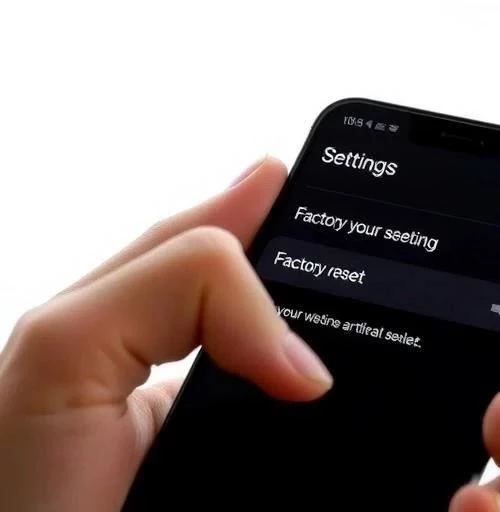
Resetting a Huawei phone or tablet can solve persistent software problems, remove a screen lock before handing the device to someone else, or return it to its original setup state. The right method depends on what you mean by “reset”: restarting the device, restoring selected settings, or erasing all personal data. Read the warnings first, because a factory reset is destructive and cannot normally be undone.
Choose the right kind of reset
- Restart or force restart: turns the device off and on again. It does not erase files and is a good first step if the phone has frozen.
- Reset network settings: removes saved Wi-Fi networks, Bluetooth pairings, and mobile-network settings. Your photos and apps remain.
- Reset all settings: restores many system preferences to their defaults while usually keeping personal files. The exact effect depends on the model and software version.
- Factory reset: erases data stored on the device and returns it to the initial setup screen. Use this before selling or giving away a phone, or when other troubleshooting has failed.
Before you factory-reset a Huawei phone or tablet
Back up anything you want to keep. A factory reset can remove photos, videos, downloads, messages, app data, and locally stored documents. Back up to Huawei Cloud where available, a computer using Huawei HiSuite when supported, or another trusted storage service. Check that the backup has finished and that you can access it from another device. An app’s own backup or export option may be needed for its data.
- Charge the device, ideally to at least 50%, or keep it connected to a reliable charger.
- Make sure you know the password for the Huawei ID previously used on the device. Depending on the software and security state, you may also need the Google account that was previously synced to it.
- Move files from a microSD card if you want to erase them too. A reset may leave removable-card contents untouched, but do not rely on that: read any on-screen erase options and remove the card if appropriate.
- If you are preparing the phone for a new owner, remove your accounts and follow the device’s prompts before resetting. This helps prevent account-verification problems during setup.
- Menu names differ between models, regions, and EMUI or HarmonyOS versions. If a label below is not present, look for a similar item under System & updates, System, or Reset.
Method 1: Factory-reset from Settings
Use this method when the device starts normally and you can unlock it. The labels may vary slightly, but the general route is:
- Open Settings.
- Tap System & updates (on some versions, tap System).
- Open Reset or Reset options.
- Select Reset phone or Factory data reset. Check the description carefully; do not choose a network-only reset by mistake.
- Review the information about what will be deleted. Enter your screen-lock password or confirm your identity if requested.
- Tap the final confirmation button, such as Reset phone or Erase all data, and wait. Keep the device powered on while it restarts and completes the process.
The reset can take several minutes and the phone may restart more than once. When the welcome screen appears, set up the device as new or restore a backup. If you are selling it, stop at the welcome screen rather than signing back into your accounts.
Method 2: Reset through Recovery mode
Recovery mode can help if Settings will not open or Android will not start normally. It does not bypass account protection, and it still erases data. Button combinations differ between Huawei models, so consult the instructions for your exact model if these steps do not work.
- Turn the phone or tablet off. If it is frozen, hold the Power button for roughly 10–15 seconds to force a restart; this alone is not a factory reset.
- With the device off, press and hold Power + Volume Up. Release the buttons when the Huawei logo or Recovery screen appears. Some models use a different sequence or require the phone to be connected to a computer or charger.
- In the Recovery menu, use the on-screen controls, or the volume buttons and Power button, to navigate. Choose Wipe data/factory reset or the similarly named option.
- Read the confirmation carefully. If asked, type the displayed confirmation text or choose the option to confirm wiping data.
- After the wipe finishes, select Restart or Reboot system now. Allow the first startup to complete without interrupting it.
Recovery menus may offer more than one erase option. Select the factory-data wipe only when you intend to erase the device. Do not select an option such as Wipe cache partition expecting it to remove a screen lock or completely reset the phone; clearing a cache is not the same as erasing user data.
If you cannot unlock the device
If you have forgotten the screen password, a reset through Recovery may be possible, but it will delete local data that has not been backed up. After the reset, Android or Huawei security may ask for the Huawei ID or Google account that was previously associated with the device. This is an anti-theft measure. You must sign in with the legitimate account; a reset does not remove ownership verification.
If the phone belongs to you but you cannot remember the account details, use the official Huawei account-recovery process or Google account recovery on their official websites. If the device was bought second-hand and asks for the previous owner’s account, contact the seller and ask them to remove the device from their account or complete setup in person. Huawei Support or an authorized service centre can advise what proof of ownership is required. Avoid unofficial “unlock” tools and services that promise to bypass account checks: they may expose your information, damage the device, or be fraudulent.
Reset only network settings
Use a network reset for problems such as Wi-Fi that will not connect, Bluetooth pairing failures, or mobile-network settings that seem incorrect. It is less destructive than a factory reset, but you will need to reconnect to Wi-Fi and pair Bluetooth accessories again.
Open Settings, then look under System & updates > Reset for Reset network settings. Review the confirmation screen and proceed only if you are comfortable removing saved network connections. If a mobile-data problem remains, check that Airplane mode is off, the SIM is seated correctly, and your carrier has not reported an outage.
Reset all settings without erasing personal files
Some Huawei software versions provide an option called Reset all settings. It can restore system preferences—such as certain permissions, default apps, or display and network preferences—without performing a full factory wipe. The exact items affected vary. Read the on-screen explanation before confirming, and make a note of important settings first. If your goal is to erase personal information, this option is not a substitute for Reset phone.
Restart a frozen Huawei phone
If the screen is unresponsive but you do not want to erase anything, press and hold the Power button for about 10–15 seconds, or until the device restarts. On some models, holding Power and Volume Down may force a restart. A forced restart normally preserves data. If the phone repeatedly freezes, check available storage, install official system updates when possible, and remove recently installed apps that may be causing the problem. Back up important files before further troubleshooting.
Reset a Huawei router
A Huawei home router is reset differently from a phone. First, try restarting it by unplugging its power for about 30 seconds and reconnecting it. This normally does not erase settings. A factory reset restores the router’s configuration, including customized Wi-Fi details and, in some cases, internet-provider settings.
For a factory reset, keep the router powered on and locate the recessed Reset button. Press it with a suitable pin for the period stated in that model’s manual; the required time varies. Release it when the indicators respond, then wait for the router to restart. You will need to configure it again, and may need details from your internet provider. Do not reset a provider-managed router unless you know how to restore its connection. The router’s web-management interface may also offer a reset option; use it only after reading the confirmation.
Common problems after a reset
- The phone asks for an old account: enter the account previously linked to it or recover that account through the official service. This is not evidence that the reset failed.
- The phone appears stuck on the logo: give the first startup extra time, especially after a full wipe. If it remains there, charge it, try Recovery again, and contact Huawei Support if the issue continues.
- The reset option is missing: use Settings search for “reset,” check the model’s user guide, or ask official support. Software wording and availability vary.
- There is no backup to restore: data stored only on the device is generally unrecoverable after a factory wipe. Check cloud accounts and computer backups before assuming files are gone.
Which option should you use?
For a temporary glitch, restart first. For Wi-Fi or Bluetooth trouble, try a network reset. For misconfigured preferences, consider Reset all settings after checking what it changes. Choose a factory reset only when you have backed up what matters and are prepared to set the device up again. Always follow the exact prompts shown on your Huawei model, since they are more reliable than instructions written for a different EMUI or HarmonyOS version.

5 Comments. Оставить новый
The article sensibly recommends trying a restart before more drastic troubleshooting. It’s helpful to know which reset options preserve personal files and which erase them.
A straightforward overview with important safety advice. I’d use this as a checklist before resetting a device, particularly before handing it to someone else.
The clear distinction between restarting, resetting settings, and performing a factory reset is really helpful. It makes it easier to choose the right option without accidentally erasing important files.
This is a useful guide for Huawei owners. The warnings about account passwords and microSD cards are easy to overlook, so I’m glad they’re included.
I appreciate the practical backup reminders, especially checking that the backup is complete and accessible before starting. That step can save a lot of stress.