
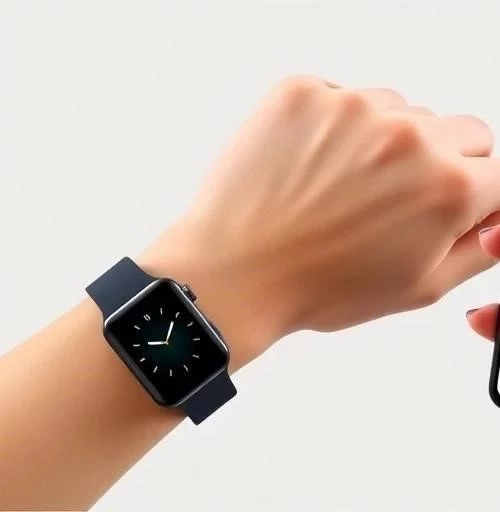
The Huawei Band 6 lets you change its watch face to suit your style, and in many regions you can create a face using a photo from your phone․ You can choose a portrait, a favourite landscape, a pet photo, or another image, then adjust how it appears on the band’s screen․ The setup is done through the Huawei Health app rather than by copying an image directly to the Band 6․
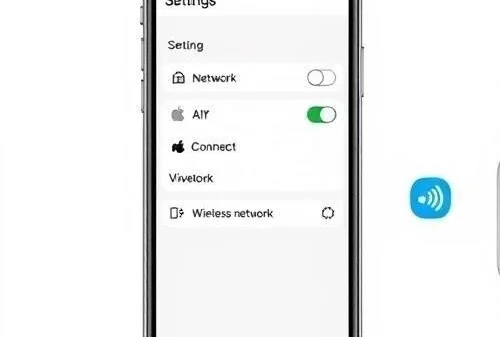
The exact names and positions of options can differ slightly according to your phone, the version of Huawei Health, your region, and the band’s firmware․ If an option described below is missing, first update the app and check that the Band 6 is connected․ The instructions focus on the official Huawei Health app and its built-in watch-face tools․
Before you begin
- Pair the Band 6 with your phone․ Open Huawei Health and confirm that the band appears in the Devices section․
- Check the connection․ Keep Bluetooth switched on and place the band near the phone while a face is being downloaded or transferred․
- Update Huawei Health․ An older app version may display different menus or may not show all available watch-face features․
- Allow photo access․ If the app asks to access your photos, grant permission so you can select an image․ On some phones, you can allow access only to the particular pictures you want to use․
- Charge the band if necessary․ A transfer can fail if the battery is critically low․ It is sensible to start with enough charge on both devices․
Huawei Health is available through different distribution channels depending on the phone and country․ Use the official Huawei app source for your region where possible․ App availability, the watch-face catalogue, and certain customisation features may vary by region and operating system․
How to create a watch face from your own photo
- Open Huawei Health․ Make sure you are signed in if the app asks you to do so․ Check that the app’s home screen shows your current health data or that the band is otherwise recognised․
- Open the device page․ Tap Devices, select HUAWEI Band 6, and look for Watch faces․ Depending on the app version, the watch-face page may first display recommended faces or a catalogue․
- Find the personal or gallery option․ Open Mine, My faces, or a similarly named tab, then choose Gallery, Album, or Custom․ The wording can vary․ If you see a plus sign or an option to add a face, tap it․
- Select a picture․ Choose an image from the phone’s gallery․ A clear, well-lit photo with a subject that is not too close to the edges usually works best․ The Band 6 has a tall, narrow display, so a landscape photo may be cropped more than it appears on the phone․
- Crop and position the image․ Move or zoom the picture in the preview until the important part is visible․ Keep faces, text, and other details away from the screen edges, where they may be cut off or covered by the time․
- Choose a layout or style․ If the editor offers several layouts, select the one that places the clock where it does not obscure the main subject․ Some versions also let you change the colour or appearance of the time and date․
- Preview the result․ Check that the time is easy to read against the background․ A bright image behind light-coloured digits, or a dark image behind dark digits, can make the display difficult to read․ Try another layout or another photo if necessary․
- Apply or save the face․ Tap Set as default, Apply, or the equivalent button․ Keep Huawei Health open and the band nearby while the app transfers the face․ The band should show a progress indicator or update when the transfer is complete․
Once the transfer finishes, wake the Band 6 and check the new face․ If the old face remains visible, wait briefly, then wake the screen again․ You can also return to the watch-face section in Huawei Health and confirm that the custom face is selected or installed․
Choosing a photo that looks good on the Band 6
A custom image is more successful when it is chosen for the shape of the display, rather than simply selected because it looks good on a phone․ A single subject against a relatively uncluttered background is often easier to see than a busy group photo․ Leave some open space in the area where the clock will appear․ If the editor offers more than one clock position, try each preview before applying the face․
- Use a sharp original image․ A small, blurry picture can look soft when enlarged to fill the screen․
- Allow room around the subject․ The editor crops the picture to fit the watch display․ A subject close to an edge may be partly lost․
- Check contrast․ Choose a background that makes the time and date stand out․ Simple colour combinations are usually more readable․
- Avoid important details behind the clock․ A face, sign, or other key feature can be hidden by the time display, depending on the selected layout․
- Preview the crop before applying․ The phone’s full-screen photo preview is not the same as the Band 6 screen preview․
How to install a ready-made watch face
If you do not want to use a personal photo, you can browse the watch faces offered in Huawei Health․ Open Devices, choose HUAWEI Band 6, and go to Watch faces․ Browse the available designs, tap one to view its details, and select Install or Set as default․ Wait for the download and transfer to finish before closing the app or moving the phone out of range․
Some faces are free, while others may be paid or unavailable in a particular market․ The catalogue can also change over time․ A face that appears in an online tutorial may not show up in your app if it has been removed, is not offered in your region, or is incompatible with your software version․ In that case, choose a face that is currently listed for your Band 6․
Changing back to a previous face
To switch back, return to Devices > HUAWEI Band 6 > Watch faces in Huawei Health․ Open the section for installed or personal faces, select the design you want, and apply it․ You can also change the watch face directly on the band if the interface supports it: wake the screen, press and hold the current face, and swipe through the available designs․ Tap the one you want․ The names and available controls may differ slightly by firmware․
If Gallery or Custom is missing
Not every Huawei Health installation displays the same options․ Try these checks before assuming that custom faces are unsupported:
- Confirm the model․ Make sure the selected device is the HUAWEI Band 6, not another wearable paired to the same phone․
- Update Huawei Health and the band․ Check for app updates through the official source you use, and look for a firmware update on the device page in Huawei Health․
- Look in the personal tab․ The photo option may be under Mine or My faces, rather than on the first catalogue screen․
- Review permissions․ In your phone’s settings, check that Huawei Health can access the photos you want to use․ Reopen the app after changing permissions․
- Check the region and phone platform․ Catalogue and editor features can differ by country, app release, and whether you use Android or iOS․ A missing menu may reflect availability rather than a problem with the band․
- Reconnect the band․ If the device page is not updating, switch Bluetooth off and on, open Huawei Health again, and verify the band is connected before retrying․
Do not rely on changing your account region or installing an unofficial app package as a first troubleshooting step․ Such changes may affect access to services, and unofficial software can create security or compatibility problems․ Start with the official app, normal updates, and the options actually available for your account and device․
What to do if the transfer fails
If the face is selected in Huawei Health but does not appear on the band, keep the phone and band close together and allow the transfer time to complete․ Avoid force-closing Huawei Health while the progress indicator is active․ Check that Bluetooth is connected and that neither device has run out of battery․ If the transfer appears stuck, return to the device page, reopen the face, and try applying it again․
If the app reports an error, restart Huawei Health and the phone’s Bluetooth connection, then retry․ You can also restart the Band 6 and check whether the app offers a firmware update․ If other faces transfer successfully but a particular photo does not, try a different image or a smaller, standard photo file․ If nothing transfers, unpairing and pairing again may help, but use that as a later step: follow Huawei Health’s pairing instructions and be aware that reconnecting a wearable can affect what data is currently synchronised․
Can you install a watch-face file manually?
The simplest supported method is to use the watch-face options inside Huawei Health․ The Band 6 is not normally customised by copying an ordinary picture file straight to the band through a computer․ A photo selected in the Gallery editor becomes part of a watch-face layout; it is not merely displayed as a standalone image․ Be cautious with unofficial tools or files that promise extra faces, since they may not match the band’s firmware or could put your account, phone, or device at risk․
Frequently asked questions
Can I use any photo?
You can try most photos that are available in the phone’s gallery, but the result depends on image quality, cropping, and the editor’s options․ A tall or square composition may need less cropping than a wide landscape picture․ Use the preview to check the final layout․
Will the photo face show health information?
That depends on the layout provided by the editor․ Some custom designs may focus mainly on the photo and time, while other watch faces offer additional information such as the date or activity data․ Check the preview and the details shown in Huawei Health before installing․
Does the Band 6 need to stay connected to show the face?
No․ After the face has been transferred, it is stored on the band and can normally be displayed without the phone being connected․ The phone is needed to choose, download, or transfer faces and to synchronise data․
Why does the face look different from the preview?
The small display, crop, clock position, and screen brightness can change how an image appears․ Adjust the crop, choose a different clock layout if available, and check the result on the band itself․ A photo with more negative space often gives the clock a clearer area․
Can I create a different face for every day?
You can change faces whenever you like, provided they are available or installed and the band supports the selected design․ Switching faces manually is the most dependable approach; do not assume that a particular version of Huawei Health or the Band 6 will automatically rotate custom photos․
Quick summary
To set your own watch face on a Huawei Band 6, pair the band with Huawei Health, open Devices, select the band, and go to Watch faces․ Find Mine or Gallery, choose a photo, adjust its crop and layout, preview the clock, and apply the result․ Keep the band close to the phone until the transfer finishes․ If the Gallery option is missing, check app and firmware updates, photo permissions, the selected device, and regional availability․
The best-looking result comes from a sharp image with a clear subject, enough room for the clock, and strong contrast․ Use the official Huawei Health tools where possible, and remember that menu labels and available designs may vary․ With those points in mind, changing the Band 6 face is a straightforward way to make the screen feel personal while keeping the time easy to read․

5 Comments. Оставить новый
Clear and easy to follow so far. It’s useful to know that the photo is set up through Huawei Health rather than transferred directly to the band.
A helpful overview for anyone making a custom photo face for the first time. The notes about app availability and regional differences are good to have.
The advice to keep the band near the phone during transfer is a simple detail, but it could prevent connection problems.
The preparation checklist is especially helpful. Checking the connection and photo permissions first should save a lot of troubleshooting later.
I appreciate the reminder that the menu names and available features can vary by region and app version. That context makes the instructions more practical.