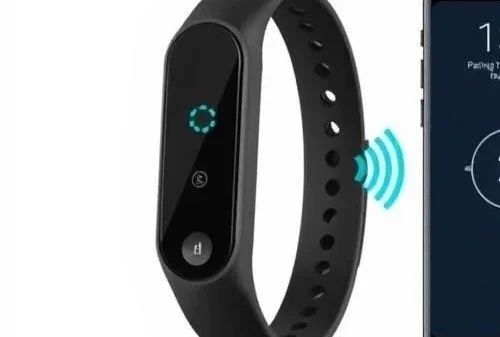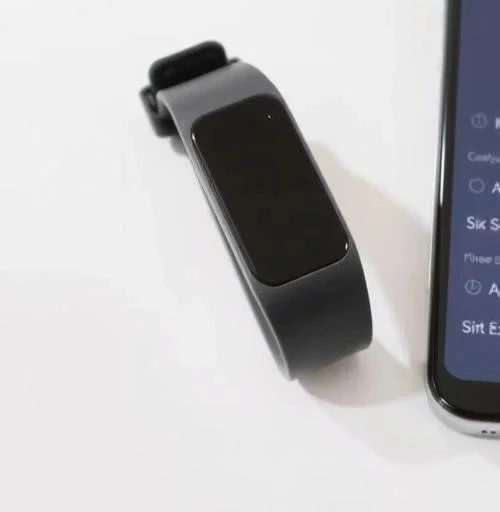
The HUAWEI Band 7 normally gets its time and date from the phone it is connected to. In most cases, you cannot set the clock independently by entering the time directly on the band. To correct an incorrect display, adjust the phone’s date, time, or time zone, then synchronize the band through the HUAWEI Health app.
Quick method: synchronize the band with your phone
- Turn on Bluetooth on your phone and keep it close to the Band 7.
- Open the HUAWEI Health app. Make sure you are signed in if the app requests it.
- On the app’s device screen, select your HUAWEI Band 7. If it is not listed, pair it first using the steps below.
- Wait for the device to show that it is connected or synchronized. Open the app’s home screen and pull down to refresh, if necessary.
- Check the time on the band. It should update to match the phone after synchronization.
Keep the app open briefly while the devices connect. A time update may not happen instantly if the band has been disconnected, the phone’s Bluetooth is off, or the app has been closed for a long time.
Set the correct time on your phone first
If the band is one hour ahead or behind, or shows the wrong date, check the phone before changing anything on the wearable. The band generally follows the phone’s system clock, including its time zone. Menu names vary slightly between phone models and operating-system versions, but the relevant settings are usually under Settings and then Date & time or System;
- Enable Set time automatically or Automatic date and time.
- Enable Set time zone automatically, if this option is available.
- If automatic settings are unavailable or incorrect, choose the right time zone manually and verify the date and time.
- Check whether the phone is using a 12-hour or 24-hour clock. This changes how the time is displayed, not the actual time.
After correcting the phone, return to HUAWEI Health and synchronize the Band 7 again. If the phone itself shows the wrong time, fixing the band alone will not solve the underlying problem.
If the band is not paired yet
Pairing creates the connection the band needs to receive the phone’s time. Charge and switch on the Band 7, enable Bluetooth on the phone, and install or open HUAWEI Health. In the app, open the device area and choose the option to add a device. Select the Band 7 from the list and follow the on-screen instructions. Confirm the pairing request on the phone and, when prompted, on the band.
Use the pairing process inside HUAWEI Health rather than trying to complete setup only from the phone’s general Bluetooth menu. If the band was previously connected to another phone, it may need to be unpaired from that phone or reset before a new pairing can be completed. A factory reset removes information stored on the band, so use it only when needed.
What you can change on the Band 7 itself
The band’s settings can include display, watch-face, and system options, but the exact menus may differ depending on software version and region. Look through the band’s settings for an option related to time format if you want a 12-hour or 24-hour display. This setting affects presentation only; it does not normally let you enter a different current time or time zone.
You can also choose another watch face if you prefer a different clock layout. Some faces show additional information, such as the date, while others emphasize a digital or analogue clock. Changing the watch face does not correct a clock that is out of sync: fix the phone’s time and synchronize first.
Troubleshooting when the time does not update
- Check the connection. Keep the phone and band nearby, turn Bluetooth off and back on, and make sure HUAWEI Health shows the band as connected.
- Refresh the app. Open HUAWEI Health, go to the device page, and wait for synchronization. If needed, close and reopen the app.
- Allow app access. Check that Bluetooth and any requested nearby-device permissions are enabled. On some phones, battery-saving settings can restrict background activity; allow HUAWEI Health to run if the connection keeps dropping.
- Restart both devices. Restart the phone and the band, then reconnect and try synchronizing again.
- Update the software. Check HUAWEI Health for a band firmware update and update the app through the appropriate app store or official channel for your phone.
- Check the time zone again. A wrong time-zone setting commonly causes an exact one-hour difference, especially after travel or a daylight-saving change.
If the band remains wrong, remove it from the app and pair it again. Before resetting or unpairing, make sure any data you want to keep has synchronized to the app. As a last resort, use the band’s reset option, then set it up again in HUAWEI Health. The wording and location of reset controls can vary with the installed software.
After travelling or changing phones
When you cross time zones, the phone may update automatically while the band is disconnected. Once the phone has the correct local time, reconnect the Band 7 and open HUAWEI Health to trigger a fresh synchronization. If you switch phones, pair the band with the new phone through the app and confirm that its date, time, and time zone are correct first.
In short
To set the time on a HUAWEI Band 7, correct the date, time, and time zone on the connected phone, then synchronize the band in HUAWEI Health. The band usually receives its clock information from the phone rather than offering a separate manual clock adjustment. If the display still differs, check the connection, permissions, time zone, and software, then restart or pair the devices again.