
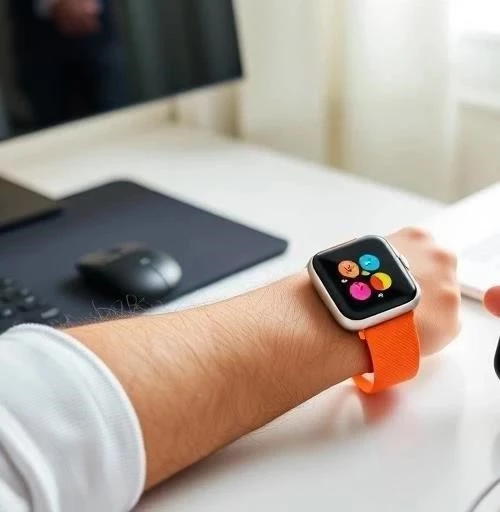
The Q50 looks like a toy-sized wristwatch, but its first setup is more like preparing a tiny two-way radio with a map. It usually needs a compatible SIM card, a phone app and a few carefully checked settings before it can call, send location or make its SOS button useful. Details differ between manufacturers and regional versions, so treat the model’s manual and your carrier’s instructions as the final word.
Check what is in your particular Q50
Before buying or inserting a SIM, look at the watch label, packaging or manual. Many Q50 versions use 2G GSM networks and a micro-SIM, but hardware and SIM sizes can vary. Some mobile networks have shut down 2G, so a card that works in a modern phone may still fail in this watch. Ask the carrier whether it supports the watch’s network bands and offers voice calls, SMS and mobile data. If the watch requires 2G and there is no compatible service in your area, app setup will not fix that limitation.
Charge the watch with its supplied cable. Keep the charging contacts dry and aligned, and allow enough time for the battery to gain a useful charge. Power the watch off before inserting the SIM. Open the SIM cover as instructed; do not force it, since the slot and cover are small. Insert the card in the indicated direction, then close the cover securely.
Prepare the SIM before it goes in
Test the SIM in a phone first. Confirm that it can make a call, has mobile data enabled and has no outstanding balance or service restriction. Turn off the SIM’s PIN lock: many watches cannot enter a PIN, and a locked card may appear completely dead. If your carrier requires APN settings, ask for the correct values for that exact plan. Do not guess them from a random online list.
Some Q50 versions use text messages for setup commands; others obtain settings differently. Use only commands documented for your model and carrier. Sending the wrong command may change network settings or simply do nothing. Reinsert the prepared SIM, power on the watch and wait a minute or two for it to register. A network icon, signal bars or successful call is a useful first sign.
Install the companion app and bind the watch
Many Q50 watches are sold with the SeTracker or SeTracker2 app, but the correct app depends on the device’s firmware and seller. Scan the QR code in the watch’s manual or packaging, and verify the app name before installing it from an official app store. Be wary of look-alike apps and QR codes from unrelated pages.
Open the app, create an adult account and choose the correct region or server if asked. Find the watch’s registration or device ID: it may be printed on a label, shown as a QR code, or available in the watch menu. Scan or enter that ID, then give the watch a clear name, such as “Mia’s watch.” If the app says the device is already bound, contact the previous owner or seller. Do not share the watch ID publicly; it is a device identifier, not a decoration.
Set the essentials before handing it over
- Set the time and time zone. Many models sync from the app; others need a manual setting. Check the display after saving.
- Add trusted contacts. Enter parents’ and caregivers’ numbers in the app’s phonebook. Follow the app’s number format, including country code when required.
- Configure SOS numbers. Add the adults who should receive an emergency call. Test the sequence with them present, and explain to the child what the button does.
- Choose location and geofence options. Set a sensible safe area only after the watch reports its position reliably. A boundary alert is a prompt to check, not proof that a child is in danger.
- Review school mode and alarms. Set quiet periods around real school hours, but make sure SOS or essential calls remain available as intended.
Location can come from GPS, nearby Wi-Fi or mobile networks. Indoors, in dense buildings or where cellular coverage is weak, the dot may be approximate, delayed or missing. Take the watch outside for an initial location check, then compare the result with a known place. Refreshing repeatedly will not make a weak signal stronger.
Make a calm first-day test
Call the watch from an approved contact, then call back from the watch if its version supports outgoing calls. Check that the microphone and speaker are clear, the correct names appear and the SOS button reaches the intended adult. Send a location request and confirm that the app updates. Test alarms and school mode too. Keep the test brief and reassuring: the watch is a communication aid, not a tiny supervisor.
When something does not work
- No signal: Check the SIM orientation, active service, coverage, PIN lock and network compatibility. Restart the watch after changes.
- Calls fail: Confirm that the plan permits voice calls and that contacts use the required number format. Some versions restrict calls to saved numbers;
- App cannot bind: Recheck the device ID, region/server and internet connection. A device already linked to another account may need the seller’s help.
- Location is stale: Take the watch outdoors, check mobile data and wait for a fresh update. Confirm app permissions and location settings on the parent’s phone.
- Battery drains quickly: Weak signal, frequent location requests and constant screen use can increase power use. Charge fully, reduce unnecessary updates and inspect the cable and contacts.
Privacy, comfort and care
Use a strong password for the parent account and share access only with trusted caregivers. Review what location data the app collects and who can see it. Tell the child, in age-appropriate language, what the watch can and cannot do; avoid presenting tracking as a substitute for conversation. Check the strap for tightness and skin irritation, and follow the manual’s guidance about water. “Water-resistant” does not automatically mean suitable for swimming or bathing.
The best Q50 setup is not the one with the most alerts. It is the one that has a compatible connection, a short list of trusted contacts, a tested SOS routine and expectations your child understands. Once those pieces are in place, the little watch can do its quiet job: help a family reach one another when it matters.

2 Comments. Оставить новый
A useful, refreshingly grounded guide to a setup process that can turn into a maze of tiny slots and mysterious carrier settings. I like the advice to test the SIM in a phone first; it turns troubleshooting from guesswork into a simple checkpoint before the watch enters the picture.
This guide treats the Q50 less like a gadget and more like a tiny traveler who needs the right passport: compatible network, unlocked SIM, and correct settings. The reminder to check whether 2G still exists locally is especially valuable—no amount of app tapping can summon a retired network.