
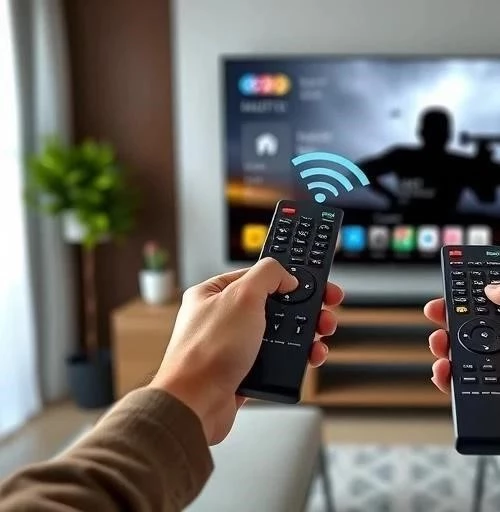
A universal remote is a small diplomat: it persuades a television, set-top box, air conditioner, or other device to obey one set of buttons. With Huawei, though, “universal remote” can mean several different things. You might be using a Huawei phone with an infrared transmitter, pairing a Bluetooth remote with a Huawei TV, or configuring a third-party remote to control Huawei equipment. The right setup depends on which of these you have.
This guide helps you identify your route, connect the remote, and solve the most common problems—without guessing at codes or pressing every button in the room.
First, identify your equipment
Look at the remote and the device you want to control. A phone-based remote needs an infrared (IR) blaster: a tiny transmitter, usually on the top edge of the phone. Many Huawei phones do not have one, so check your exact model’s specifications before installing an app. An app cannot create infrared hardware that the phone does not contain.
- Huawei phone with an IR blaster: You can usually control compatible appliances through a remote-control app.
- Huawei phone without an IR blaster: It may control supported smart devices over Wi-Fi, but it will not send ordinary IR commands by itself.
- Huawei TV or set-top box: Its remote may use infrared, Bluetooth, or both. Pairing steps depend on the model.
- Third-party universal remote: You will need its setup procedure and the code list for the brand of the device being controlled.
One useful distinction: Huawei’s AI Life app is mainly for managing compatible smart-home products. It is not automatically a universal infrared remote for every Huawei phone. Likewise, a “universal remote” app downloaded from an app store works only if its connection method matches your phone and appliance.
Set up a Huawei phone as an infrared remote
- Confirm the IR transmitter. Search the phone’s specifications for “infrared,” “IR blaster,” or “consumer infrared.” Do not rely on the phone’s shape: a dark opening may be a microphone or sensor instead.
- Open the built-in remote app. On supported models, look for an app named Remote Control, Smart Remote, or similar. Names and availability vary by model, region, and software version. If you cannot find it, check the app drawer and the manufacturer’s support information.
- Add an appliance. Choose the device category—such as TV, air conditioner, or set-top box—and then select its manufacturer. Search by the exact brand printed on the appliance, not just the retailer’s name.
- Test the suggested profile. Point the top of the phone toward the device, stand a few metres away, and tap the on-screen power button. If the appliance responds, confirm the prompt and test volume, channel, or temperature controls.
- Try another profile if needed. Some brands use several IR code sets. If power works but other buttons do not, or nothing happens, move to the next offered profile and test again.
- Save and name the remote. Give it a clear label such as “Living-room TV.” If the app allows rooms or favourites, use them to keep several appliances from becoming a mystery drawer of icons.
Infrared is line-of-sight technology: the signal travels like an invisible flashlight beam. Aim the phone at the appliance’s IR receiver, usually near the front panel, and remove objects blocking the path. Bright sunlight or certain fluorescent lights can sometimes interfere, so test indoors with a clear view.
If you are using a third-party universal remote
Most physical universal remotes offer one of two methods: direct code entry or automatic code search. The exact button sequence is specific to the remote’s manufacturer, so use the instructions supplied with that remote rather than borrowing a sequence from a different model.
Code-entry method
- Find the code list for the remote’s make and model. Look under the brand of the appliance you want to control. A Huawei television may appear under “Huawei,” but a box connected to it needs the code for the box’s own brand.
- Switch on the appliance manually. Put fresh batteries in the remote and keep it pointed toward the device.
- Follow the remote’s instructions to enter setup mode, choose the device type, and enter a listed code.
- Test several functions—not only power. Try volume, input/source, navigation, and channel controls. If the basic buttons work but important features do not, try another code from the list.
- Exit setup as directed and write the successful code inside the battery cover or in a note on your phone.
Automatic code search
If there is no code list, the remote may scan codes one at a time. Put the appliance in its normal operating state, enter the search mode described in the manual, and point the remote steadily at the device. When the appliance responds—often by switching off—stop the scan immediately and store the code using the remote’s specified button. Then turn the appliance back on and test the other controls. A search can pass the right code if you wait too long after the first response.
Pair a Huawei TV remote over Bluetooth
A Bluetooth remote does not need to be pointed directly at the television once paired, but it does need to establish a connection first. Put in fresh batteries, switch on the TV, and open its settings. Look for a menu such as Remotes and accessories, Bluetooth devices, or Remote control pairing. Menu names vary by TV software.
Choose the option to add or pair a remote, then press and hold the pairing combination stated in the TV’s on-screen instructions or manual. The buttons and hold time differ between remote models, so there is no single safe combination for every Huawei TV. Keep the remote close to the television while it searches. When its name appears, select it and wait for the confirmation message.
If the original remote still controls the TV, use it to reach the pairing menu. If it does not, consult the model-specific manual for an alternative, such as a physical button on the TV. Do not assume that a universal IR remote can perform Bluetooth pairing: it can only send the signals its hardware supports.
Troubleshooting: follow the signal
- No response from a phone remote: Confirm that the phone has an IR blaster, the correct app is open, and the phone is aimed at the receiver. Remove the case if it covers the transmitter.
- Power works, but other buttons fail: Try a different device profile or code. Some code sets support only basic functions.
- The remote works only from very close up: Replace the batteries in a physical remote. For a phone, check that the IR window is clean and unobstructed.
- Bluetooth pairing will not finish: Move closer, restart the TV and remote, check the batteries, and remove an old remote entry from the TV’s Bluetooth list before trying again.
- The TV responds to another room’s remote: Several devices may share similar IR codes. Change the device profile if possible, or use Bluetooth pairing where the equipment supports it.
- The app is missing: Check the phone’s model-specific support page and available official app store. Availability differs by region and software version; avoid apps that claim to add IR control to a phone without IR hardware.
A few habits that make setup easier
Test one appliance at a time. Keep the TV remote separate from the set-top-box remote until each is working, and label saved profiles clearly. If you are configuring an air conditioner, check more than power: temperature, fan speed, and operating mode may use different commands. Some appliances also display a confirmation light or beep, which can help you tell whether a signal arrived.
Finally, remember that “universal” means broad compatibility, not identical features everywhere. A remote may switch a TV on and off yet lack its voice search, home screen, or Bluetooth functions. For those features, the original remote may still be necessary.
The quick answer
For a Huawei phone, first verify that the model has an IR blaster; then open its built-in remote app, add the appliance by type and brand, and test the offered codes while aiming at the receiver; For a Huawei TV remote, identify whether it uses IR or Bluetooth and follow the model’s pairing instructions. For a third-party universal remote, use that remote’s own code-entry or auto-search procedure. Once you know which signal you are setting up, the process stops being a guessing game—and becomes a neat little handshake between devices.



6 Comments. Оставить новый
This reads like a calm technician standing beside you, not a manual shouting model numbers from across the room. The opening equipment check makes the whole setup feel much less mysterious.
A good troubleshooting guide begins by stopping the wrong experiment. The reminder that software cannot conjure an IR transmitter is simple, memorable, and likely to spare a few frustrated button-mashing sessions.
The strongest advice here is the least glamorous and most useful: check for an IR blaster before downloading anything. That tiny hardware detail saves readers from a whole afternoon of asking an app to perform magic.
The distinction between AI Life and an infrared remote is especially welcome. App names can sound like promises; this guide checks what the hardware can actually do.
The article’s best trick is replacing guesswork with identification: first find out what sends the signal, then choose the setup. Even a universal remote, it turns out, appreciates being introduced properly.
I like how the guide separates phones, TVs, and third-party remotes instead of treating “universal” as a spell that fixes everything. It turns a confusing drawer of gadgets into a clear decision tree.