
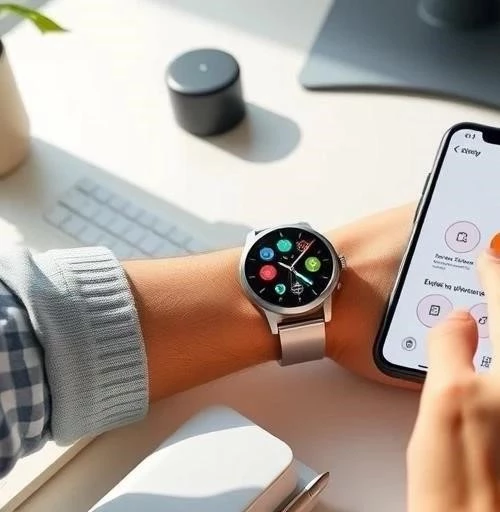
“Watch 8 Pro” is a name used for more than one smartwatch, and the setup process can differ between manufacturers and versions. The watch’s manual, packaging, and companion app are the best sources for model-specific instructions. The steps below describe a general setup process for a Bluetooth smartwatch. Menu names and available features may vary.
Prepare the watch and phone
Charge the watch before setting it up. If it has a protective film over the charging contacts, remove it, then connect the supplied cable or charging dock as described in the manual. Allow enough time for the watch to start; a very low battery can delay setup. Keep the watch near your phone while pairing.
On the phone, turn on Bluetooth and check that the phone has an internet connection. If the watch requires a companion app, identify the correct app from the manual, a manufacturer’s official website, or a QR code supplied with the device. App names can be similar, so avoid choosing an app solely because its name contains “Watch 8 Pro.” Download apps from a trusted app store rather than from an unknown link.
Start the watch and choose basic settings
- Press and hold the power or side button until the screen turns on. The button location and startup time depend on the model.
- Select a language if the watch displays a language menu.
- Follow any on-screen prompts. Some models show a QR code for installing the companion app or pairing the watch.
- If prompted, select your region or agree to the device’s setup terms after reviewing them.
If the screen does not respond, connect the watch to its charger and try again. Do not force the watch open or use an unapproved charger. Consult the manual if the device does not start after charging.
Install the companion app and pair
Open the app identified for your particular watch and follow its instructions. Create or sign in to an account only if the app requires one. Choose an option such as Add device, Pair device, or Bind watch, then select the watch when it appears. The name shown in the app may differ from “Watch 8 Pro.”
Confirm the pairing code on both the phone and watch if one is displayed. Keep the devices close together and leave Bluetooth enabled until setup is complete. If a permission request appears, consider what it enables before accepting. Notifications, contacts, location, and health-related access may be needed for particular features, but not every permission is necessary for basic timekeeping.
Some watches must be paired from inside their companion app rather than from the phone’s Bluetooth settings. If pairing fails, remove an incomplete watch entry from the app and, if appropriate, from the phone’s Bluetooth list. Restart both devices and try again using the app’s pairing instructions. Avoid pairing the same watch repeatedly under several Bluetooth names;
Set the time, date, and display
Many paired watches copy the time, date, and time zone from the phone. Check that the phone’s date and time are correct and set to automatic adjustment if that option is available. If the watch remains incorrect, look in the app or watch settings for Date and time, Time zone, or a synchronization option. Some models do not permit manual time adjustment while connected.
Choose a watch face from the watch or companion app, if supported. You may also be able to adjust brightness, screen timeout, vibration, and whether the display wakes when you raise your wrist. These options can affect battery life. Start with comfortable brightness and a short screen timeout, then change them as needed.
Configure notifications and other features
In the app, open the notification settings and select which phone apps may send alerts to the watch. The phone may also need to allow notifications for the companion app. If alerts do not appear, check both sets of settings and confirm that Do Not Disturb or a similar mode is not enabled on either device.
If the watch offers activity or health features, complete only the profile details you are comfortable providing. Wear the device as instructed for more consistent readings, and review the app’s explanation of each measurement. Consumer smartwatch measurements are estimates and are not a substitute for medical advice or clinical equipment.
Other optional settings may include alarms, reminders, weather, music controls, and firmware updates. Features such as calling, contact synchronization, or payments may require extra permissions, a compatible phone, or additional setup. Availability depends on the exact model and the app.
Updates, troubleshooting, and reset
After pairing, check the app or watch settings for a software update. Keep the watch charged and close to the phone while an update installs; do not switch off either device during the process. Updates can take several minutes, and the watch may restart.
- Watch not found: Charge it, keep it close to the phone, enable Bluetooth, and make sure it is not already connected to another phone.
- Pairing keeps failing: Restart both devices, update the companion app, and repeat the pairing steps in the app.
- Time or notifications are wrong: Check phone settings, app permissions, synchronization, and Do Not Disturb modes.
- Battery drains quickly: Reduce brightness, limit notifications, and review continuous monitoring or display settings.
A factory reset may erase watch settings and stored data. Use it only when ordinary troubleshooting fails, and first check whether the app can back up or synchronize information. Find Reset or Factory reset in the device’s settings or manual, then pair the watch again if needed. Exact menu paths vary, so use instructions for the specific Watch 8 Pro version.
6 Comments. Оставить новый
The setup steps are organized in a clear sequence, from charging the watch to pairing it with a phone.
The article appropriately avoids presenting one procedure as universal and reminds readers to consult the model-specific manual.
The troubleshooting advice is measured and directs readers to the manual when basic startup steps do not work.
The advice to verify the companion app through official sources is a practical safety point.
The article clearly notes that setup instructions can vary by manufacturer and model, which is useful for readers with a Watch 8 Pro.
The notes about keeping the watch near the phone and checking Bluetooth make the pairing guidance easy to follow.