
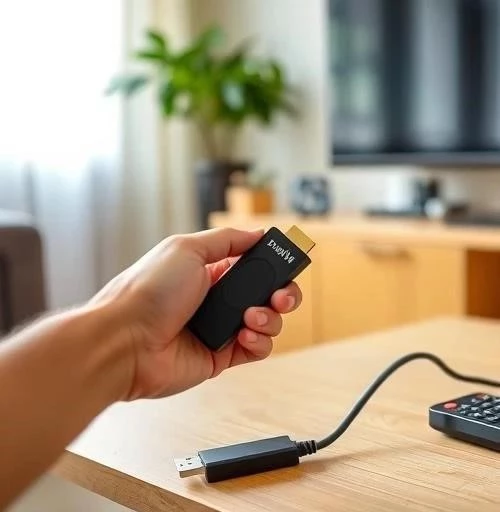
The Xiaomi Mi TV Stick adds streaming apps and online video to a television with an HDMI input. Setup is straightforward, but the order matters: connect the stick, select the correct input, then complete the on-screen network setup. Follow these steps to avoid common power and pairing problems.
Before you begin
Check that your TV has a working HDMI port and that your Wi-Fi network is available. Keep the Mi TV Stick, its power cable and adapter, and the remote control nearby. You will also need two AAA batteries for the remote, if they are not already installed. A Google account is useful for downloading apps, but you do not need a Xiaomi account just to connect the device.
Connect the stick to your TV
- Insert the Mi TV Stick into an available HDMI port. If the space behind your television is tight, use the supplied HDMI extension cable, if included.
- Connect the USB power cable to the stick and to its power adapter. Plug the adapter into a wall outlet. Although a TV’s USB port may appear convenient, it can provide too little power and cause restarts or failed startup; the supplied adapter is the more reliable choice.
- Turn on the television and use its Input, Source, or HDMI button to select the port used by the stick. If you see a blank screen, check the selected HDMI number and make sure the device is receiving power.
Pair the remote and finish setup
Insert the batteries and follow the instructions on screen. If the remote does not respond, move close to the stick and hold the Home and Menu buttons together for several seconds to start pairing. Button names or pairing prompts can vary slightly by model, so use the screen’s instructions when available.
- Choose your language and region.
- Select your Wi-Fi network and enter its password carefully. The stick needs internet access to load streaming services and install updates.
- Sign in with a Google account, or follow the available setup options to continue. Review any prompts about diagnostics or recommendations and choose your preferred settings.
- Allow the device to check for updates, then open an app or install one from Google Play.
If something goes wrong
If the screen says “No signal,” confirm the TV’s HDMI input and reseat the stick. If it keeps restarting, use the wall adapter rather than the TV’s USB port. For Wi-Fi trouble, check the password, move the router closer, or restart the router and stick. If the remote remains unresponsive, replace its batteries and repeat the pairing step.
Once setup is complete, the Mi TV Stick works through the TV’s selected HDMI input. Keep the stick ventilated and the Wi-Fi signal stable for smoother playback. These simple checks solve most connection issues without changing advanced settings or resetting the device.
8 Comments. Оставить новый
The article sensibly lists the equipment to prepare before beginning, including the AAA batteries. This makes the setup process easier to complete without interruption.
The setup sequence is clear and practical. In particular, explaining that the TV’s USB port may not supply enough power can save users from confusing restarts with a faulty stick.
The Wi-Fi and account setup details explain why an internet connection is needed, rather than presenting those steps as arbitrary requirements. That context makes the instructions more useful.
I appreciate the reminder to select the correct HDMI input after connecting the device. That simple check is a useful first step when the screen stays blank.
The remote-pairing advice is helpful, especially the suggestion to move closer to the stick and follow the on-screen directions. Noting that button names can vary avoids treating one model’s instructions as universal.
The troubleshooting tips are placed at the right points in the instructions: check the HDMI selection for a blank screen and use the supplied power adapter for more reliable startup.
This is an accessible guide for someone setting up a streaming stick for the first time. The short, ordered steps make the process easy to follow.
It is useful that the guide distinguishes between a Google account and a Xiaomi account. That clarification helps readers understand which login is relevant to downloading apps.