
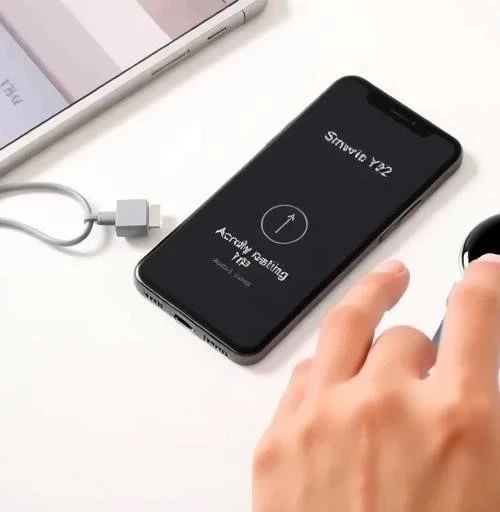
Setting up a Y92 smartwatch usually involves charging it, pairing it with a compatible phone, and checking the watch’s basic settings․ The exact menus and companion app can differ between Y92 versions and sellers, so use the instructions supplied with your particular watch as the final authority․ Do not assume that an app recommended for another watch with a similar name will work: confirm the app name or QR code in the Y92 manual or on its packaging․
Charge and prepare the watch
Before pairing, charge the watch․ Find the charging contacts on its back and align them with the charger; magnetic charging cables should attach naturally․ Connect the cable to a reliable USB power source and allow the watch to charge․ If the screen does not respond immediately, leave it connected for a while before trying again․ Avoid forcing the connector or using a damaged cable․
Turn the watch on by pressing and holding its power or side button until the screen lights up․ If nothing happens, check that the charger is aligned and that the power source is working․ Remove any protective film covering the charging contacts․ Keep the watch and charger dry unless the manual specifically allows charging in wet conditions; water resistance does not mean the charging contacts should be wet․
Install the correct companion app
On your phone, scan the setup QR code shown by the watch or printed in its manual, if available․ Check that the resulting app is offered through the official Apple App Store or Google Play Store, and compare its name with the manual․ If there is no QR code, use the manual’s stated app name․ Avoid downloading an unknown installation file from an advertisement or an unrelated website․
Open the app and create an account or sign in if required․ Review its requested permissions․ Bluetooth access is generally needed for pairing; notifications, contacts, location, or health-related permissions may support particular features․ Allow only what you need, bearing in mind that phone operating systems sometimes require location permission for Bluetooth scanning․ You can review or change permissions later in your phone’s settings․
Pair the Y92 with your phone
- Turn on Bluetooth on the phone and keep it near the watch․ If the app asks for location access to find nearby devices, allow it while pairing․
- In the companion app, open a section such as Device, Add device, or Bind device․ Start a scan and choose the Y92 entry that appears․ If several devices are listed, compare their names with the watch’s screen or manual․
- Confirm the pairing request on both devices if prompted․ Wait for the app to report a connection, then allow a few moments for the watch to synchronise its time and settings․
For many smartwatches, setup and data synchronisation happen inside the companion app․ If the Y92 manual instructs you to connect a second Bluetooth entry for calls or audio, follow those steps only after the primary app pairing is complete․ Do not pair every similarly named entry at random: doing so can create duplicate connections or interfere with notifications․
Set time, notifications, and preferences
Once connected, the watch will often take the time and date from your phone․ Check that the phone itself has the correct time zone and automatic date and time enabled․ If the watch shows the wrong time, open the companion app, keep Bluetooth on, and synchronise again․ Restart both devices if the time does not update․
In the app, choose which phone apps may send notifications to the watch․ Enable notification access when prompted, then select only the alerts you want․ On iPhone or Android, system notification settings may also need to permit alerts․ Test with a message or call while the phone is locked․ Keep the phone and watch connected, and check that Do Not Disturb, battery-saving, or focus settings are not silencing alerts․
Use the app or watch menus to adjust options such as the display, watch face, vibration, units, alarms, and activity reminders․ Menu names vary, so change one setting at a time and check the result․ If the watch offers health or activity tracking, wear it snugly but comfortably and treat readings as estimates, not medical measurements or a substitute for professional advice․
Troubleshooting common setup problems
- The watch is not found: Charge and restart it, bring it close to the phone, turn Bluetooth off and on, and scan from the companion app․ Check that the app has the permissions required by your phone’s operating system․
- Pairing fails or keeps disconnecting: Remove an incomplete Y92 entry from the phone’s Bluetooth settings and, if applicable, the app․ Restart both devices and pair again from inside the app․ Do not reset the watch until simpler steps have failed․
- Notifications do not arrive: Confirm the app connection, selected notification categories, phone notification access, and the watch’s silent or Do Not Disturb mode․ Check whether background restrictions are stopping the companion app․
- The app cannot be identified: Stop rather than guessing․ Check the printed manual, QR code, seller’s support information, and the exact model label․ Similar-looking watches may use different apps and may not support the same functions․
Reset only as a last resort
If setup still fails, look in the manual for the Y92’s reset procedure․ A factory reset may erase settings and locally stored data, and you may have to pair the watch again․ Before resetting, update the companion app from its official store and make sure the phone’s operating system is compatible․ If the watch cannot charge, start, or appear in the specified app, contact the seller or manufacturer with the model details and a description of the problem․
Final checklist
A successful setup means the watch is charged, connected through the correct app, showing the right time, and receiving the notifications you chose․ Make one test call or message, then check that the connection remains active․ Keeping the app installed, Bluetooth enabled, and the watch charged will help maintain synchronisation․ Because Y92-labelled products may differ, the supplied manual—not a guessed menu path—is the best guide whenever an instruction here does not match your screen․
5 Comments. Оставить новый
This guide takes a sensible approach by acknowledging that Y92 models and sellers may differ. Referring readers to the manual for their specific device makes the advice more reliable than presenting one set of menus as universal.
The advice to verify the companion app using the watch’s own manual or QR code is especially useful. Watches with similar names may use different apps, so this precaution can prevent wasted time and avoid downloads from untrusted sources.
The charging instructions are practical and safety-conscious. In particular, noting that water resistance does not necessarily make wet charging contacts safe is a helpful distinction that smartwatch owners can easily overlook.
I appreciate the balanced explanation of app permissions. It clarifies why Bluetooth is generally needed while encouraging readers to consider whether they actually want to grant access to contacts, notifications, or other data.
The troubleshooting suggestions are clear and appropriately cautious: check the charger alignment and power source rather than forcing a connector. The guide would be even stronger if it continued with the actual pairing steps, but the preparation advice is sound.