
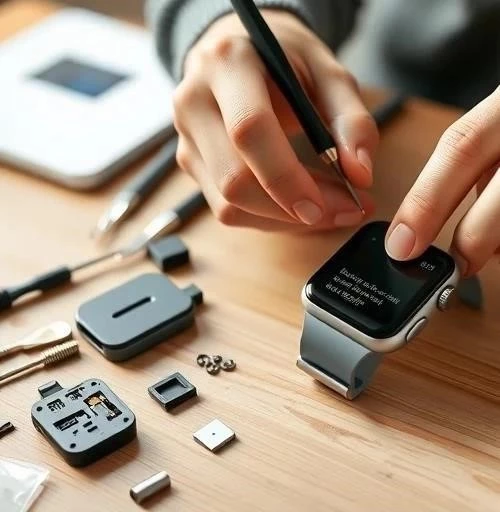
You can’t realistically manufacture an Apple Watch at home: its display‚ processor‚ sensors‚ battery‚ and sealed case are precision-engineered parts. But you can make one feel remarkably personal. Think of the watch as a small stage: you choose its look‚ decide what it tells you‚ and give it a role in your day. Here’s how to set one up and create a custom watch face—without a factory‚ a soldering iron‚ or a very tiny assembly line.
What you’ll need
- An Apple Watch and a compatible iPhone‚ both charged.
- Your Apple Account password and access to Wi-Fi or cellular service.
- A band that fits your watch case and suits your plans.
- A few minutes to decide what you want your wrist to do for you.
Pair the watch with your iPhone
Turn on the watch by pressing and holding its side button until the Apple logo appears. Bring it near your unlocked iPhone. When the pairing prompt shows up‚ tap Continue; if it doesn’t‚ open the Watch app on the iPhone and choose Pair New Watch. Follow the on-screen instructions. You can set the watch up for yourself or‚ where supported‚ configure it for a family member.
During setup‚ choose whether to restore a backup or start fresh‚ sign in when asked‚ and create a passcode. The passcode helps protect information on your watch; don’t choose one you’ll forget. Select which apps and settings to share‚ then let syncing finish. Keep the devices close together and connected to power if the process takes a while. Setup screens and available features can vary by model‚ software version‚ region‚ and iPhone.
Dress your wrist-sized dashboard
Press the band-release button on the back of the watch and slide the old band out. Slide the new band in until it clicks into place; never force it. Check that it’s secure before wearing the watch. A snug‚ comfortable fit helps the sensors work‚ while a band suited to your activity keeps the whole setup practical; You’re not just choosing a color—you’re setting the costume for the day’s main character.
Create a face with a point of view
Press and hold the current watch face‚ then swipe through the faces available on your watch. Tap Edit to adjust options such as color‚ style‚ or complications. A complication is a small information tile—for example‚ weather‚ calendar‚ activity‚ or a timer. Turn the Digital Crown to browse choices‚ tap a position to select it‚ and choose what should appear there. Press the Crown when you’re finished‚ then tap the face to use it.
For a photo face‚ open the Watch app on your iPhone and look for the face gallery. Choose a photo-based face‚ select images or an album‚ adjust its appearance and available details‚ then add it to your watch. Try a close-up of a leaf‚ a favorite illustration‚ or a snapshot of a place you want to remember. Leave room for the time to stay readable: a beautiful background that hides the clock is more art than instrument.
Make it useful‚ not noisy
In the Watch app‚ explore My Watch to manage notifications‚ apps‚ and settings. Turn on alerts you genuinely need and quiet the ones that only borrow your attention. Review health and fitness settings‚ including your personal details and activity preferences‚ before relying on measurements. Features differ across models‚ and a watch is not a substitute for professional medical advice.
Give your face a job. A workday face might show your next appointment‚ weather‚ and a timer. A weekend face could feature photos and activity. You can switch faces by pressing and holding the display and swiping‚ or use the face-management options available in your software. The idea is to make the right glance easier than reaching for your phone.
Test the tiny invention
Put the watch on‚ check that the band is secure‚ and try a few basics: raise your wrist to wake the display‚ press the Digital Crown to open apps‚ and use the side button for the controls shown on your model. If something doesn’t work‚ check Bluetooth‚ Wi-Fi‚ battery level‚ and whether setup or software updates are still running. Keep the watch‚ iPhone‚ and apps updated using Apple’s built-in settings.
A final‚ honest answer
Making an Apple Watch from raw components is a specialist manufacturing project; making it your Apple Watch is an afternoon-sized creative one. Pair it‚ fit it‚ build a face around the information you care about‚ and trim away distractions. The finished device may come from a factory‚ but the little world it displays can be entirely yours.


5 Comments. Оставить новый
Clear, friendly, and refreshingly honest about what cannot be done at home. The band-fit advice is a small detail with big value—comfort and good sensor readings deserve equal billing.
A practical guide with a surprisingly human pulse. The reminder to choose what you want your wrist to do for you is a lovely way to begin before tapping through menus.
The “very tiny assembly line” made me smile. More importantly, the article draws a useful boundary between building the hardware and making the experience your own.
This makes customization feel less like decorating a gadget and more like casting a character for the day. I’d happily read a follow-up on matching watch faces to different routines.
I love the idea of treating a watch face like a tiny stage. It turns setup from a checklist into a little act of design—and reminds us that the best tech is the kind that knows its supporting role.